
Operating System
Cyber threats evolve daily, but these 10 actionable tactics will fortify your Windows or Mac against hackers, malware, and data breaches. Whether you're a casual user or tech-savvy professional, these proven methods require minimal effort for maximum security.
Enable two-factor authentication everywhere
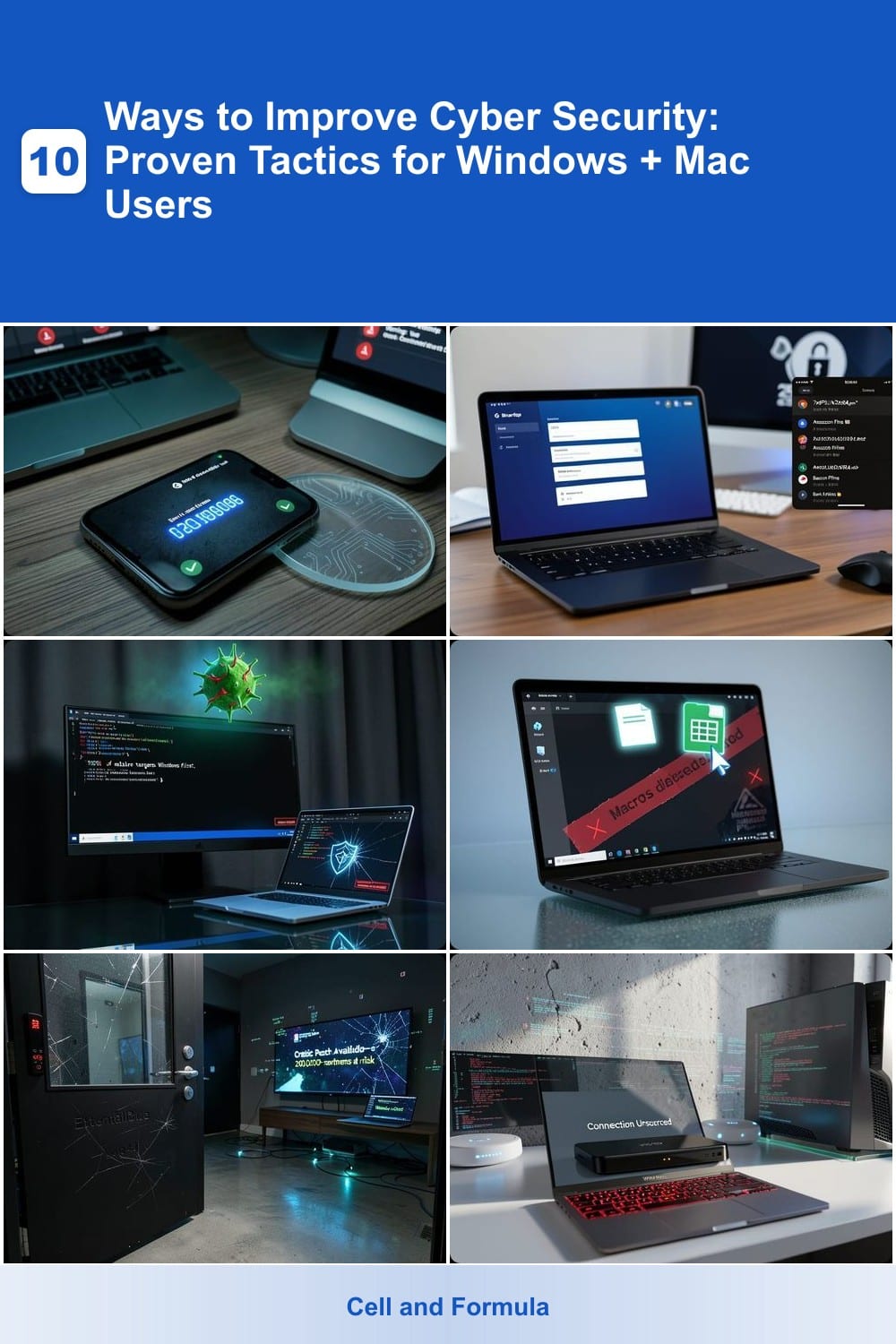
Your passwords alone aren’t enough to stop hackers—99.9% of account takeovers happen because they’re the only barrier. Two-factor authentication (2FA) adds that critical second layer, making your accounts nearly impenetrable even if someone steals your password.
Most services now support SMS codes, authenticator apps (like Google Authenticator or Authy), or hardware keys—all of which are stronger than passwords alone. For banking or email, TOTP (time-based codes) are the gold standard, while security keys (like YubiKey) offer the highest protection for high-value accounts. Setup takes just minutes, and the peace of mind is worth it.
This is non-negotiable for anyone with a bank account, email, or cloud storage—start with your most critical accounts first. ⚡
Use a password manager for all accounts
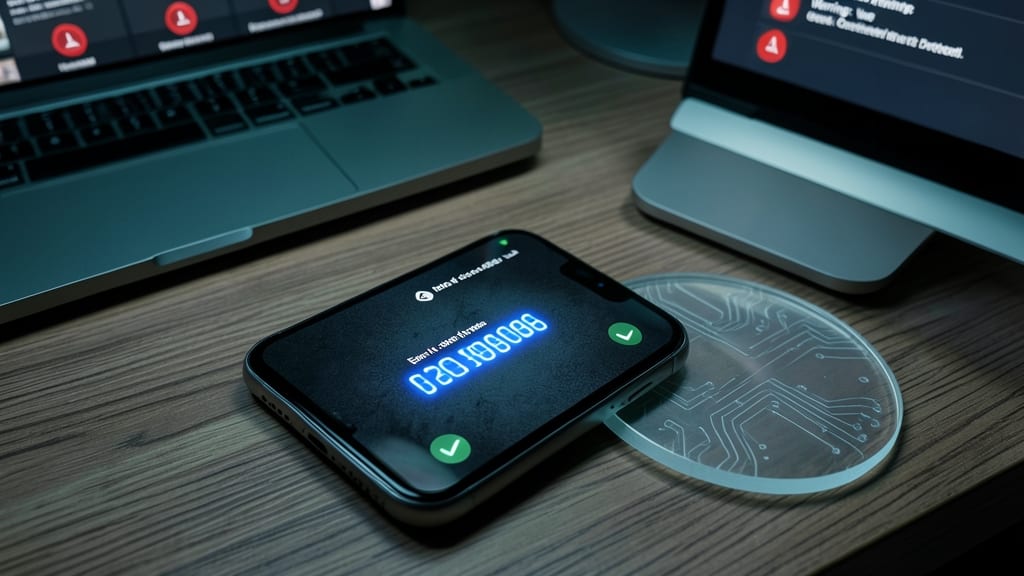
Tired of remembering endless passwords—or worse, reusing weak ones? A password manager like Bitwarden or 1Password eliminates this headache by generating and storing 256-bit encrypted credentials, ensuring each account has a unique, unguessable password.
These tools reduce phishing risks by 80% through secure vaults and autofill, while syncing across devices with zero-config setup. Features like two-factor authentication integration and breach alerts keep you ahead of threats. Most offer free plans with unlimited password storage, making them accessible for everyone.
Perfect for busy professionals juggling work and personal accounts, or anyone who’s ever clicked "I forgot my password" one too many times. 💻
Install real-time antivirus with behavioral analysis
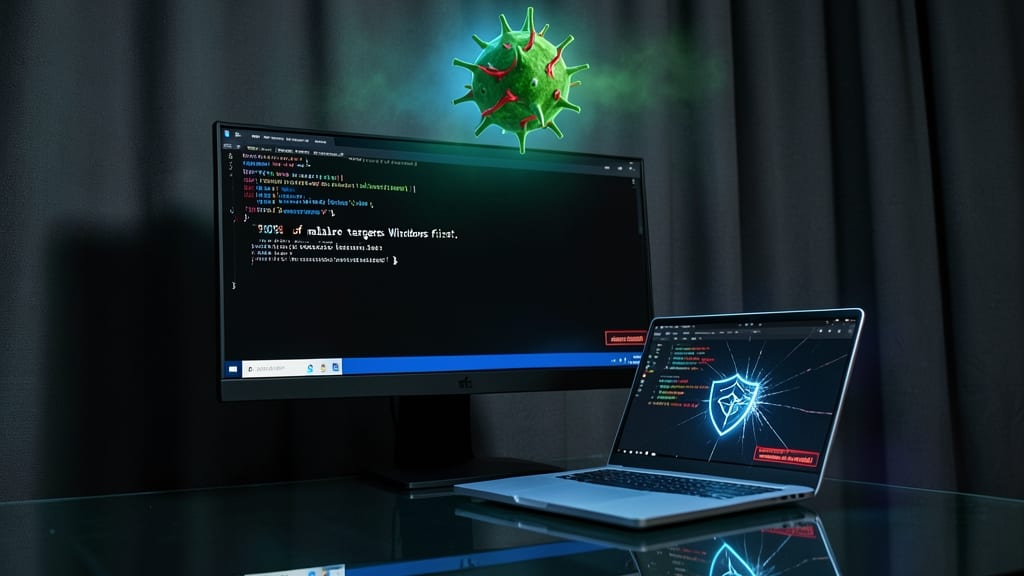
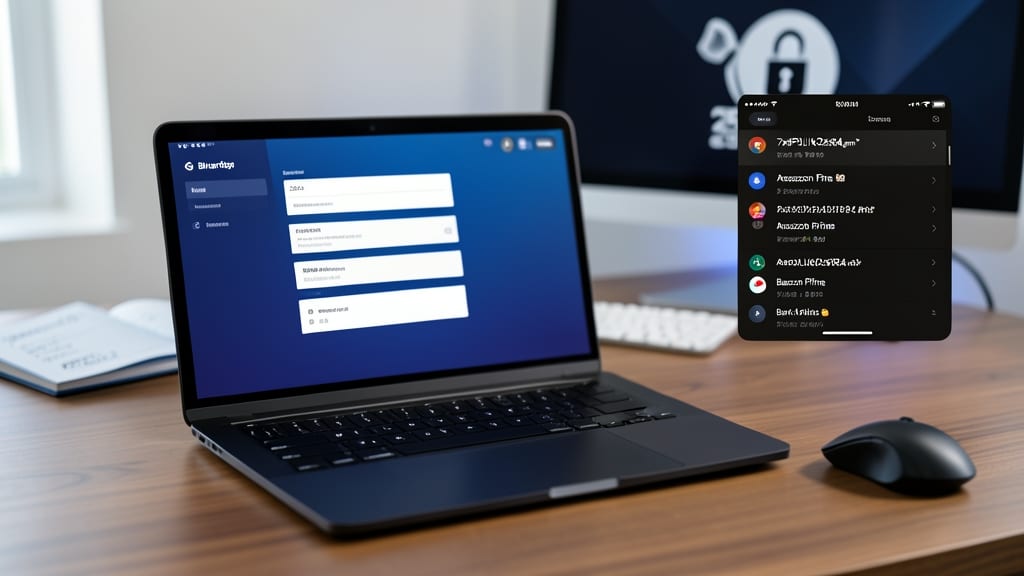
Windows users face the harsh reality: 90% of malware targets them first. Traditional antivirus software relies on known threat signatures—meaning it’s useless against brand-new attacks. That’s where behavioral analysis comes in, scanning for suspicious actions like unauthorized registry changes or unusual network traffic before damage occurs.
Solutions like Bitdefender GravityZone or Kaspersky Endpoint Security use AI-driven heuristics to flag zero-day exploits in real time. These tools run silently in the background, with minimal performance impact, and often include ransomware rollback features to restore files if infected. For gamers or professionals running multiple apps, the low-resource mode ensures smooth operation even during intensive tasks.
This is the one security layer you can’t skip if you handle sensitive data or frequently download files. Windows users—especially those in finance, healthcare, or creative fields—should prioritize this over basic free antivirus. ✨
Disable macros in Office documents automatically
Ransomware attacks often start with a single click—opening a malicious Word or Excel file that triggers hidden macros. The good news? You can block 70% of these attacks with a simple setting that requires zero technical expertise.
On Windows, enable the Disable all macros without notification policy via Group Policy Editor (gpedit.msc) under User Configuration > Administrative Templates > Microsoft Word 2016 > Security. For Mac users, Office for Mac already includes built-in macro protection—just ensure your Security & Privacy settings in Word/Excel are set to block macros by default. This stops malware before it even runs.
Small businesses and remote workers handling sensitive documents should prioritize this—it’s one of the most overlooked yet effective defenses against ransomware. ✨
Update your OS and software immediately

Skipping updates is like leaving your front door unlocked—except hackers exploit unpatched systems to steal data or hijack devices. The EternalBlue vulnerability alone infected 200,000+ systems in the 2017 WannaCry attack, while Log4j exposed millions to remote code execution just last year.
Modern OSes automate updates: Windows Update (set to "Install updates automatically") and macOS Software Update (enabled by default) patch flaws within days of discovery. For third-party apps, tools like Patch My PC (Windows) or App Cleaner (macOS) streamline updates across browsers, plugins, and utilities. Even a 30-second delay in updating can turn a fixable flaw into a breach.
This is non-negotiable for small businesses (targeted by ransomware) and home users (who often overlook app updates). Enable automatic updates now—your future self will thank you. ⚡
Secure your Wi-fi with WPA3 encryption
If your Wi-Fi network still uses WPA2, you’re leaving the door wide open for KRACK attacks—a vulnerability that can hijack your internet traffic in seconds. Upgrading to WPA3 isn’t just a security upgrade; it’s a necessity for protecting smart home devices, gaming consoles, and even your laptop from eavesdropping.
WPA3 introduces forward secrecy, meaning even if a hacker cracks your password later, they can’t retroactively decrypt past traffic. It also includes simplified enterprise mode (SAE), making it harder for brute-force attacks to guess Wi-Fi passwords. Most modern routers (like the Netgear Nighthawk or Google Nest Wi-Fi) support WPA3—just check your router’s manual or manufacturer’s website for firmware updates. For Windows users, go to Settings > Network & Internet > Wi-Fi > Manage known networks, then edit your connection to select WPA3-Only. Mac users can find this in System Preferences > Network > Wi-Fi > Advanced > Wi-Fi Security.
This is especially critical if you have IoT devices like security cameras or smart speakers—many of these lack built-in security and rely entirely on your network’s protection. With WPA3, you’re not just securing your data; you’re future-proofing your entire digital ecosystem. ✨
Enable full-disk encryption on your device

Imagine losing your laptop—and with it, years of irreplaceable photos, financial records, or work projects. Full-disk encryption turns that nightmare into a non-issue, locking your entire drive with military-grade security in under a minute.
Windows users can enable BitLocker (built into Pro/Enterprise editions) with a simple 30-second setup via Control Panel > BitLocker Drive Encryption, while Mac users activate FileVault in System Preferences > Security & Privacy. Both require only a recovery key (stored securely offline) to unlock your data if your device is ever stolen or lost. The encryption runs silently in the background, with zero performance impact on daily tasks.
This is the absolute minimum for anyone carrying sensitive data—especially professionals, students, or travelers. Even if your device falls into the wrong hands, your files stay inaccessible without that recovery key. 💻
Regularly backup critical files to cloud
Ransomware attacks can cripple your system in minutes, but versioned cloud backups act like a digital time machine—restoring your files instantly to the moment before the attack. Unlike local backups that can be encrypted alongside your data, cloud solutions store encrypted copies offsite, making them immune to device-level breaches.
For Windows users, Backblaze offers unlimited storage for just $7/month with continuous, automated backups—no manual effort required. Mac users can leverage Apple Time Machine (built into macOS) for seamless local-to-cloud syncing, while third-party tools like CrashPlan provide granular file recovery options. All services retain 30+ days of version history, so you can roll back to any point before corruption struck.
This is your last line of defense—ideal for freelancers, small businesses, or anyone storing irreplaceable files (photos, documents, projects). Set it up once, then forget it until you need it. ✨
Verify website security before entering data
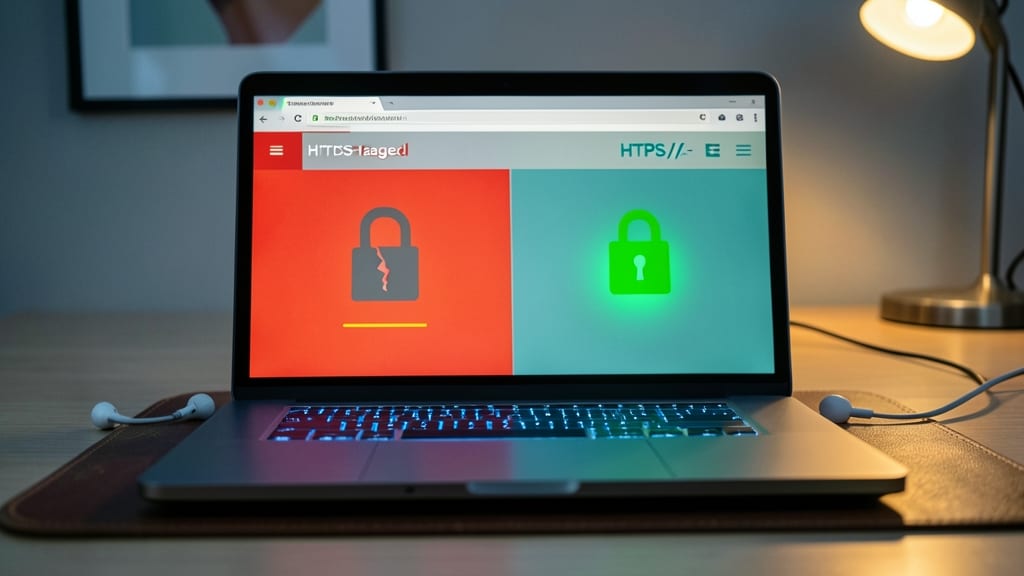
Before typing your credit card number or logging into sensitive accounts, take three seconds to verify a site’s security. A missing HTTPS prefix or broken padlock icon in the address bar signals danger—hackers can intercept your data in transit if you ignore these warnings.
Browser extensions like HTTPS Everywhere (by EFF) or uBlock Origin automatically upgrade insecure connections to HTTPS and block mixed-content warnings. For Chrome, Firefox, and Safari users, these tools add a visual security layer without requiring technical know-how—just install and browse with confidence.
This is especially critical for online banking, shopping, or email logins, where man-in-the-middle attacks thrive. With extensions handling the heavy lifting, you’ll never miss a security red flag again. 💻
Monitor suspicious activity with security apps
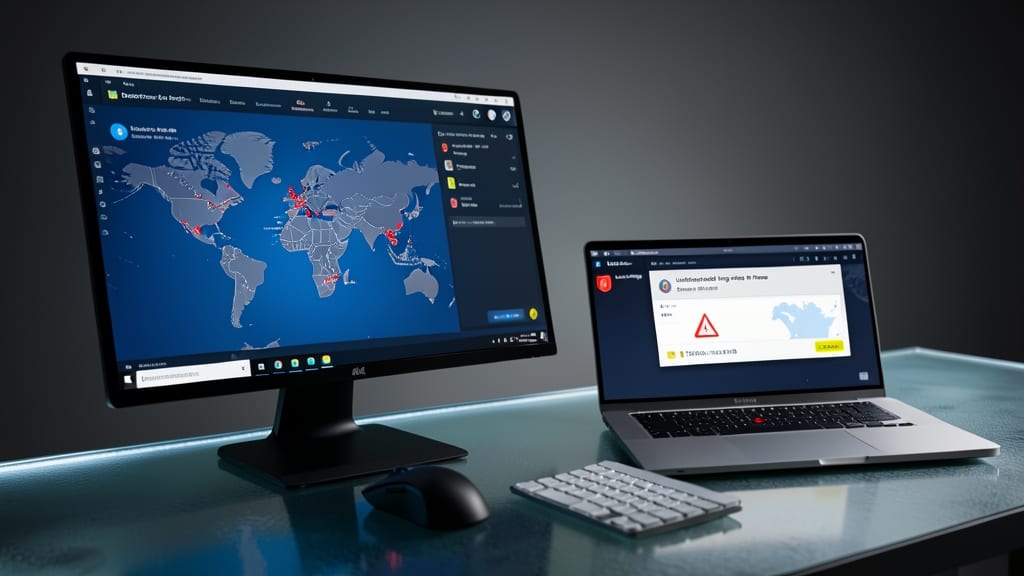
Ever logged in from a new country only to panic about a potential breach? Microsoft Defender for Business and Little Snitch turn your device into a digital security guard, sending instant alerts for suspicious activity like unauthorized logins or unexpected data transfers.
Defender for Business (Windows) offers real-time threat detection and risk-based alerts, while Little Snitch (Mac) monitors outbound connections to block unauthorized apps. Both integrate seamlessly with existing security setups—no complex configurations required. For just $3/user/month, you gain peace of mind knowing your digital footprint stays yours.
Perfect for remote workers, freelancers, or anyone handling sensitive data—these tools act as your eyes when you’re not looking. 🌟