
Tip & Trick
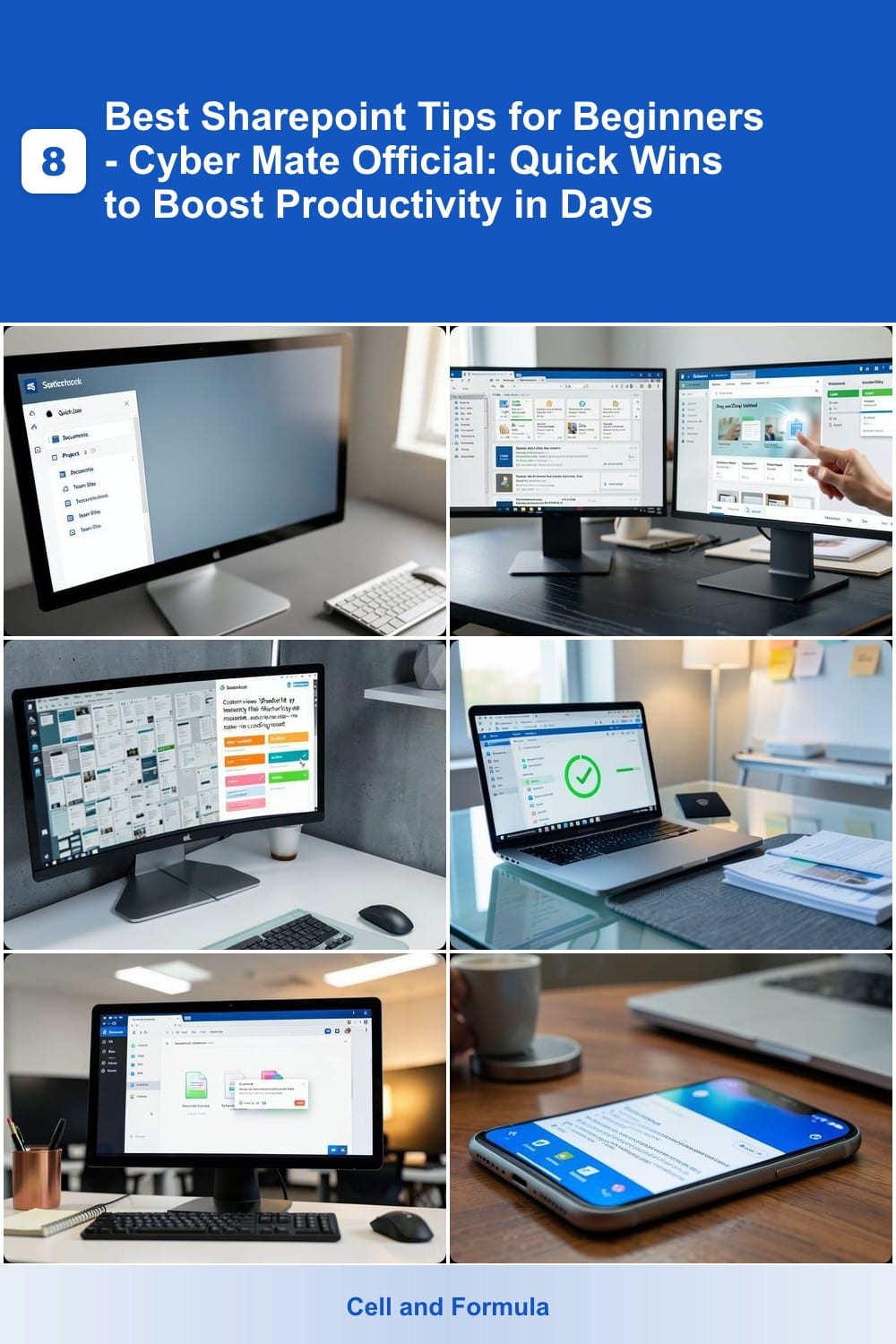
Microsoft SharePoint can feel overwhelming for new users, but these eight beginner-friendly tips will help you master the basics quickly and transform how you collaborate. Whether you're managing documents or streamlining workflows, these productivity boosters require minimal setup yet deliver immediate results.
Master SharePoint navigation with Quick Launch
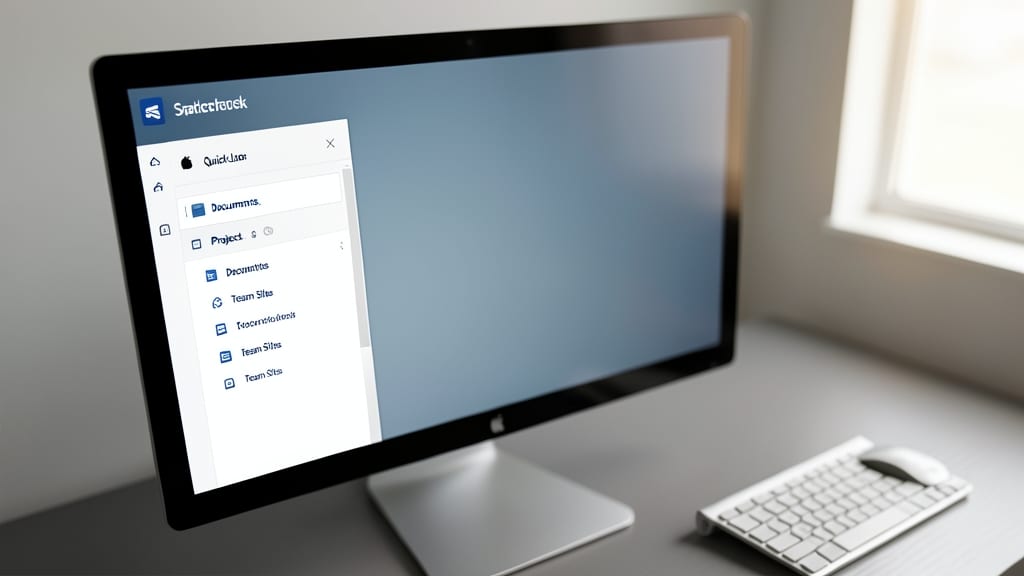
Tired of digging through endless menus just to find that one document library? The Quick Launch panel in SharePoint is your secret weapon for instant access to frequently used sites, lists, and libraries—no more wasted time hunting through nested folders.
Located on the left side of your SharePoint site, this customizable bar lets you pin your most visited locations (like project folders or team sites) with just a few clicks. You can also organize items into groups for a cleaner look, and the search bar at the top narrows down results in real time. Best of all, it syncs across devices, so your pinned items follow you whether you're on desktop or mobile.
Perfect for new users navigating complex team sites or anyone juggling multiple projects, Quick Launch turns SharePoint from a maze into a well-marked path. ⚡
Use modern document libraries for simplified file management
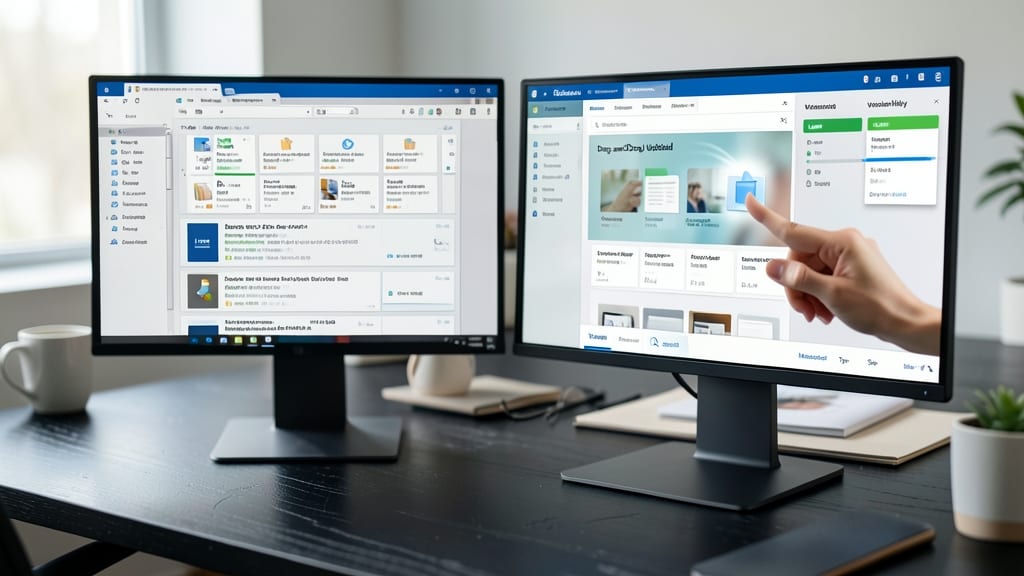
Tired of digging through folders or losing track of file updates? Modern SharePoint document libraries turn chaotic file management into a breeze with features designed for beginners.
With drag-and-drop uploads, you can organize files instantly—no technical skills required. The version history feature automatically tracks changes, so you never lose work, while real-time co-authoring lets multiple people edit the same document simultaneously. Plus, built-in metadata tags (like project names or deadlines) keep everything searchable in seconds.
Perfect for teams or solo users who want effortless collaboration without the learning curve. Whether you're managing client files or project docs, this tool cuts clutter and boosts productivity from day one. ✨
Create custom views to filter information instantly
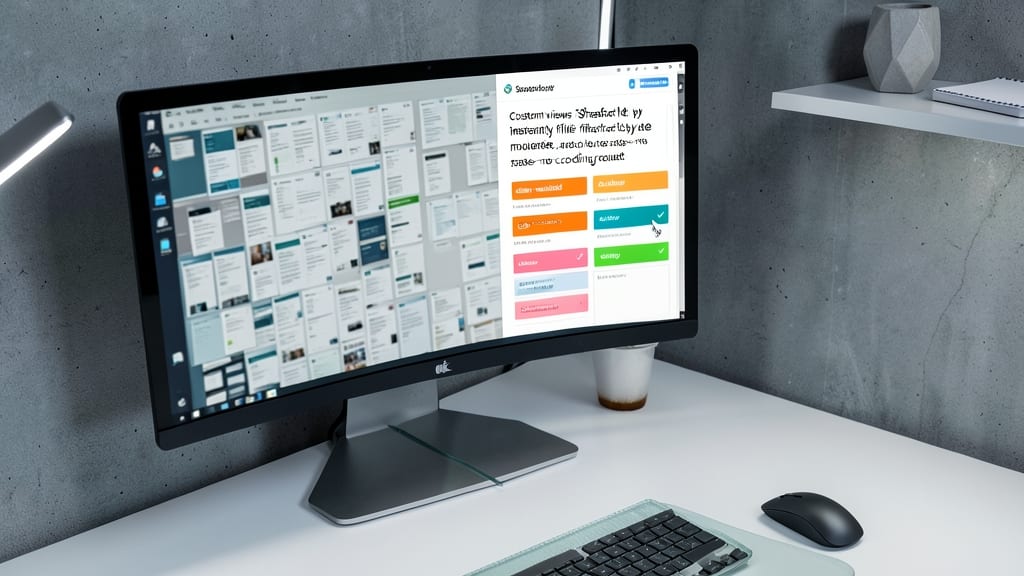
Tired of scrolling through endless lists to find that one document? Custom views in SharePoint let you instantly filter files by date modified, author, or even status—no coding required. This feature turns chaotic libraries into organized, searchable hubs with just a few clicks.
Start by opening any document library, clicking the "View" dropdown, and selecting "Create View." Here, you can define rules like "Show only files updated in the last 7 days" or "Filter by my name"—perfect for tracking your own contributions. The best part? These views save automatically, so you can switch between them effortlessly. Whether you're managing projects or tracking approvals, custom views cut through the noise. ✨
This tip is a game-changer for project managers or team leads juggling multiple files. No more digging through folders—just apply a filter and focus on what matters most. ⚡
Leverage OneDrive sync for offline access

Tired of waiting for files to load when your internet drops? Syncing SharePoint libraries to OneDrive lets you edit documents offline and see updates instantly when you reconnect—no manual uploads needed. This seamless bridge between cloud and desktop ensures you’re always working with the latest version, even on a plane or in a meeting.
Here’s how it works: Right-click any SharePoint library in OneDrive, select Always keep on this device, and choose Online-only for large files or Save space for smaller ones. Changes sync automatically in both directions, and the OneDrive desktop app shows real-time progress. Best of all, it’s zero-config for beginners—just enable sync and go.
Perfect for remote workers, frequent travelers, or anyone who needs to edit files without an internet connection. No more "file not synced" headaches—just smooth, offline productivity. ✨
Set up alerts for important document changes
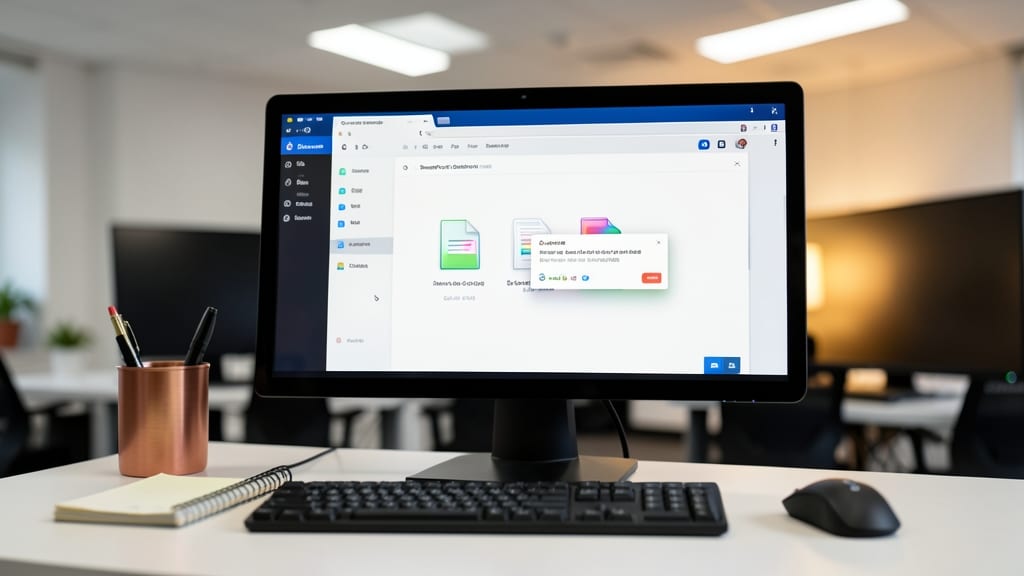
Tired of missing critical updates buried in SharePoint libraries? Alerts turn passive document monitoring into proactive notifications—no more refreshing pages or hoping for the best.
With just a few clicks, you can set up real-time email alerts for file edits, new comments, or even specific metadata changes. SharePoint supports three alert types: immediate notifications, daily digests, or weekly summaries. Best of all, these alerts sync with your existing email, so you’ll never miss a key update again—whether it’s a revised contract or a teammate’s feedback.
Perfect for project managers or team leads, this feature ensures everyone stays on the same page without constant check-ins. No more "Did you see the latest version?" emails—just seamless collaboration. ✨
Use SharePoint mobile app for on-the-go productivity

Tired of being glued to your desk just to update a SharePoint document? The SharePoint Mobile App turns your smartphone into a productivity powerhouse, letting you access, edit, and share files from anywhere—no laptop required.
With real-time sync, you’ll always see the latest version of documents, even when offline. The app supports mobile-friendly document editing (Word, Excel, PowerPoint) and lets you upload files directly from your camera roll. Plus, collaboration features like comments and approvals work seamlessly on the go, keeping your team aligned during meetings or while traveling.
Perfect for remote workers, sales teams, or anyone who needs to stay productive outside the office. Whether you're reviewing a report on your commute or sharing a presentation from a client meeting, the mobile app keeps you in control—no excuses. ✨
Simplify workflows with power Automate triggers
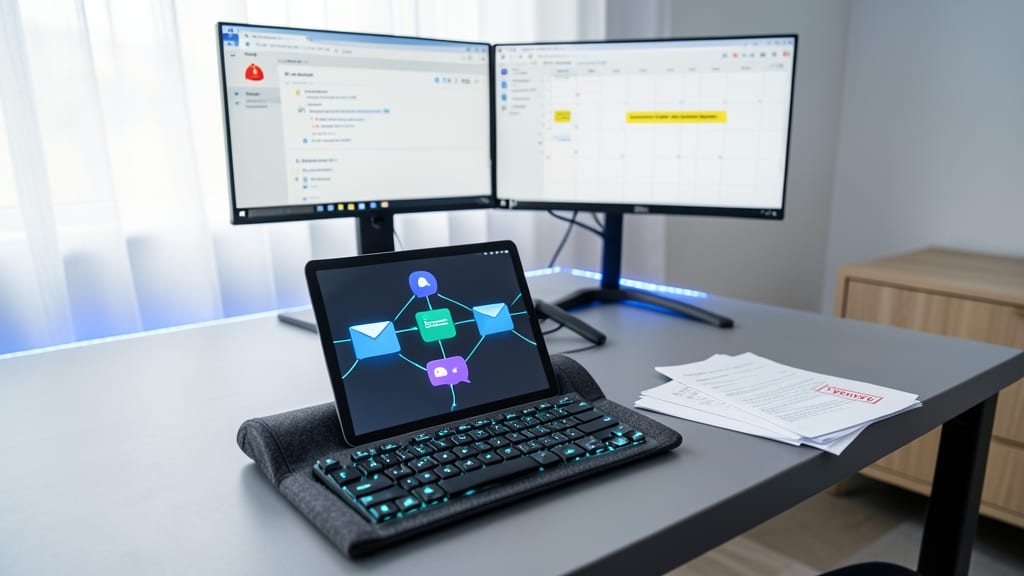
Tired of manually chasing down approvals or drowning in repetitive notifications? Power Automate turns SharePoint into a self-running productivity machine with zero-code triggers that connect your favorite apps—like sending Outlook reminders when a document is updated or auto-posting new files to Teams.
Start with pre-built templates like "Get notified when a file is created" or "Send an email when an item is approved." The drag-and-drop designer lets you connect SharePoint lists to Outlook, Teams, or even Twitter in minutes—no scripting required. For example, set a flow to auto-archive old files or flag high-priority tasks without lifting a finger.
Perfect for project managers tracking deadlines or team leads who hate chasing updates. Try the SharePoint + Outlook template first—it’s the fastest way to cut your inbox clutter by 30%. ✨
Join SharePoint communities for quick help

Stuck on a SharePoint setup or permissions puzzle? The Microsoft Tech Community and local SharePoint user groups are your secret weapons—no admin skills required. These official forums connect you directly to Microsoft engineers and experienced users who’ve solved every common beginner headache, from broken syncs to permission errors.
Start with the SharePoint Tech Community on Microsoft’s website, where threads like “How to restore a deleted library” or “Fixing broken OneDrive sync” get responses in hours, not days. Local user groups (find them via Meetup.com or Microsoft’s Events page) offer live Q&A sessions where you can ask real-time questions—think of it as a free, expert-driven support network without the wait.
Perfect for small business owners or new IT admins juggling SharePoint alongside other tools. No more guessing—just instant, actionable answers from people who’ve been there. 💡