
Software
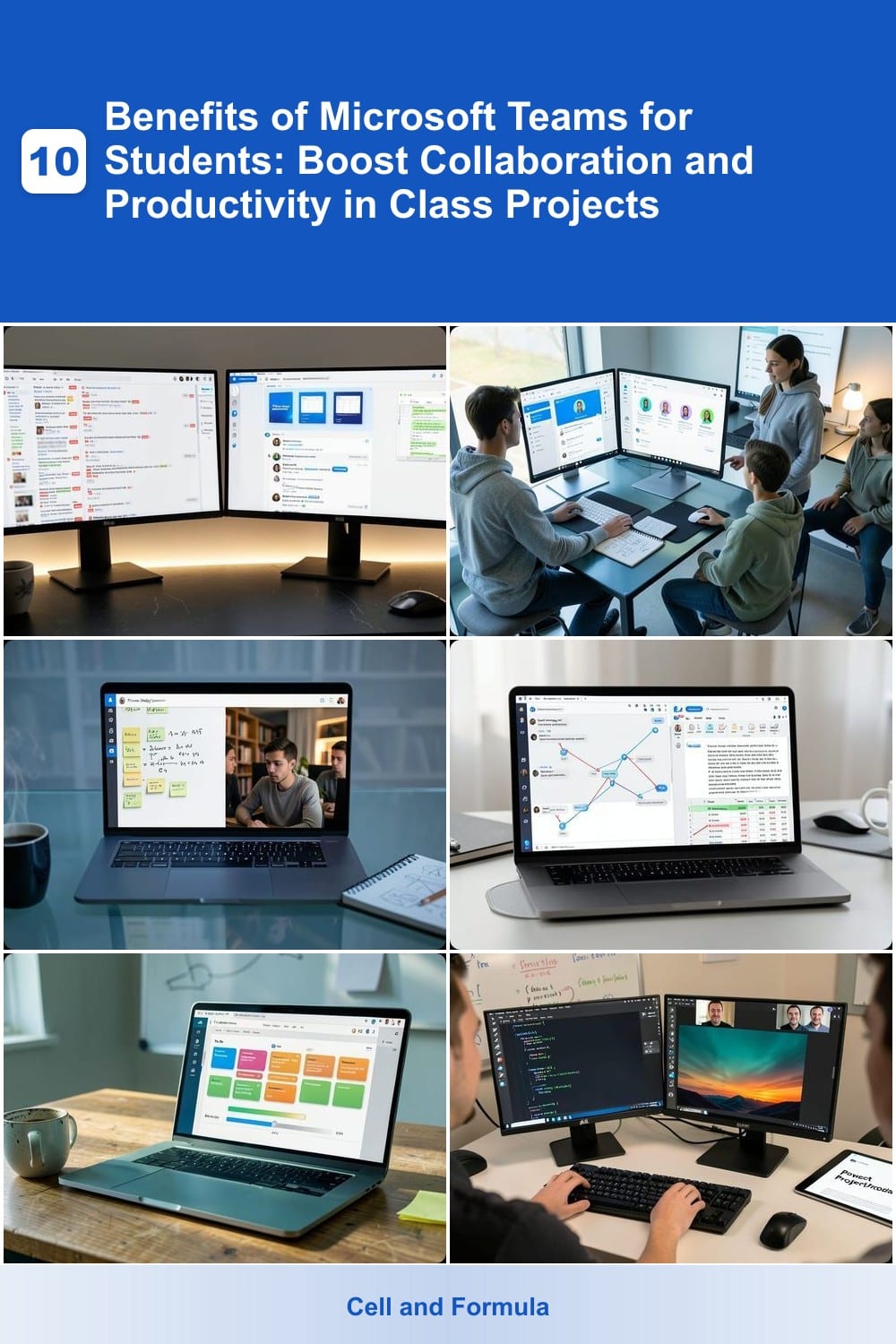
Microsoft Teams isn’t just for professionals—students can unlock powerful tools to streamline group projects, improve communication, and stay organized. These 10 benefits show how Teams transforms academic collaboration into a seamless experience, whether you're working remotely or in the classroom.
Real-Time Group Chat for Instant Project Updates
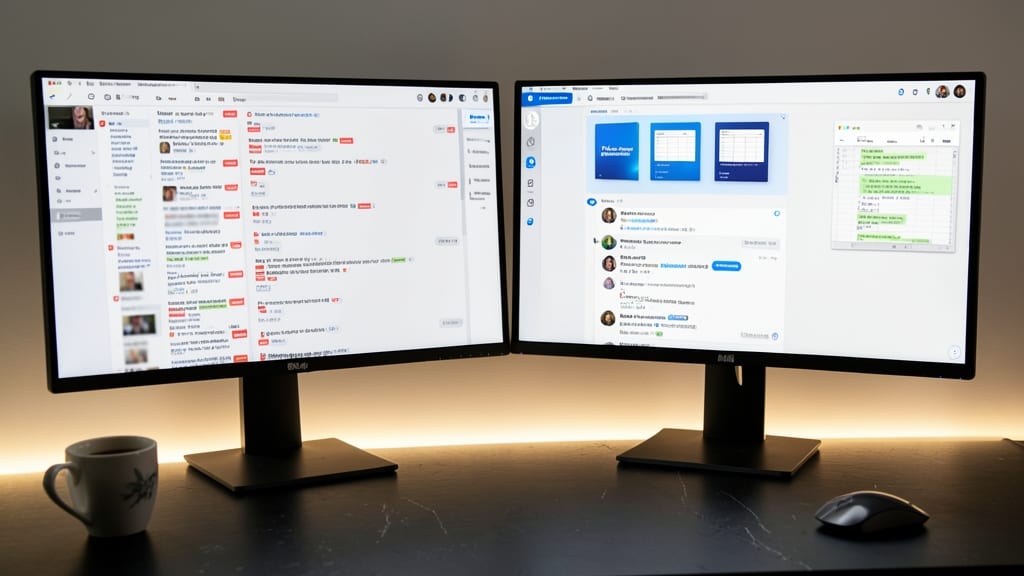
Tired of digging through endless email threads or losing track of text messages about group projects? Microsoft Teams’ real-time group chat consolidates all discussions, files, and feedback in one organized space—no more scattered conversations or missed updates.
With pinned project files, @mentions for urgent replies, and rich formatting (like bold text or emojis), you can keep conversations clear and focused. Need to share a quick update? The instant messaging feature lets you send files, links, or even voice notes without leaving the chat. Plus, searchable history means you can revisit past discussions whenever you need to reference old ideas or decisions.
This is the perfect tool for last-minute group adjustments, brainstorming sessions, or even quick check-ins before a project deadline—ideal for students who thrive on fast-paced collaboration. ⚡
Integrated File Sharing with Version Control
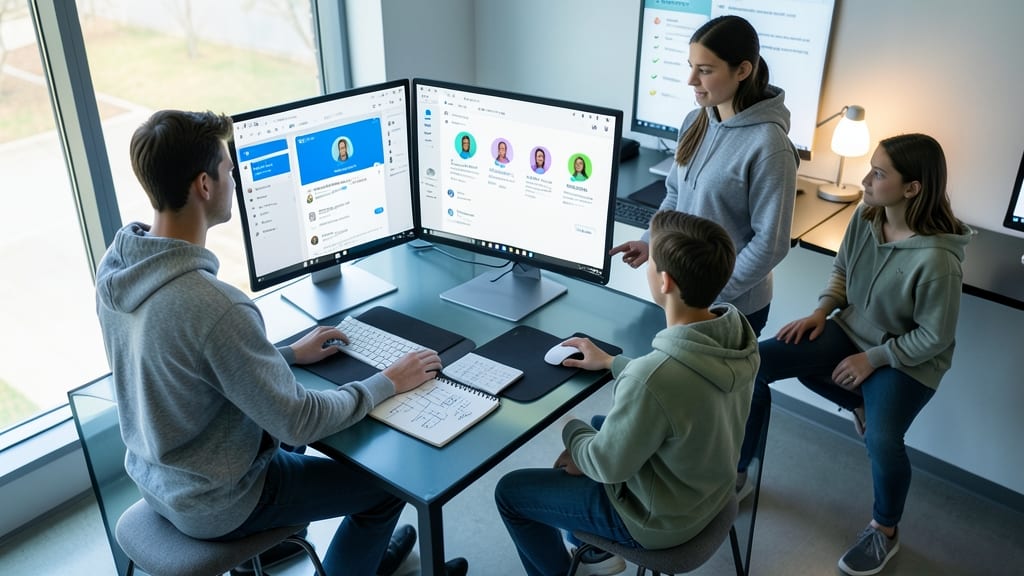
Say goodbye to the frustration of overwriting each other’s work or hunting for the latest draft. Microsoft Teams integrates OneDrive and SharePoint directly into chats, so you can upload, edit, and share files in one place—no more emailing attachments or version chaos. The real magic? Real-time co-authoring lets multiple students edit a Word document, PowerPoint, or Excel sheet simultaneously, with changes appearing instantly.
But what if someone accidentally deletes a section or saves over a draft? Teams’ version history keeps a full record of every change, so you can restore previous versions with a few clicks. Need to track who made edits? The system logs contributions by name, so credit (or blame) is always clear. This is especially useful for group essays, design projects, or financial models where precision matters.
Perfect for students working on collaborative assignments where coordination is key—whether you're drafting a research paper, designing a presentation, or crunching data for a class project. No more lost files or last-minute panic. ✨
Virtual Study Rooms for Focused Group Work
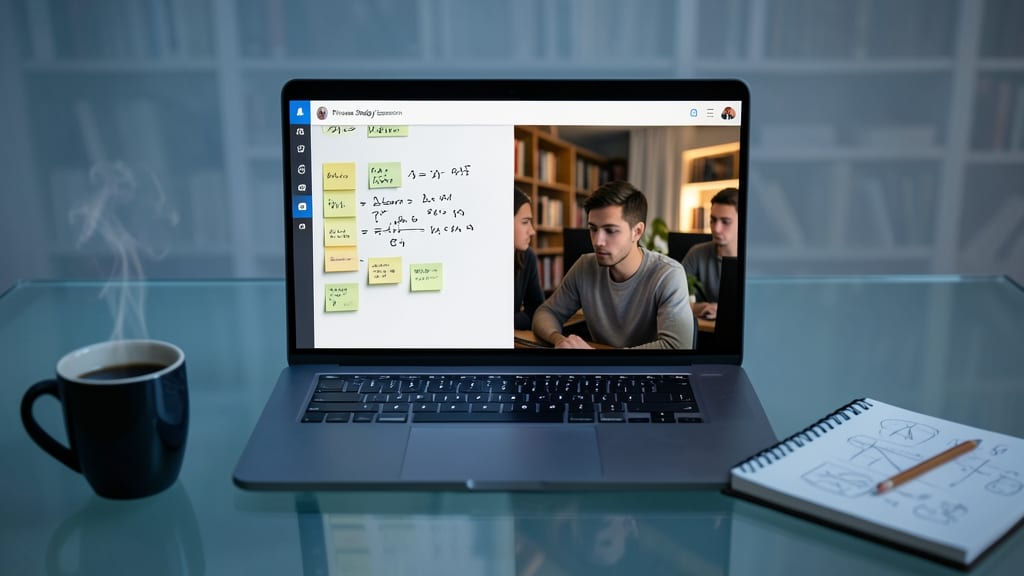
Late-night group projects just got easier with Microsoft Teams’ Virtual Study Rooms—private, distraction-free spaces designed for focused collaboration. Unlike public chats or chaotic video calls, these rooms let you and your team dive into work without notifications or interruptions.
Create a dedicated space with screen sharing to walk through assignments, a shared whiteboard for brainstorming, and even a timer to keep sessions on track. The background blur feature ensures your study space stays professional, while the whiteboard tool lets you sketch ideas, annotate documents, or solve math problems together—no extra apps needed.
Perfect for online tutoring sessions, coding pair programming, or last-minute group work, these rooms keep everyone aligned without the chaos of group chats. ⚡
Seamless Integration with Office 365 Apps
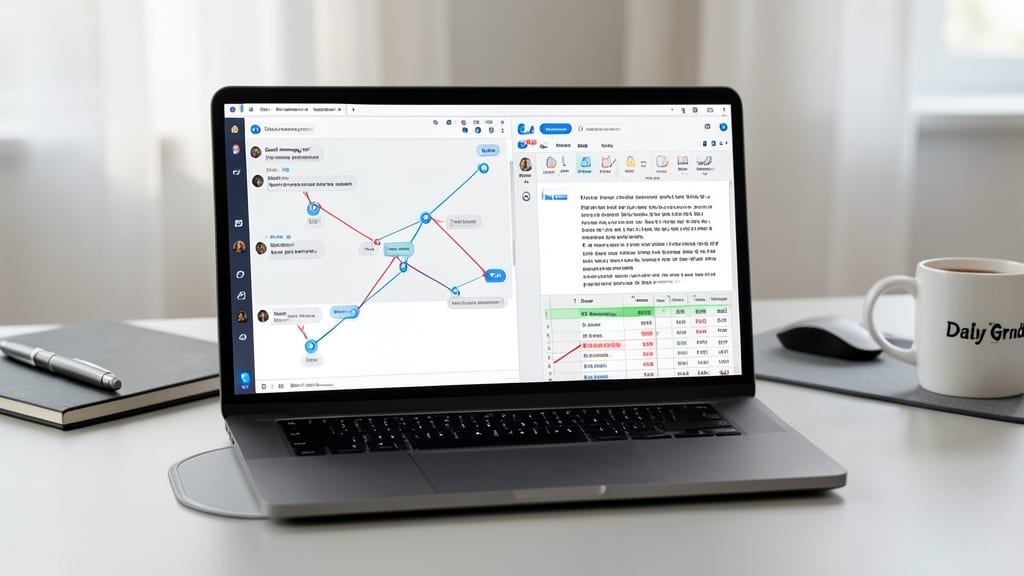
Tired of bouncing between apps during group projects? Microsoft Teams eliminates that hassle by embedding Word, Excel, and PowerPoint directly into chats and meetings, so you can edit presentations live or collaborate on spreadsheets without ever leaving the platform.
The integration lets you open a PowerPoint file during a meeting, make real-time edits, and see changes instantly—no more saving and re-uploading. With Excel spreadsheets, multiple students can update data simultaneously, and Teams tracks revisions so nothing gets lost. Even Word documents support live co-authoring for essays or reports.
This is a game-changer for students working on presentations, financial models, or group papers. No more context-switching—just pure, uninterrupted collaboration. ✨
Task Management with Built-In Planners
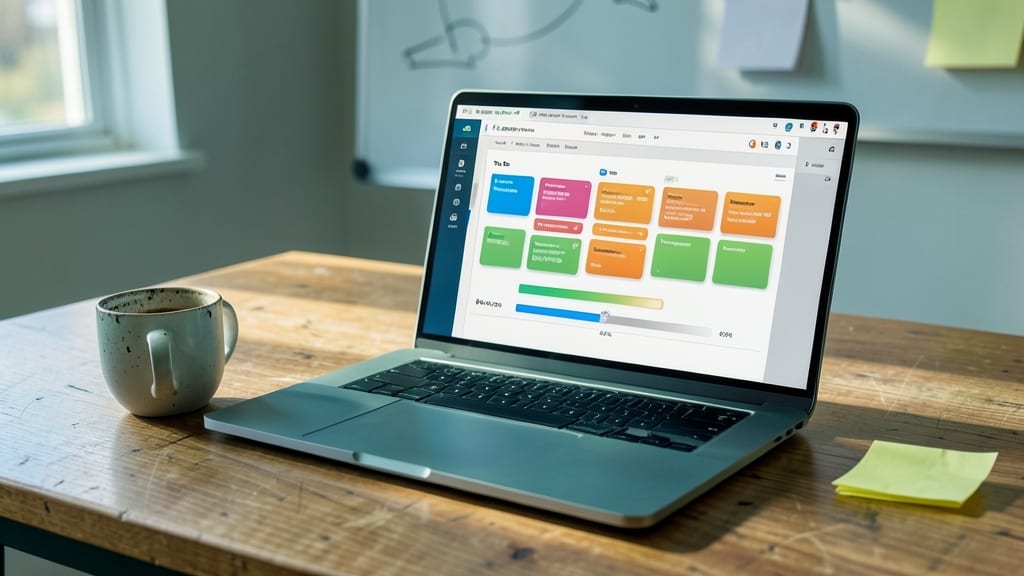
Forget scribbling deadlines on sticky notes—Microsoft Teams’ built-in Planner tool turns group projects into a stress-free, organized system. With drag-and-drop task boards and color-coded progress tracking, you can assign tasks, set deadlines, and monitor milestones in real time, all within the same platform where your team chats and shares files.
The Kanban-style board lets you visualize workflows with columns for To Do, In Progress, and Completed tasks, while recurring deadlines and reminder alerts ensure no assignment slips through the cracks. Plus, integration with Office 365 apps means you can attach files directly to tasks—no more hunting for the latest version of a group presentation.
This is the perfect tool for group research projects, semester-long assignments, or even study group deadlines—ideal for students who juggle multiple classes and need a centralized way to stay on track. ⚡
Screen Sharing for Live Presentations and Tutorials
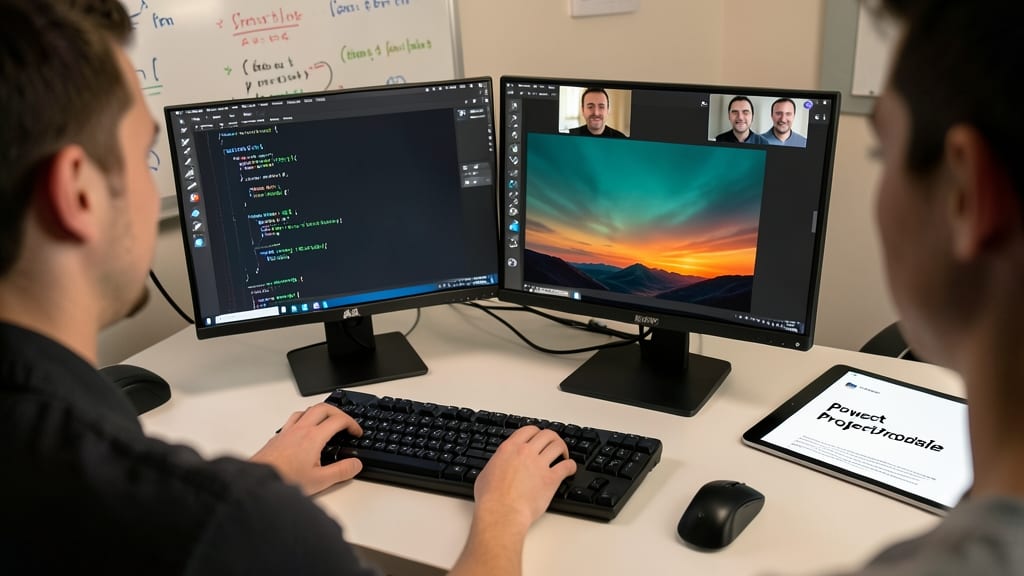
Need to walk through a Python script with your team or critique a digital art project in real time? Microsoft Teams’ screen-sharing tools make it effortless. Unlike basic video calls, Teams lets you share your entire screen, a specific window (like VS Code or Photoshop), or even a PowerPoint—all while annotating live with your cursor or a digital pen.
The 4K@60Hz support ensures crisp visuals for presentations, while the dual-monitor sharing feature lets you demo complex workflows without clutter. Record sessions directly in Teams for later review, or use the whiteboard tool to sketch ideas mid-discussion. For STEM students, this means debugging code together or visualizing data models without switching apps.
Perfect for group projects where visuals drive understanding—whether you're a coder, designer, or researcher. 💻
Customizable Notifications for Staying on Top of Updates
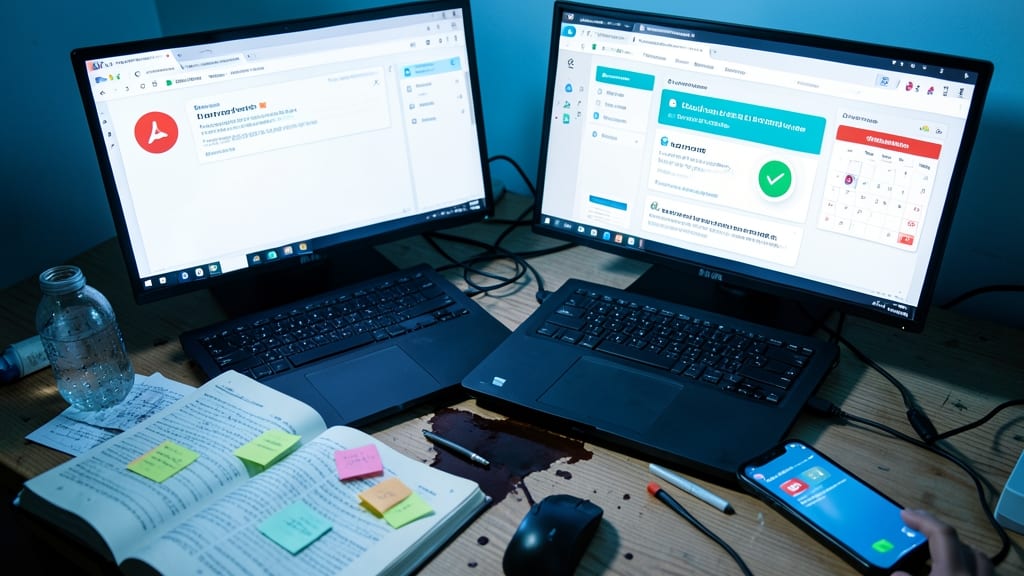
Between back-to-back lectures, extracurriculars, and social plans, staying on top of group project updates can feel overwhelming. Microsoft Teams solves this with customizable notifications that let you prioritize what matters most—whether it’s a professor’s mention, a file update, or an approaching deadline.
You can adjust alerts for individual channels, set specific keywords to trigger notifications, or even mute non-urgent conversations until you’re ready to engage. The @mention system ensures critical messages stand out, while deadline reminders sync with your calendar to keep projects on track. For students juggling multiple teams, the ability to snooze notifications during study hours without missing essential updates is a game-changer.
This feature is a lifesaver for anyone balancing group projects, internships, and personal commitments—no more drowning in irrelevant alerts or missing key updates. ✨
Accessibility Features for Inclusive Collaboration
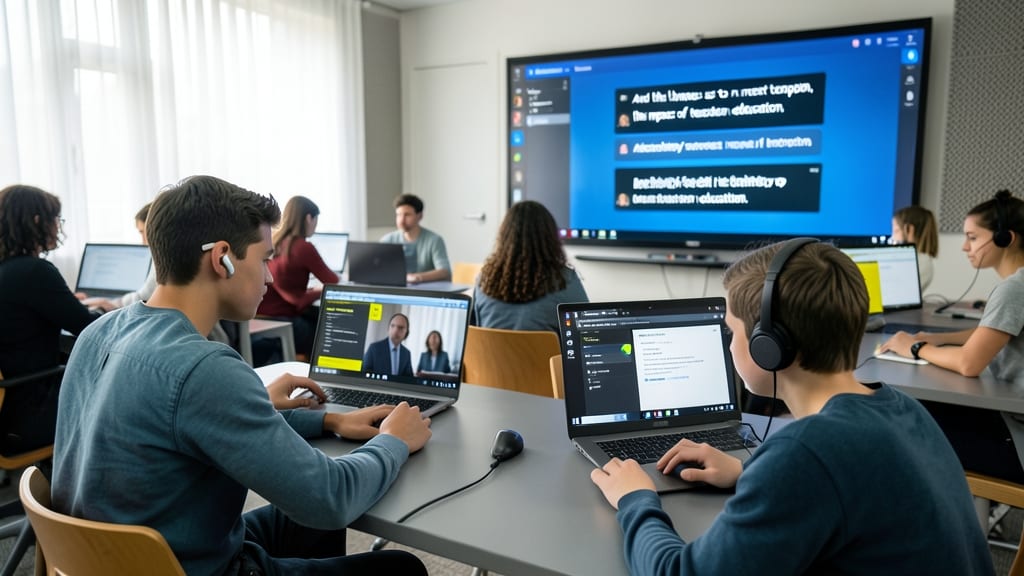
Classrooms shouldn’t leave anyone behind—and Microsoft Teams ensures they don’t. With real-time live captions during video calls, students who are deaf or hard of hearing can follow discussions without missing a word. The screen reader support (compatible with JAWS and NVDA) lets visually impaired users navigate chats, files, and meetings with ease, while customizable text sizes help those with low vision read comfortably.
Need more? Keyboard shortcuts for quick navigation and high-contrast themes reduce eye strain, while subtitles in multiple languages support multilingual learners. These tools aren’t just add-ons—they’re built into the platform, meaning no extra apps or workarounds are needed. Whether you’re presenting a project or joining a study group, Teams adapts to your needs.
This is especially valuable for group projects in diverse classrooms, where every voice matters. No one gets left out of the conversation. ✨
Mobile App for Collaboration on the Go
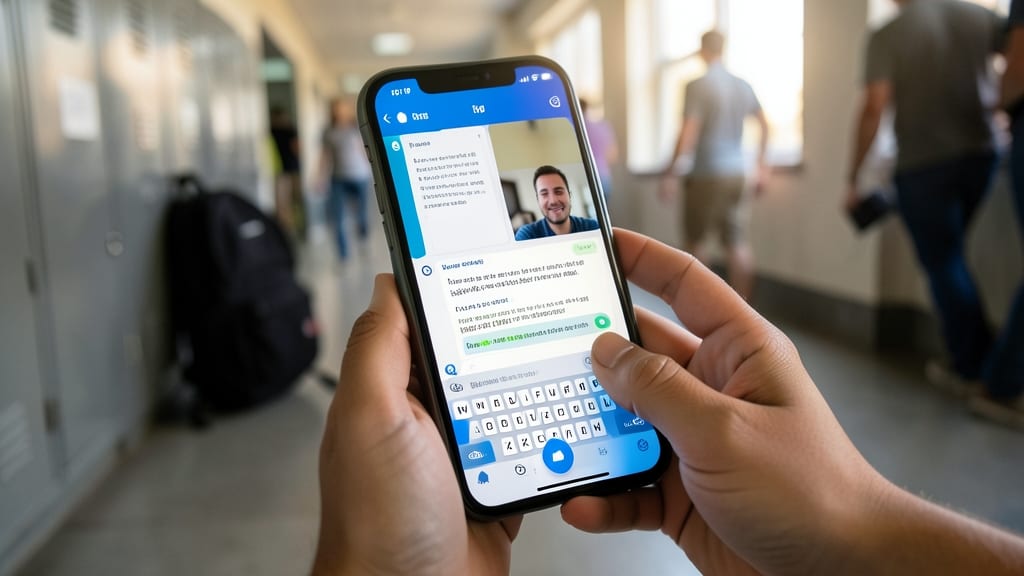
Between classes or during your morning commute, staying connected to group projects shouldn’t mean scrambling for a laptop. The Microsoft Teams mobile app turns your phone into a full-featured collaboration hub, letting you edit documents in real-time, join video calls with one-tap audio/video, or reply to urgent messages—all while offline.
The app syncs seamlessly with your desktop experience, so changes made on your phone update instantly across devices. With push notifications for mentions or file updates, you’ll never miss a critical comment, and the built-in camera and microphone let you hop into meetings without switching apps. Plus, the intuitive interface mirrors the desktop version, so no learning curve exists.
This is your lifeline for students juggling tight schedules—whether you’re tweaking a group presentation during lunch or jumping into a study session from the library. 💻
Automated Meeting Minutes and Recaps
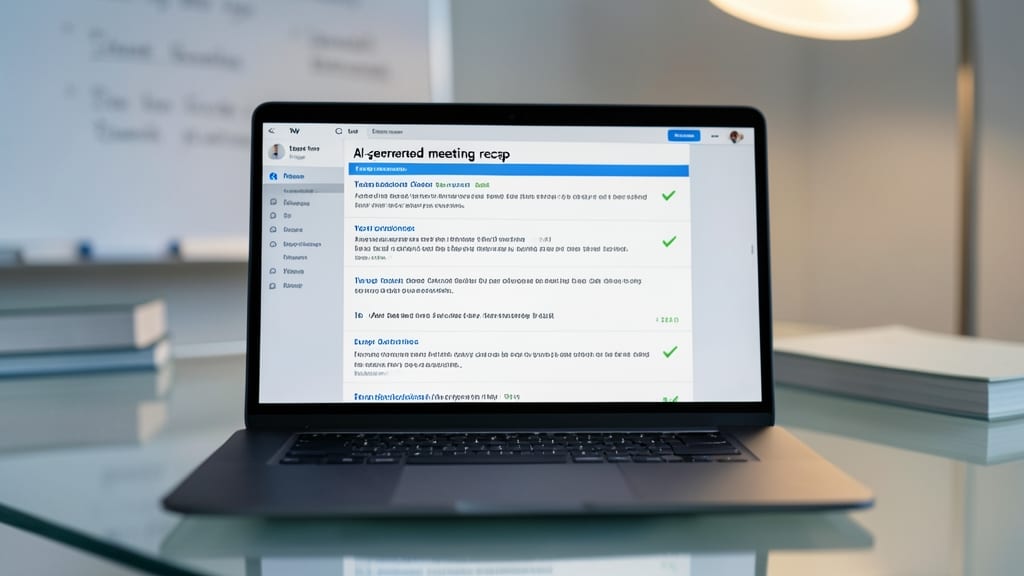
Tired of scrambling to take notes during group meetings or forgetting who agreed to what? Microsoft Teams’ auto-generated meeting recaps solve that problem with AI-powered summaries that capture key decisions, action items, and discussion highlights—all without lifting a finger.
The feature creates searchable transcripts and bullet-point recaps after every meeting, so you can revisit details later or share them with absent teammates. It even highlights deadlines and responsibilities, ensuring no one slips through the cracks. Perfect for large group projects where members join and leave throughout the semester.
This is a game-changer for student-led teams working on research papers, design projects, or capstone presentations—no more missed follow-ups or last-minute confusion. ✨