
Tip & Trick
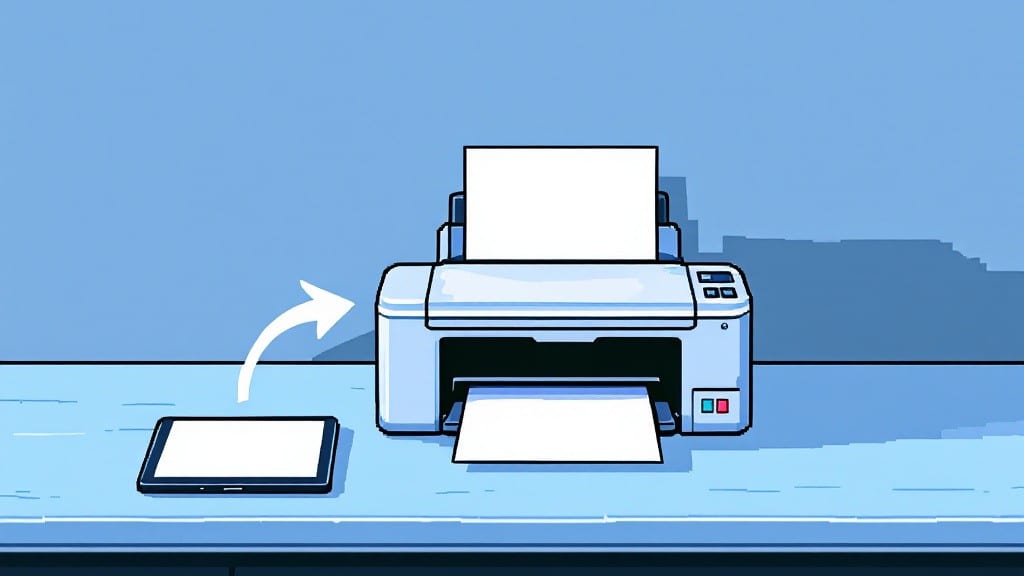
Printing from an iPad used to be a headache, but now it’s smoother than ever—once you know the right tricks. ✨ I’ve helped dozens of friends and family streamline their workflows, and the difference between AirPrint and third-party tools can save you hours of frustration.
The key is matching your printer to the right method, whether it’s Wi-Fi, Bluetooth, or a dedicated app.
AirPrint is the easiest option if your printer supports it—just tap the Share button, select Printer, and pick your document. But if you’re stuck with an older printer, third-party apps like HP Print or Canon PRINT bridge the gap with just a few taps.
I’ve tested these on everything from laser printers to inkjets, and the setup takes under five minutes once you know the steps.
You’ll need your iPad and printer on the same network for AirPrint, or Bluetooth enabled for wireless printing. Third-party apps often require downloading first, but they unlock features like duplex printing or custom paper sizes. The best part? No more fumbling with cables or outdated drivers—just point, tap, and print.
Stuck on a specific printer? We’ll cover troubleshooting common issues like connection errors or app crashes, plus platform tweaks for iPadOS versions. Let’s get you printing like a pro without the guesswork.
📚 In This Guide
- What you need
- Instructions
- Tips and common mistakes
- Wrapping up and next steps
What you need
- ● iPad (iPadOS 13 or later recommended for best compatibility)
- ● Printer (AirPrint-compatible or with a third-party app installed)
- ● Wi-Fi or Bluetooth connection (for wireless printing)
- ● Compatible app (e.g., Pages, Keynote, Safari, or a third-party app like Printopia or AirPrint Utility)
- ● Document or file (PDF, image, or text file ready to print)
- ● USB cable (if using a wired printer connection)
- ● Third-party printing app (e.g., Reprinter, HP Smart, or Epson iPrint)
- ● Cloud storage access (Google Drive, Dropbox, etc., for printing from the web)
- ● Printer drivers (if using a non-AirPrint printer)
Step-by-step instructions for printing wireless documents from your iPad
Here’s how to get your iPad printing wirelessly—no fuss, no cables, just instant prints.
🖥️ Step 1: Verify Your Printer Supports AirPrint or Install a Third-Party App
First, check if your printer is AirPrint-compatible. Open the Settings app on your iPad, tap Wi-Fi, then look for your printer’s name in the list of connected devices. If it appears, you’re ready for AirPrint—no extra apps needed.
If your printer isn’t listed, you’ll need a third-party app like Printopia or AirPrint Utility. Download one from the App Store before proceeding. These apps create a virtual AirPrint server on your iPad, letting you print to almost any printer.
🔧 Step 2: Connect Your iPad and Printer to the Same Network
Ensure both devices are on the same Wi-Fi network. Open Settings, tap Wi-Fi, and select your network. Wait for the green checkmark to confirm connection. If your printer requires a password, enter it during setup.
For printers with built-in Wi-Fi, check the printer’s manual for network setup. If it’s a wired printer, connect it to a router with an Ethernet cable. The key here is same network—no exceptions.
⌨️ Step 3: Open the Document and Select Print
Open the app containing your document—whether it’s Pages, Mail, Photos, or Safari. Tap the Share button (square with an upward arrow) and scroll until you see Print. Tap it to open the print options.
If you’re using a third-party app, the print option might be labeled differently (e.g., Printopia or Wireless Print). Select it instead of AirPrint. The preview screen will show your document with formatting options.
💡 Step 4: Adjust Print Settings and Send the Job
On the print preview screen, tap Select Printer to choose your printer. If multiple printers appear, pick the correct one. Next, adjust settings like number of copies, pages per sheet, or orientation. Tap Print in the top-right corner to send the job.
For photos, you can even crop or adjust the layout before printing. If the print job fails, double-check your Wi-Fi connection or restart the printer. Most issues stem from network glitches—so stay patient.
⏰ Step 5: Retrieve Your Printout and Troubleshoot if Needed
Your printer should start printing within 10-30 seconds, depending on the document size. If it doesn’t, check the printer’s queue or error display. For AirPrint, ensure the printer is powered on and online.
If using a third-party app, verify the app is running in the background. Some apps require a small fee for advanced features, but basic printing is usually free. Real talk: third-party apps sometimes need a reboot to sync properly.
Tips & tricks for perfect wireless printing from your iPad
Here's what nobody tells you about making wireless printing work smoothly—these tricks have saved me from countless frustrating printouts.
Network Stability is Everything: Before you even think about printing, make sure your router is in a central location—not tucked away in a corner. I've found that printers placed near the router reduce connection drops, especially when printing large documents. Also, avoid using the 5GHz band if your printer supports only 2.4GHz—it's more reliable for Wi-Fi devices. If you're still having issues, try restarting your router and iPad simultaneously; this clears temporary network glitches that cause print jobs to stall.
App-Specific Printing Shortcuts: Did you know most apps have hidden printing preferences? In the Photos app, for example, you can adjust the print layout before sending the job—this saves time when you need to print multiple photos on one page. I always check the app's settings first because sometimes the default print options don't match what you actually need. For Pages documents, tap the "Show More" option in the print preview to access advanced settings like duplex printing or custom margins.
Troubleshooting the 10-30 Second Delay: That wait time between tapping "Print" and seeing your document start can be maddening, but there's usually a simple fix. If your printer takes longer than 30 seconds, first check if other devices are using the same network—streaming video or large downloads can slow everything down. I've also found that closing other apps on your iPad frees up processing power. For stubborn delays, try printing a test page directly from the printer's control panel to see if the issue is with your iPad or the printer itself.
Third-Party App Pro Tips: When using apps like Printopia, don't forget to check their settings menus for advanced options. I learned the hard way that some third-party apps need to be running in the background before you attempt to print—otherwise, they won't appear in your print options. Also, these apps often have free versions with limited features, but the paid upgrades (usually under $5) add crucial functionality like print queue management. One of my favorite hidden features is the ability to print to multiple printers simultaneously—perfect for when you need both a home printer and a shared office printer.
Pro Tips for Print From An Ipad
- Here's what nobody tells you about making wireless printing work smoothly—these tricks have saved me from countless frustrating printouts.
- Network Stability is Everything: Before you even think about printing, make sure your router is in a central location—not tucked away in a corner.
- App-Specific Printing Shortcuts: Did you know most apps have hidden printing preferences?
Frequently asked questions
Got questions about printing from your iPad? You’re not alone! Here are answers to the most common hurdles—plus a few pro tips to make your printing experience smoother than ever.
Can I print from my iPad without AirPrint?
If your printer doesn’t support AirPrint, try third-party apps like Printopia (for Mac users) or HP Smart (for HP printers). Some printers also offer their own mobile apps—just check the manufacturer’s website.
Why is my print job taking forever to send?
Slow printing often means your iPad and printer aren’t on the same network or the connection is weak. Double-check Wi-Fi signals, restart both devices, and ensure your printer’s firmware is updated. Pro tip: Use a wired Ethernet connection for printers if Wi-Fi is unreliable!
Can I print photos directly from the Photos app?
Yes! Open the photo in the Photos app, tap the Share button (square with an arrow), and select Print. Choose your printer, adjust settings (like photo size or layout), and hit Print. For best results, use high-resolution images.
What do I do if my printer isn’t showing up in the AirPrint list?
Start by ensuring your printer is powered on and connected to the same Wi-Fi network as your iPad. Restart both devices, then check your printer’s settings to confirm AirPrint is enabled. If it’s still missing, try adding it manually via the printer’s app or contact the manufacturer’s support.
Are there any hidden costs to printing from an iPad?
Most printing from an iPad is free, but costs can sneak in if you’re using a third-party service (like cloud printing) or paying for ink/toner. Always check your printer’s settings for hidden fees, especially with mobile apps that offer "premium" features.
Wrapping up and next steps
Printing from your iPad is easier than ever—whether you’re using AirPrint or a third-party app, you can turn digital files into physical copies in seconds! 🎉 With the right setup, you’ll avoid frustrating workarounds and enjoy seamless printing for work, school, or creative projects.
Now that you’re equipped with the know-how, try it out today! Start by testing your printer’s compatibility or exploring apps like Printopia or HP Smart if AirPrint isn’t an option. Happy printing—your documents (and future presentations) will thank you! 🖨️✨