
Tip & Trick
Did you know your keyboard hides powerful symbols starting with 'A' that can supercharge your workflow? These 10 underused characters save time in documents, coding, and everyday typing—once you learn their secrets.
Alt Code Symbols for Special Characters
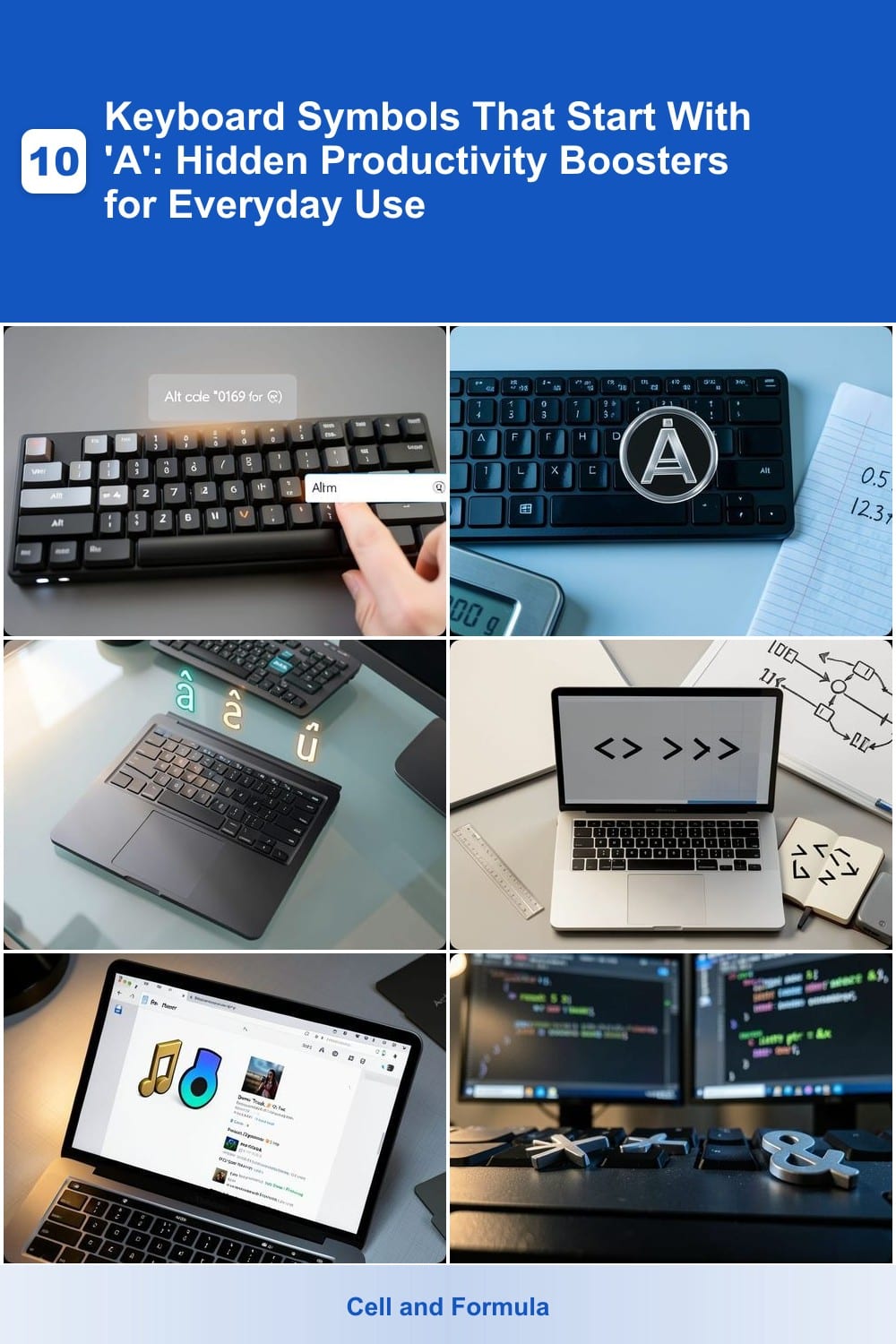
Windows users, stop hunting for symbols like © or ®—your keyboard already has the shortcuts. With Num Lock enabled, simply hold Alt, type the numeric code (e.g., 0169 for ©), then release Alt to insert the symbol instantly in any text field, from Word docs to chat apps.
The Alt code system unlocks hundreds of special characters without layout switches. Try 0162 for ¢ (cent sign), 0163 for £ (pound), or 0165 for ¥ (yen). These codes work universally across Windows apps, including email clients and programming IDEs, making them a zero-config productivity hack for quick formatting.
Perfect for freelancers, researchers, or anyone who frequently works with international text or legal documents. Mastering these codes cuts down on symbol searches and layout toggling—saving you minutes daily. ⚡
Angstrom Unit Symbol in Scientific Writing
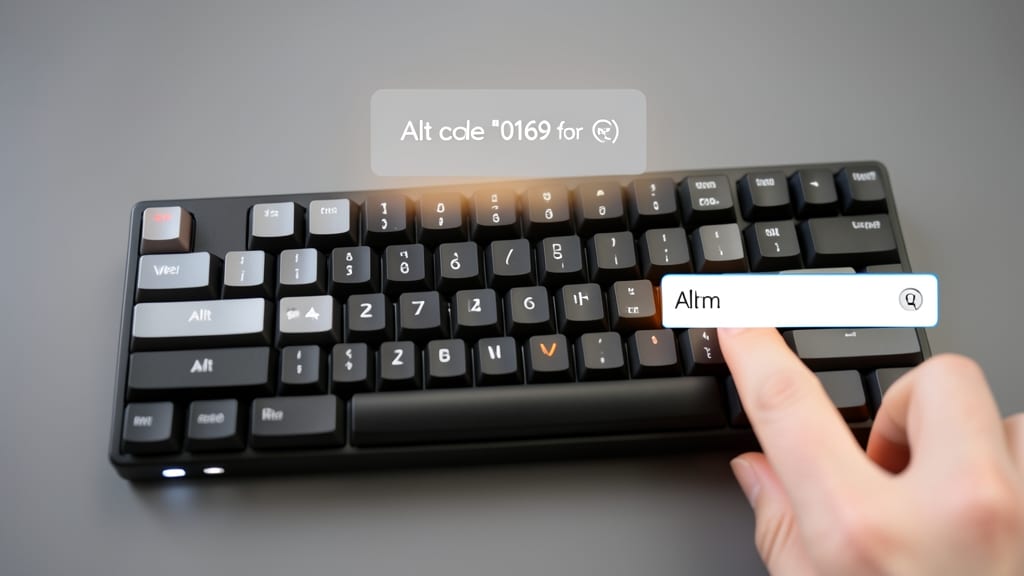
Need to document atomic-scale measurements without fumbling through character maps? The Ångström symbol (Å)—representing 0.1 nanometers—is a game-changer for chemists, physicists, and engineers. Typing it is simpler than you’d think: just press Alt+0197 on Windows, and the Å appears instantly in any text field.
This symbol isn’t just for lab reports—it’s embedded in IUPAC standards for chemical notation and material science papers. For example, a crystal lattice spacing of 3.5 Å reads cleaner than "3.5 × 10⁻¹⁰ meters." The Unicode U+00C5 ensures compatibility across platforms, from LaTeX documents to PDFs.
Perfect for undergrads cramming for exams or researchers drafting manuscripts, this shortcut saves hours of formatting. Master it, and your scientific writing will look as precise as your data. ✨
Accented Letters for Multilingual Documents
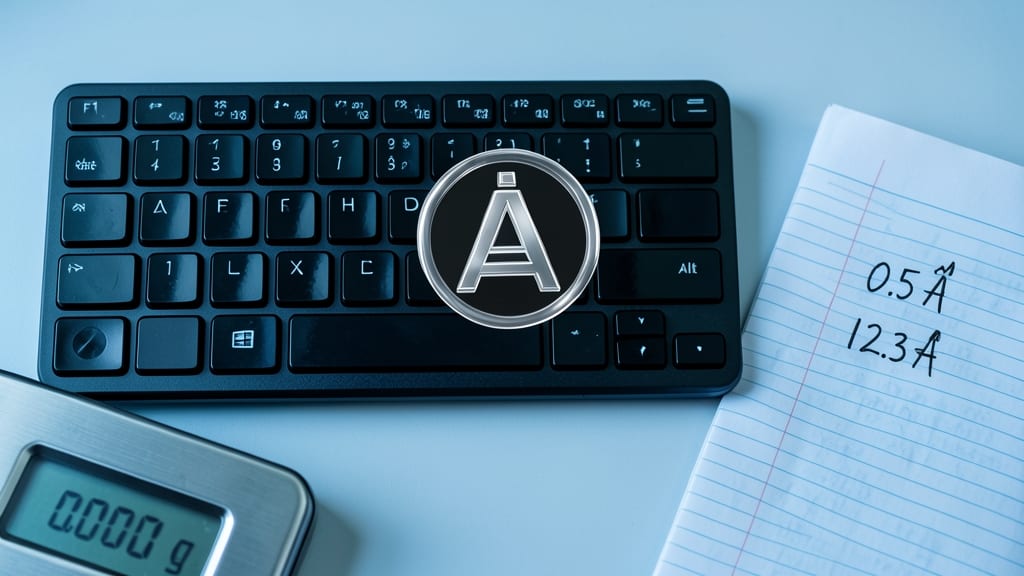
Tired of switching between keyboard layouts when writing in Spanish, French, or German? With accented letters, you can instantly type á, à, è, or ü without ever leaving your current language setting.
Simply hold the right Alt (Option) key on Mac or use Alt + number codes on Windows (e.g., Alt+0225 for á). For a seamless experience, enable dead keys in your OS settings—press the accent key first, then the letter (e.g., ´ + a → á). This works in Word, Google Docs, and coding environments alike.
Perfect for translators, legal professionals, and content creators handling multilingual documents—no layout switching required! ✨
Arrow Symbols for Presentations and Diagrams
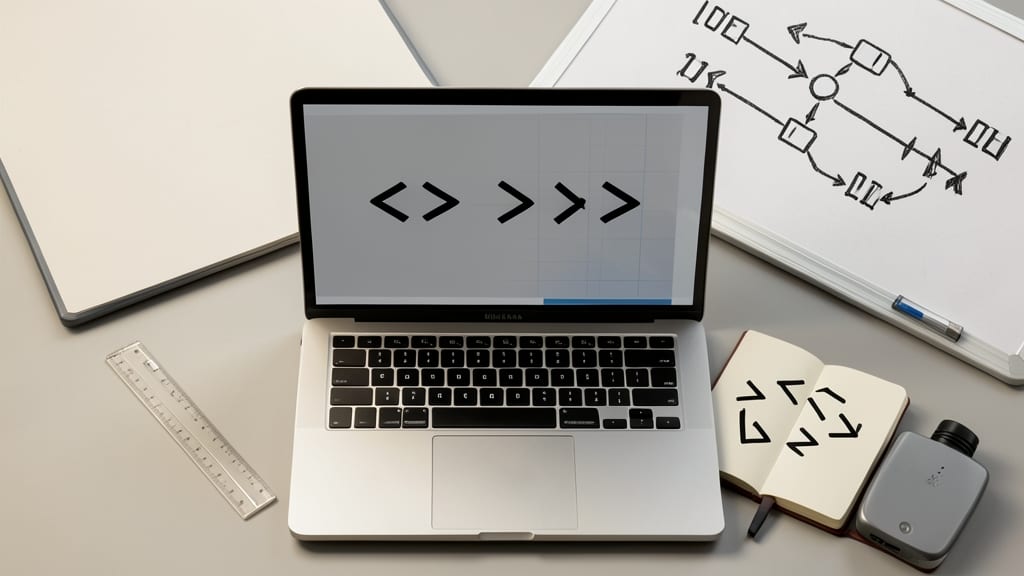
Tired of clunky arrow icons in your presentations? Unicode arrow symbols like ←, →, and ⇄ instantly elevate your diagrams with sleek, professional typography—no clipart needed. These symbols work seamlessly in PowerPoint, Google Slides, and even hand-drawn diagrams, replacing basic shapes with clean, scalable alternatives.
Type them directly using Alt codes (e.g., Alt+2190 for →) or copy-paste from Unicode charts. Need a double-headed arrow? Use ⇄ (Alt+2194) for bidirectional flowcharts. They’re also perfect for flowcharts, process maps, and infographics, where visual clarity matters most.
Presenters and designers will love how these symbols cut rendering delays and look crisp at any size. Try them next time you’re stuck with boring arrow icons! ⚡
Audio Symbols for Media Files and Notations

Tired of generic file icons cluttering your media library? The ♫ musical note (U+266A) and 🔊 speaker (U+1F50A) symbols instantly categorize audio files—perfect for musicians, podcasters, or YouTubers managing voice recordings and tracks.
Copy-paste these into filenames or use them as folder labels in Windows Explorer or macOS Finder. For extra flair, combine them with ⏱️ timers (U+231B) for podcast episodes or 🎤 microphones (U+1F3A4) for voice memos. They’re universally recognized and work in Slack, Trello, or Notion for visual project tracking.
Content creators will love how these symbols stand out in file explorers—no more guessing whether "recording_04.mp3" is a guitar track or a voiceover. Start with ♫ for music files and 🔊 for spoken content. ✨
Asterisk and Ampersand for Coding
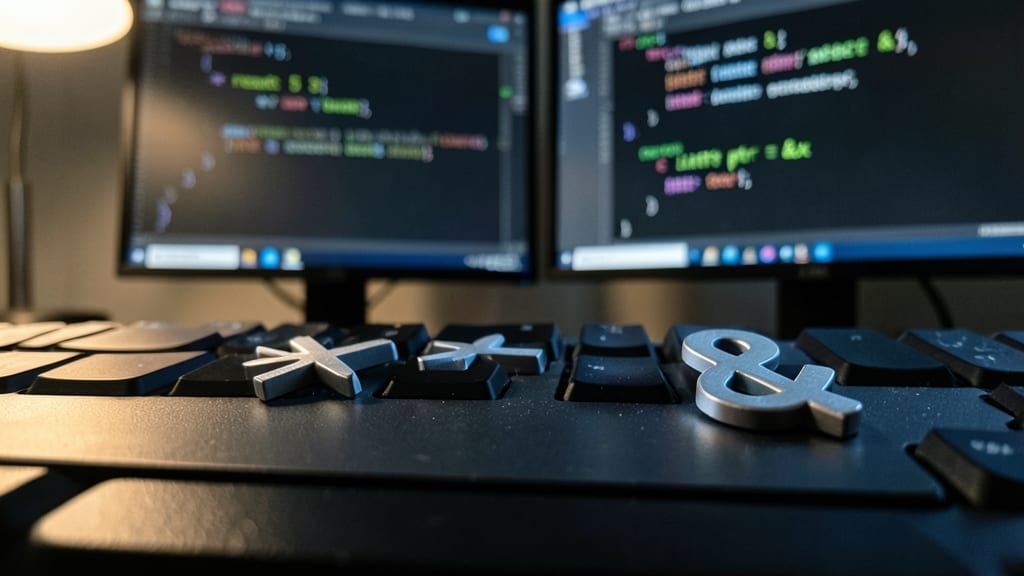
If you’ve ever spent extra seconds fumbling for the right symbol in code, the **asterisk (*) and ampersand (&) are your new best friends. These two symbols aren’t just punctuation—they’re the backbone of multiplication in Python, bitwise operations in C++, and regex pattern matching** (e.g., . for "any character"). Mastering them shaves minutes off debugging sessions.
In Python, multiplies numbers (5 3 = 15), while handles exponents (2 8 = 256). In regex, means "zero or more occurrences," and & in HTML/XML denotes logical AND (e.g., <input type="checkbox" checked="checked" />). The & symbol also powers shell scripting (e.g., && for chaining commands). Typing them directly is faster than searching docs every time.
Developers and sysadmins will love these for scripting efficiency, while regex users will appreciate the speed boost. Start by typing * for multiplication and & for logical checks—your future self will thank you. ✨
At Symbol for Email and Programming
The @ symbol isn’t just for emails—it’s a powerhouse in programming and social media. Whether you’re typing a Twitter handle or writing a Python decorator, this symbol bridges communication and code with effortless precision.
On Windows, type Alt+64 to insert it instantly, no matter the app. In programming, it marks decorators (like @staticmethod) or package imports in Python, while social media relies on it for handles (e.g., @username). The symbol’s versatility makes it a must-know for developers and content creators alike.
Programmers and social media managers will love this shortcut—it’s the ultimate multipurpose symbol for modern workflows. ⚡
Angle Brackets for HTML and XML
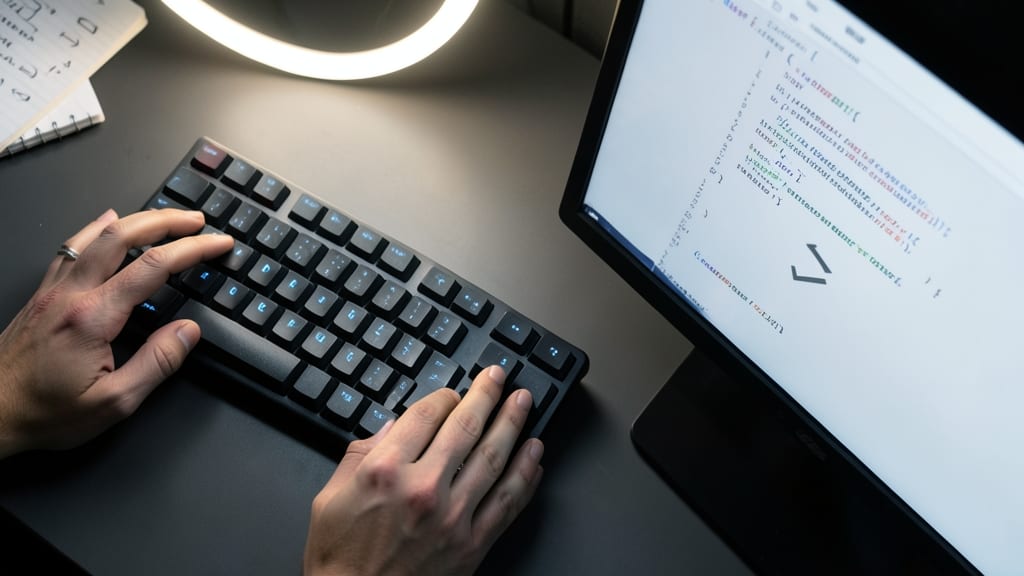
If you’ve ever manually typed < or > in a document or email, you know how tedious it can be—especially when writing HTML, XML, or even simple code snippets. These angle brackets are the backbone of markup languages, and typing them manually slows down even the fastest developers.
On most keyboards, you can type < by holding Shift + , and > with Shift + .. For XML/HTML developers, these symbols appear constantly in tags like `
`, or <script>. Even non-coders benefit—technical writers, bloggers, and students editing markup often need them quickly. Pro tip: Some code editors auto-close brackets, but knowing the shortcuts keeps you efficient even in plain text editors. 💻
Alpha Symbol for Mathematical Documents
Struggling to type Greek letters like α (alpha) or β (beta) in your math documents? You don’t need a fancy app—just press Alt+945 on Windows for instant alpha insertion. This shortcut works in Word, LaTeX, and even coding environments where Greek symbols are essential.
The α symbol (Unicode U+03B1) is perfect for equations, physics papers, or engineering diagrams. For beta, use Alt+946, and pair it with Alt+947 for gamma (γ). These codes work globally across any text field, making them ideal for students and professionals who frequently work with mathematical notation.
Engineers and STEM students will love how these symbols integrate seamlessly into LaTeX documents or Excel formulas. No more hunting for special fonts—just type, save, and share with confidence. ✨
Accent Grave for Special Characters
French typographers and Portuguese writers rely on the accent grave (` `) to transform simple letters into à, è, or ù—but most keyboards hide this key behind awkward shortcuts. The grave accent isn’t just for European languages; it’s also used in special formatting like Unicode typography and even some programming contexts for custom symbols.
On US keyboards, press Shift + 6 (the backtick key) followed by the letter (e.g., ` + a = à). For Mac users, use Option + ` (grave accent key) + letter. Windows users can also type Alt + 0224 for à or Alt + 0232 for è—no language switch required. This method works in Google Docs, Microsoft Word, and even coding environments like LaTeX for precise formatting.
If you edit multilingual documents, academic papers, or creative projects, mastering this shortcut will save hours of manual replacements. Typographers swear by it for consistent ligatures and diacritics**—a game-changer for professionals who demand perfection. ✨