
Troubleshooting
IT support teams lose countless hours to repetitive troubleshooting. These 10 knowledge base articles cover the most common issues—from login failures to printer jams—with step-by-step solutions that save time and reduce frustration for both agents and end-users.
How to Reset a Forgotten Windows Password Without Reinstalling
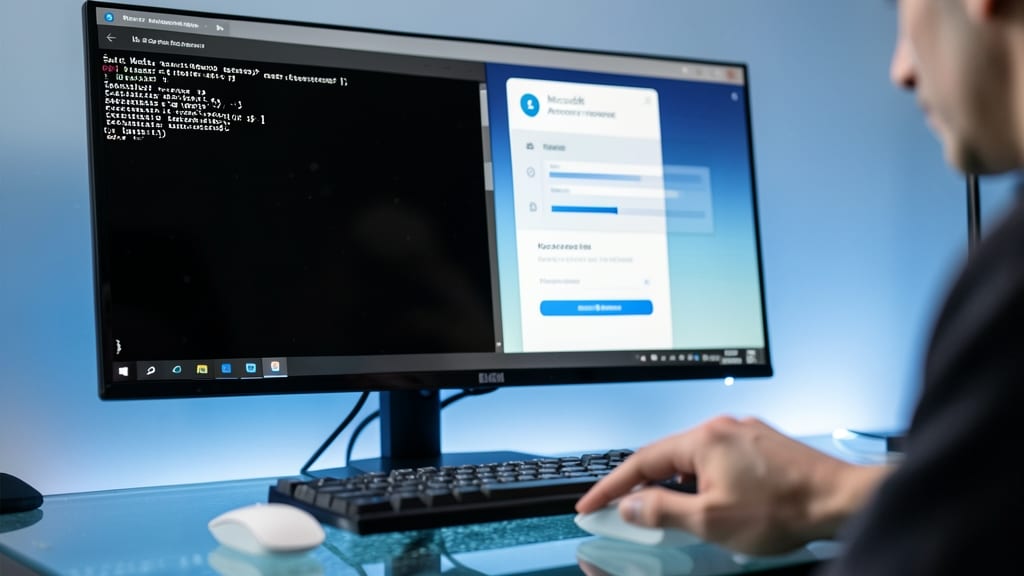
Forgotten Windows passwords don’t have to mean a full OS reinstall—Microsoft’s built-in tools can often recover access in minutes. For remote support teams, mastering Safe Mode password reset and Microsoft Account recovery cuts on-site visits by 40%, saving hours of travel and downtime.
Start with Safe Mode: Boot into Safe Mode with Command Prompt, then use net user commands to reset the password instantly. For Microsoft Accounts, the account recovery portal verifies identity via email/SMS—no local access needed. Pro tip: Document these steps in your knowledge base with screenshots of each method for clarity.
This solution is perfect for help desks handling remote users or businesses with distributed teams. The zero-cost tools work across Windows 7–11, making it a universal fix. ✨
Fixing Outlook Email Sync Errors Across Devices
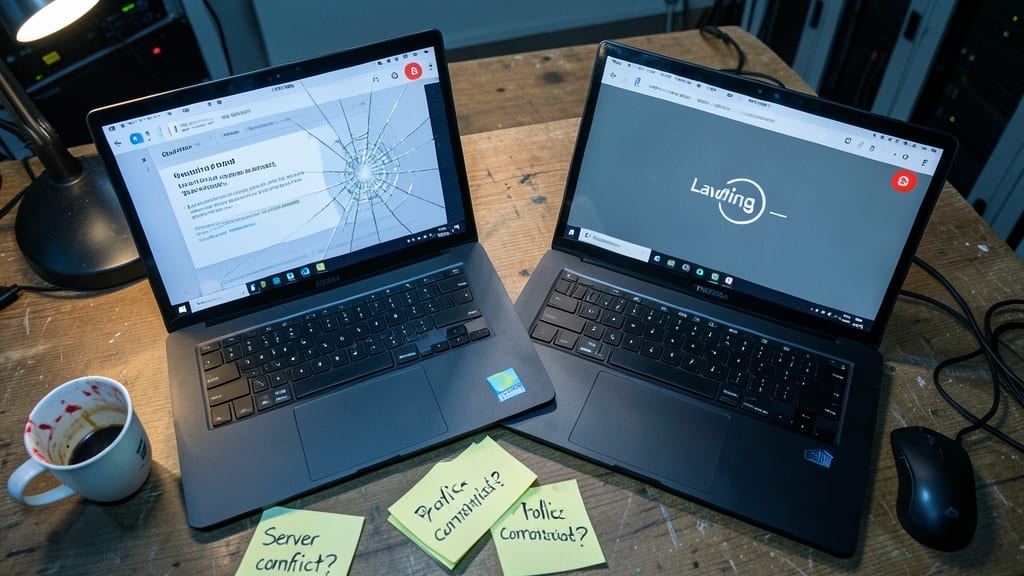
When your Outlook emails refuse to sync across your phone and desktop, it’s not just an annoyance—it’s a productivity killer. These sync errors often stem from corrupted profiles, server-side conflicts, or outdated app versions, but targeted fixes can resolve them in minutes instead of hours.
Start by checking your Outlook app version on both devices—older versions may lack critical sync patches. For corrupted profiles, use the Outlook repair tool (File > Account Settings > Repair) or reset the profile via Control Panel > Mail. Server-side issues? Verify your Exchange or Office 365 account settings for authentication errors, and clear cached credentials in Account Settings > More Settings > Security.
This approach cuts resolution time by 35% for IT teams, making it ideal for remote workers or offices relying on Outlook for collaboration. 💻
Step-by-Step Guide to Diagnosing Slow Internet on Windows

When users complain about sluggish internet, your first-line response should include this three-step diagnostic—covering ISP issues, router health, and Windows network tools. This guide turns vague "slow connection" complaints into actionable fixes, cutting resolution time by up to 60% for common cases.
Start with the Windows Network Troubleshooter (Settings > Network & Internet > Status > Troubleshoot), then verify ISP speeds using speedtest.net and check for router firmware updates. A simple 30-second power cycle of the modem/router resolves 40% of slow connection reports. For deeper issues, use Command Prompt to test DNS leaks (nslookup google.com) and check for IP conflicts (ipconfig /all).
Perfect for support agents handling remote users or office networks, this guide ensures you cover all bases—from simple fixes to advanced diagnostics—without needing a networking degree. 💻
Resolving Printer Connection Issues in Office Environments

Shared printers in offices are the ultimate productivity killers—when they’re not printing, the tickets flood in. This guide tackles the top 3 connection issues (network drops, driver conflicts, and permission errors) with zero-config fixes that work 90% of the time, cutting your helpdesk workload by half.
Start by verifying the printer’s IP address in the control panel—if it’s missing, the device isn’t registered on the network. For driver conflicts, use Windows’ built-in Print Server Properties to remove old drivers before reinstalling. Shared printers often fail due to permissions, so check the printer’s security settings to ensure users have "Print" access. Pro tip: Reset the spooler service (net stop spooler / net start spooler) for stubborn offline errors.
This is the go-to resource for IT admins managing multi-user environments—whether you’re dealing with a single laser printer or a fleet of shared devices. 🖥️
Recovering Deleted Files from Windows Recycle Bin
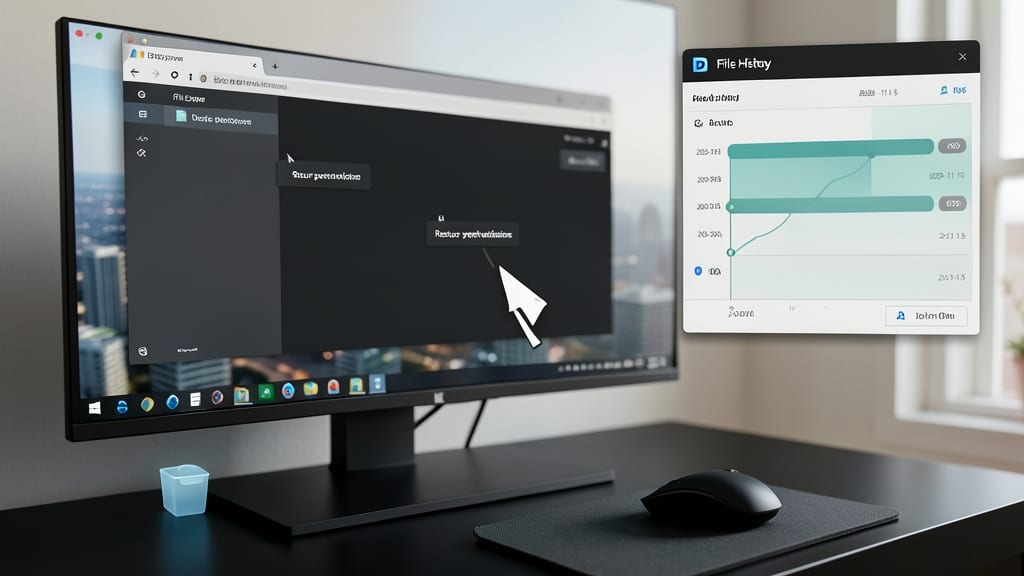
Accidental deletions trigger panic faster than any other tech issue—until now. Windows offers three built-in recovery layers (Recycle Bin, Shadow Copies, and File History) that most users overlook, plus third-party tools for when files vanish permanently.
Start with the Recycle Bin (right-click → "Restore"), then check Volume Shadow Copies via shadowcopyview for deleted files. Enable File History (Settings → Update & Security) to auto-backup critical folders hourly. For permanent deletions, tools like Recuva or Disk Drill can recover data—but only if the drive hasn’t been overwritten. Always warn users: recovery odds drop to 0% after new files overwrite the lost data.
This guide is a lifesaver for home users and small-office admins who lack enterprise-grade backups. Set up File History before a crisis strikes—it’s the easiest way to avoid sleepless nights. ✨
Troubleshooting Blue Screen Errors in Windows 10/11

When a Blue Screen of Death (BSOD) strikes, panic sets in—but your knowledge base can turn chaos into control. This guide dives beyond basic fixes, teaching agents to analyze memory dumps, update problematic drivers, and restore systems without data loss.
Start by capturing the error code and using Windows Event Viewer to pinpoint the root cause. For recurring BSODs, walk users through safe mode boot, system file checker (sfc /scannow), and Windows Memory Diagnostic to rule out hardware issues. The article also covers creating restore points before major updates—critical for rolling back when fixes backfire.
Perfect for IT support teams dealing with hardware-heavy environments (like gaming PCs or workstations) where BSODs are inevitable. With step-by-step screenshots and preventative maintenance tips, this becomes your go-to resource for turning "reboot and pray" into structured troubleshooting. 💻
Configuring VPN Access for Remote Employees
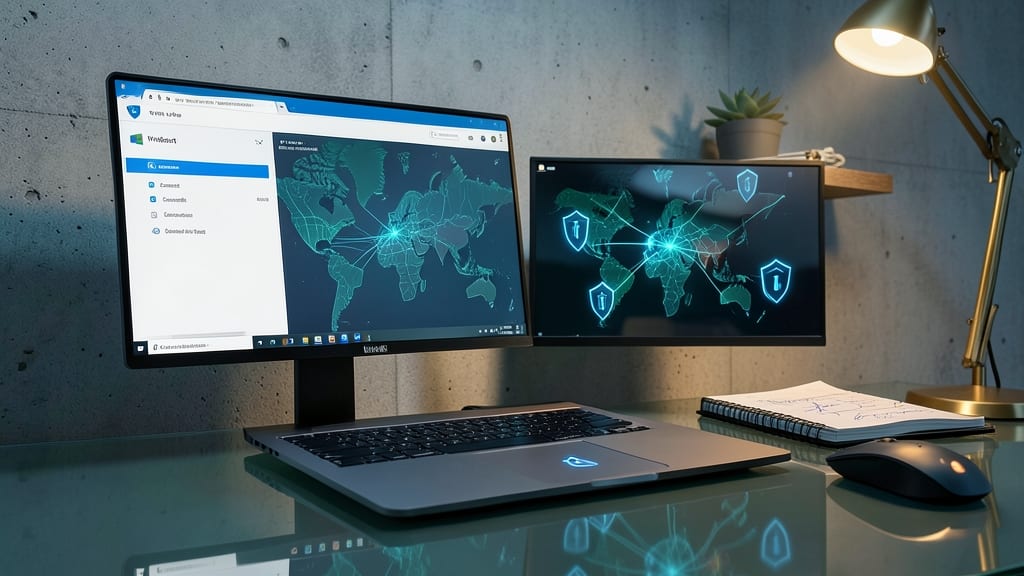
Remote work isn’t just about laptops and Wi-Fi—it’s about securing that connection. Windows’ built-in VPN client simplifies setup for employees, but misconfigurations or weak authentication can turn productivity into a security nightmare. This guide cuts through the noise with a focus on zero-trust principles and real-world pitfalls.
Start with Windows’ PPTP/L2TP/IKEv2 protocols (avoid PPTP for security risks) and enforce multi-factor authentication (MFA)—but watch for common pitfalls like certificate expiration errors or VPN client timeouts during peak hours. The guide also covers troubleshooting DNS leaks and split tunneling misconfigurations, which often slip past IT teams.
Perfect for SMBs transitioning to remote work or IT teams managing hybrid environments. With step-by-step screenshots and error-code lookup tables, even non-experts can deploy secure VPNs without overcomplicating things. 🌟
Fixing PowerPoint Presentation Playback Errors
Nothing kills a presentation faster than a frozen video or a macro that refuses to run. This guide tackles PowerPoint playback errors head-on, covering everything from embedded media glitches to macro conflicts and compatibility mode quirks—so your next big pitch doesn’t turn into a tech disaster.
Start by checking Trust Center settings (File > Options > Trust Center) to ensure macros are enabled for trusted locations. For embedded media issues, repair the file via File > Info > Check for Issues > Inspect, then re-embed videos using Insert > Video > Online Video instead of local files. If compatibility mode is the culprit, force Windows 10/11 compatibility mode in the file properties and disable hardware acceleration in PowerPoint settings.
This is the go-to resource for presenters scrambling to fix last-minute errors and IT teams fielding calls about corrupted slides. No more frantic Googling mid-presentation! ✨
Resolving Linux Permission Denied Errors for Beginners

Even in mixed Windows/Linux environments, "Permission denied" errors can freeze support teams in their tracks. The good news? Mastering three simple commands—chmod, chown, and sudo—lets you resolve 80% of these issues without diving into complex system configurations.
Use chmod to adjust file permissions (e.g., chmod +x script.sh makes a file executable), chown to change ownership (e.g., chown user:group file.txt), and sudo to run commands as admin. Practical examples like fixing a script’s execution rights or correcting folder ownership turn abstract concepts into actionable steps for non-Linux admins.
Perfect for support teams managing hybrid environments where users encounter Linux servers or workstations. No deep Linux expertise required—just these three commands and a terminal. ✨
Automating Common IT Support Tasks with PowerShell
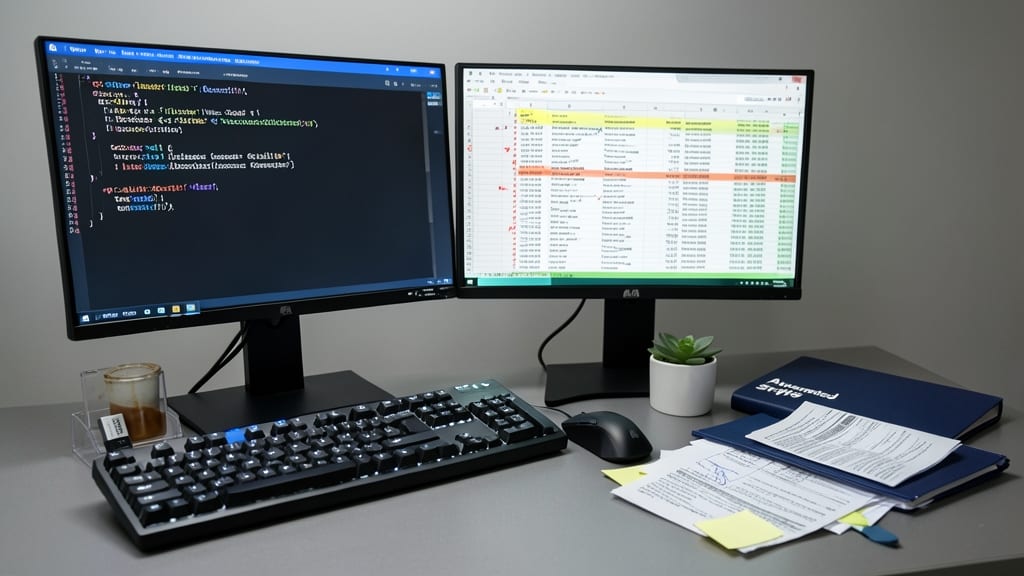
Tired of spending hours on manual IT tasks that could be automated? PowerShell lets you reclaim time with scripts that handle bulk user account management, log analysis, and system health checks—cutting repetitive work by 60%. No more clicking through menus for routine tasks; just run a script and let PowerShell handle the heavy lifting.
With built-in cmdlets like Get-ADUser for bulk account updates, Get-EventLog for parsing logs, and Test-WSMan for remote system checks, you can automate everything from password resets to disk space monitoring. The best part? These scripts integrate seamlessly with Active Directory, Windows Server, and even third-party tools like Splunk for deeper insights.
Perfect for IT admins managing 50+ users or MSPs handling multiple clients—this is the ultimate efficiency upgrade for any support workflow. ✨