
Tip & Trick
Microsoft Word is a powerhouse for writers, but most users only scratch the surface of its capabilities. These seven hidden Microsoft 365 Word tips and tricks will transform how you work—cutting time spent formatting, organizing, and editing so you can focus on crafting better content faster.
Quick Parts Gallery for Reusable Text Blocks
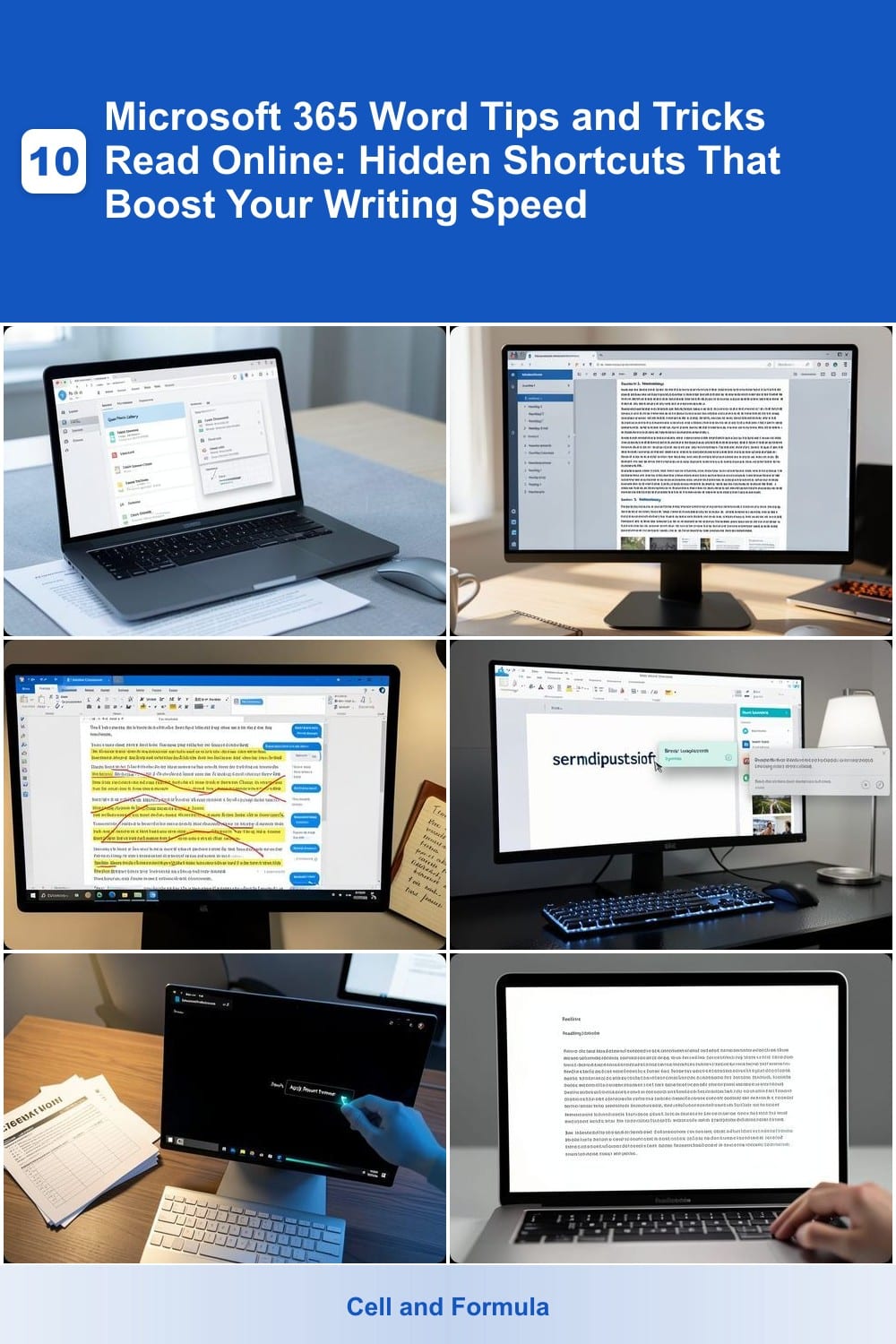
Ever waste 15 minutes retyping the same legal disclaimer or email signature? Microsoft Word’s Quick Parts Gallery turns repetitive text into a one-click solution—saving you hours monthly. This hidden feature lets you store boilerplate clauses, company templates, or even complex formatting once, then insert them anywhere with a simple shortcut.
To use it, type your reusable text, then click Insert > Quick Parts > Save Selection to Quick Part Gallery. Later, access it via Insert > Quick Parts (or press Alt+F3). You can even categorize entries (e.g., "Legal," "Email Signatures") for instant organization. Pro tip: Combine with fields (like dates or page numbers) to auto-update dynamic content—perfect for contracts or reports.
This is a must-have for legal teams, business writers, and academics drowning in repetitive clauses. Try it today and reclaim your typing speed! ⚡
Navigation Pane for Large Documents
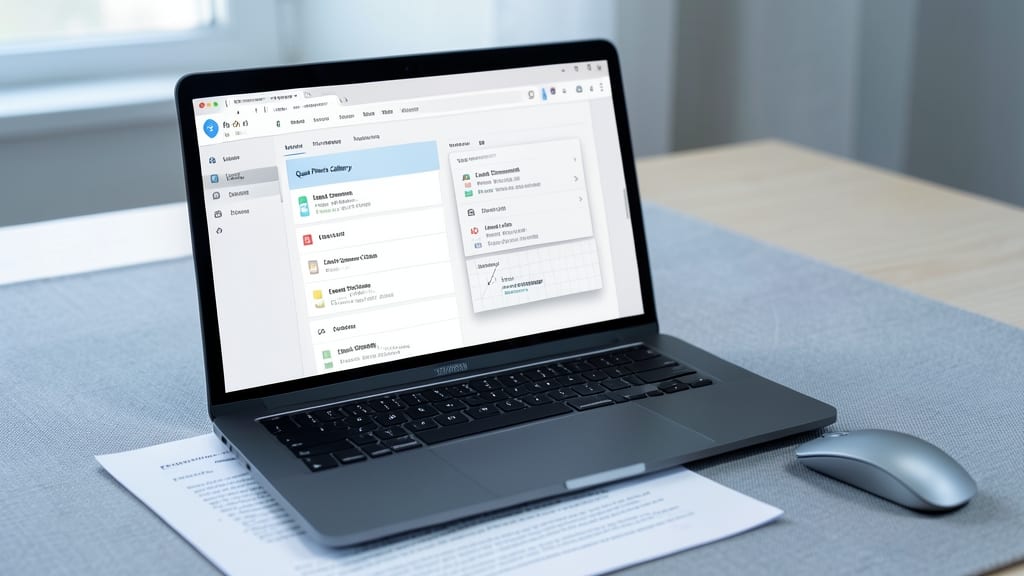
Fed up with endlessly scrolling through 50+ page documents to find the right section? Microsoft Word’s Navigation Pane is your instant jump menu—think of it as a built-in table of contents that updates as you edit. With just one click, you can navigate to headings, pages, or even search for specific text without losing your place.
Access it via View > Navigation Pane (or press Ctrl+F on Windows) to reveal three tabs: Headings (for structured documents), Pages (for visual scanning), and Results (for keyword searches). The Headings tab is especially powerful—it dynamically updates when you add or modify headings, making it perfect for theses, manuals, or reports where organization matters. Need to jump to Section 3.2? No problem—just click and go.
This tool is a game-changer for academics, technical writers, and anyone editing dense documents. Spend less time scrolling and more time writing—your future self will thank you for this time-saver. ⚡
Track Changes with Comments and Highlights
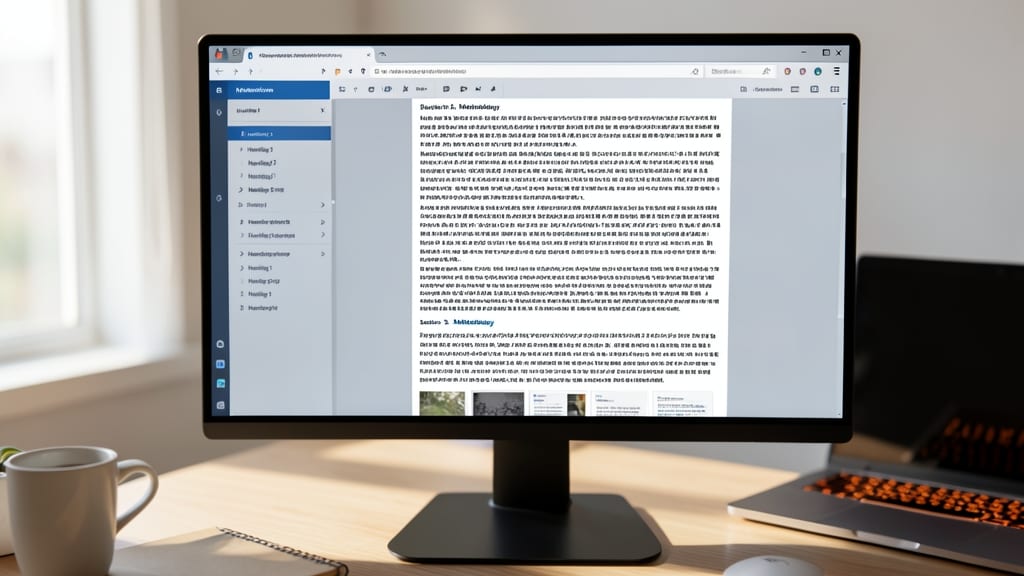
Turn messy document feedback into a streamlined workflow by combining Track Changes with inline comments and color-coded highlights. This trio of features lets you annotate directly on text—no more back-and-forth emails or lost suggestions in the shuffle.
Enable Track Changes (Review tab) to mark edits, then add comments (right-click → New Comment) to explain decisions or ask questions. Use highlights (Review tab → Highlight) to flag sections needing revision—yellow for grammar, blue for style, and green for content additions. The Final tab lets you accept/reject changes in bulk once feedback is complete.
Perfect for editors, teachers grading papers, or team leads reviewing drafts—this setup keeps all notes in one place while making revisions visible. No more digging through emails to piece together feedback! ✨
Smart Lookup for Instant Definitions
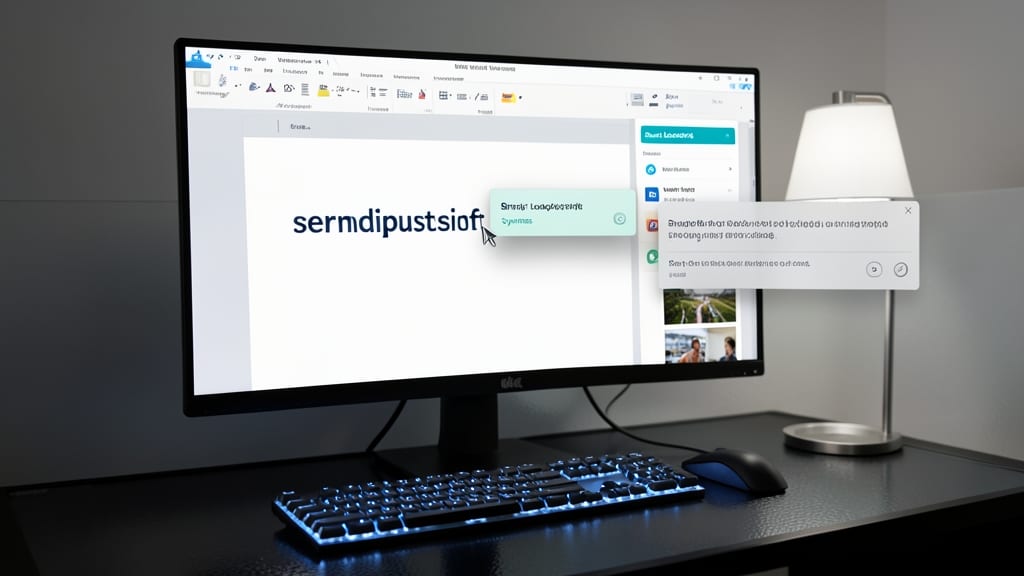
Tired of pausing your workflow to look up unfamiliar words? Microsoft Word’s Smart Lookup feature integrates directly into your document—no browser needed. With a simple right-click, you’ll see instant definitions, synonyms, and even web results from Bing, all without leaving your workspace.
This tool is especially useful for researchers, students, and non-native English speakers who frequently encounter complex terminology. It supports 10+ languages, including Spanish, French, and German, and works seamlessly with the Microsoft Editor for grammar suggestions. The best part? It’s zero-config—just enable it in File > Options > Proofing and start saving time immediately.
Perfect for anyone drafting academic papers, translating documents, or learning new jargon—this feature turns Word into a lightweight research hub. ✨
Macros to Automate Repetitive Tasks
Tired of repeating the same formatting steps every time you create a report? Macros let you record and replay custom sequences of actions—like inserting headers, applying styles, or generating tables—with just one click. This hidden feature turns repetitive tasks into automated workflows, saving you minutes per document.
To get started, press Alt + F8 to open the Macro dialog, then record your actions using the View Macros tab. Need to format 20 identical tables? Record the steps once, then replay the macro instantly. Macros also work with conditional logic (e.g., "If cell A1 contains 'urgent,' apply red font"). For advanced users, the VBA editor lets you tweak macros with custom code.
Perfect for accountants crunching numbers, designers aligning layouts, or researchers standardizing citations—macros eliminate manual errors and speed up workflows for anyone handling data-heavy projects. ⚡
Reading Mode for Distraction-Free Writing
Tired of formatting distractions breaking your creative flow? Microsoft Word’s Reading Mode transforms your document into a distraction-free, e-reader-style view with just one click. It removes headers, footers, and sidebars—leaving only your text on a clean, white background with subtle page transitions.
This mode is perfect for deep editing sessions, offering adjustable font sizes (up to 200%) and a dark theme to reduce eye strain. The page-turning animation mimics physical books, making it ideal for long-form writing or reviewing dense legal or academic documents. Simply press Ctrl+Shift+N (Windows) or Cmd+Shift+N (Mac) to toggle it on.
Writers, researchers, and anyone editing lengthy documents will love how this mode eliminates visual clutter and keeps focus sharp. Try it next time you’re drafting a novel, thesis, or report—your eyes (and brain) will thank you. ✨
Dictation Tool for Hands-Free Typing
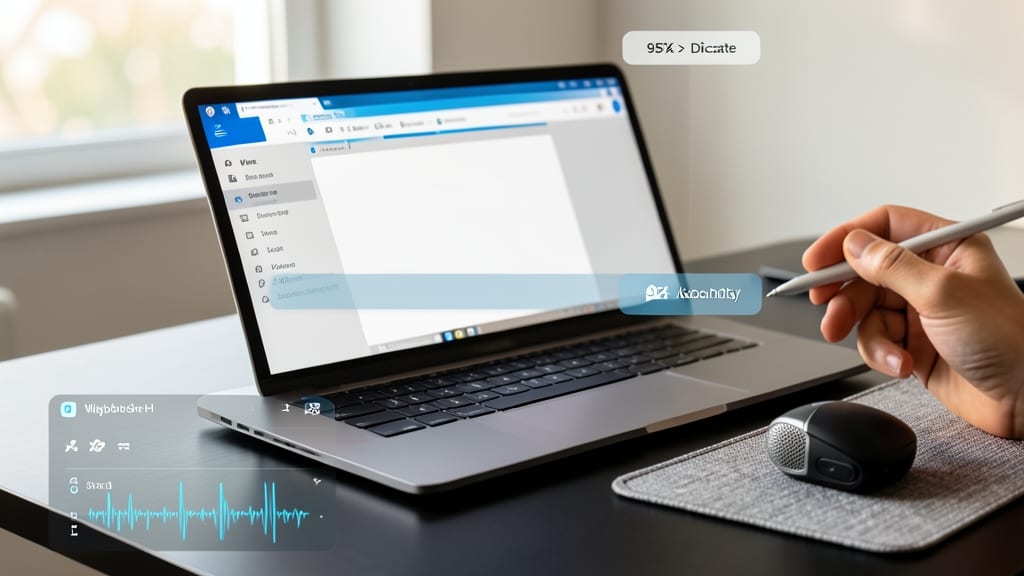
Tired of typing slowing you down when ideas flow fast? Microsoft Word’s built-in Dictation Tool turns your voice into text in real-time, with 95%+ accuracy for clear speech. Just enable it via View > Dictate (or press Windows + H), and start speaking—punctuation commands like "period" or "new line" work instantly.
The tool excels at outlines, emails, or rough drafts, where speed beats perfection. It supports 12 languages and adapts to accents, making it ideal for accessibility users or professionals multitasking. Pair it with grammar suggestions for polished results without lifting a finger.
Perfect for busy executives, writers with carpal tunnel, or anyone who dictates faster than they type. Give it a try—your wrists will thank you! ✨