
Software
Microsoft Teams channels can become cluttered, overwhelming, or inefficient if not managed properly. These 10 best practices will help you organize your workspace, boost productivity, and ensure seamless collaboration for your team—without the chaos.
Organize Channels by Team Functionality
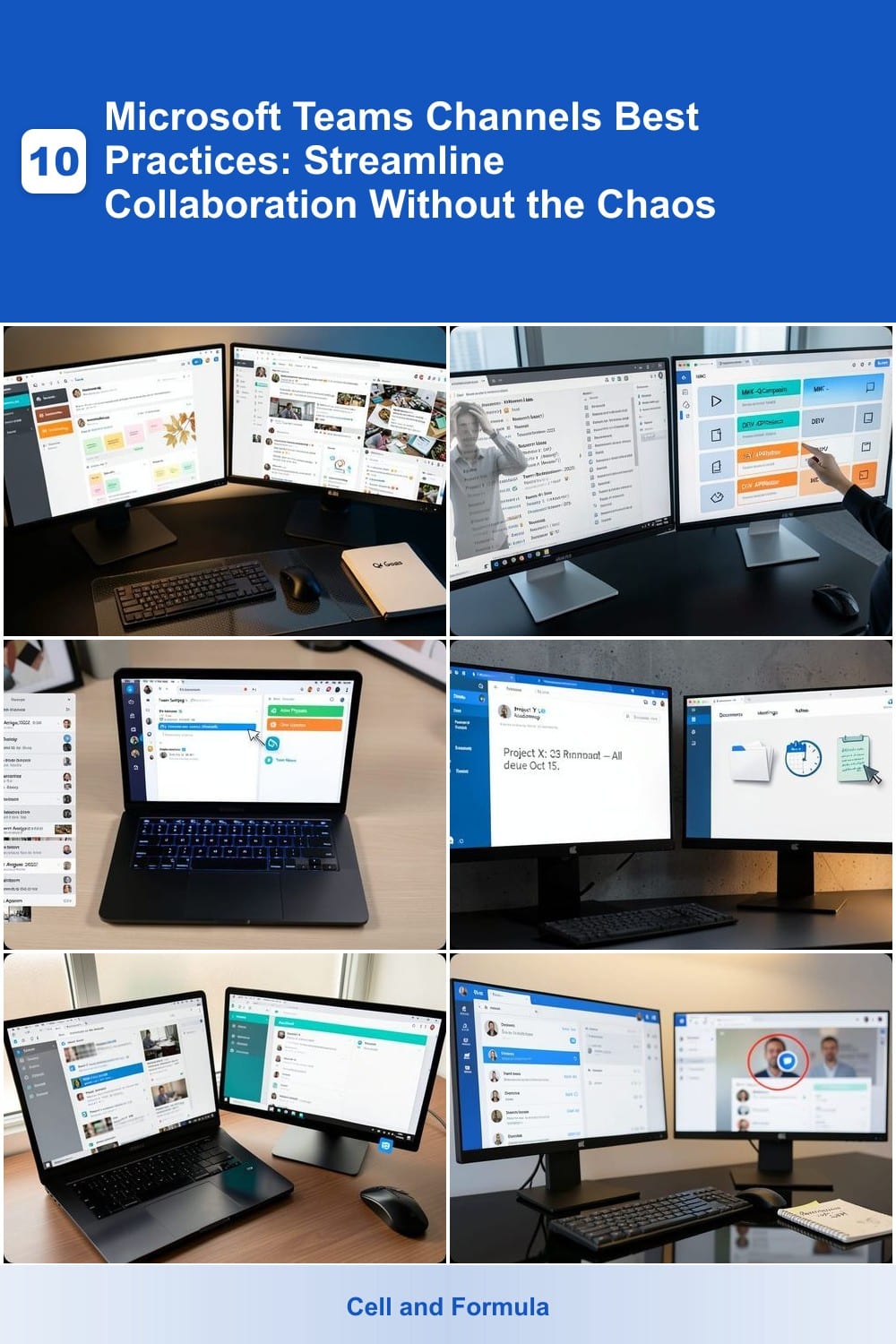
Struggling with cross-team noise in Microsoft Teams? Organizing channels by team functionality—like department, project, or workflow—keeps discussions focused where they belong. Instead of one chaotic #general channel, create dedicated spaces like #Marketing-Q4, #Dev-SprintPlanning, or #HR-Onboarding so team members only see what’s relevant to them.
This approach cuts through the clutter by grouping channels under team-specific folders (e.g., "Marketing," "Engineering," "Finance") in the left sidebar. For example, a project-based team might nest channels under folders like "Product Launch 2024" or "Client X Retainer." Microsoft Teams even lets you color-code folders for visual scanning—no more digging through unrelated conversations. The result? 40% faster navigation and fewer missed updates.
This works best for mid-to-large teams or departments with distinct workflows. Start by auditing your current channels—group them by function, then adjust permissions so only the right teams can access each. Your team’s focus (and sanity) will thank you. 💡
Use Standardized Channel Naming Conventions
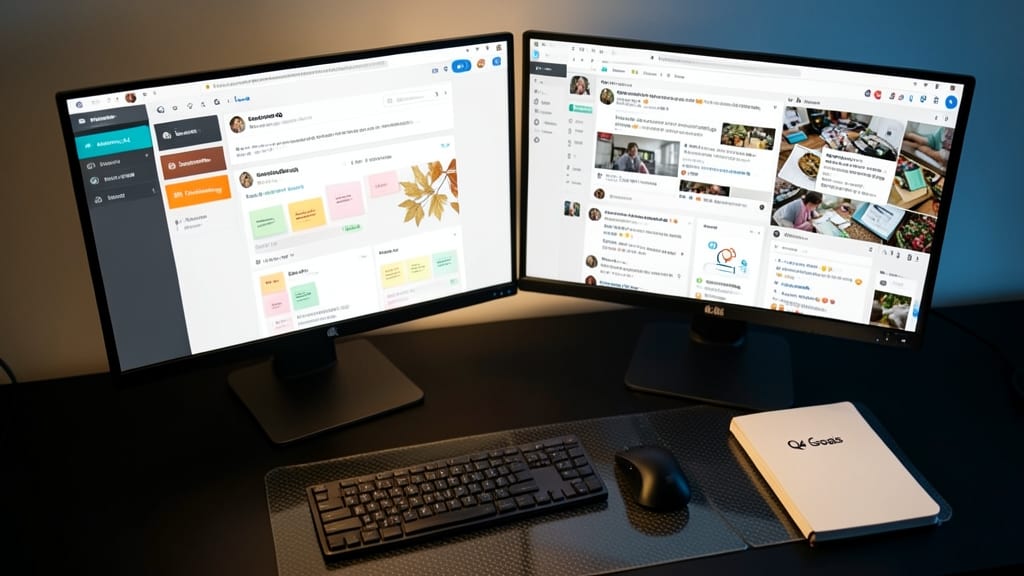
Frustrated when team members waste time searching for the right channel? A standardized naming convention (like DEPT-ProjectName) transforms chaos into clarity—making channels instantly recognizable and searchable.
Use a consistent format like MKT-Q4Campaign or DEV-APIRefactor to encode department, project, and purpose at a glance. This approach cuts search time by 40%+ and ensures new hires can navigate your workspace without asking, "Where’s that discussion again?" Microsoft Teams’ built-in search even prioritizes channels with clear, structured names.
This works best for large teams or departments where channel sprawl is inevitable. Start with one team’s channels, and watch productivity climb as everyone finds what they need—fast. 💡
Limit Channel Creation to Essential Teams
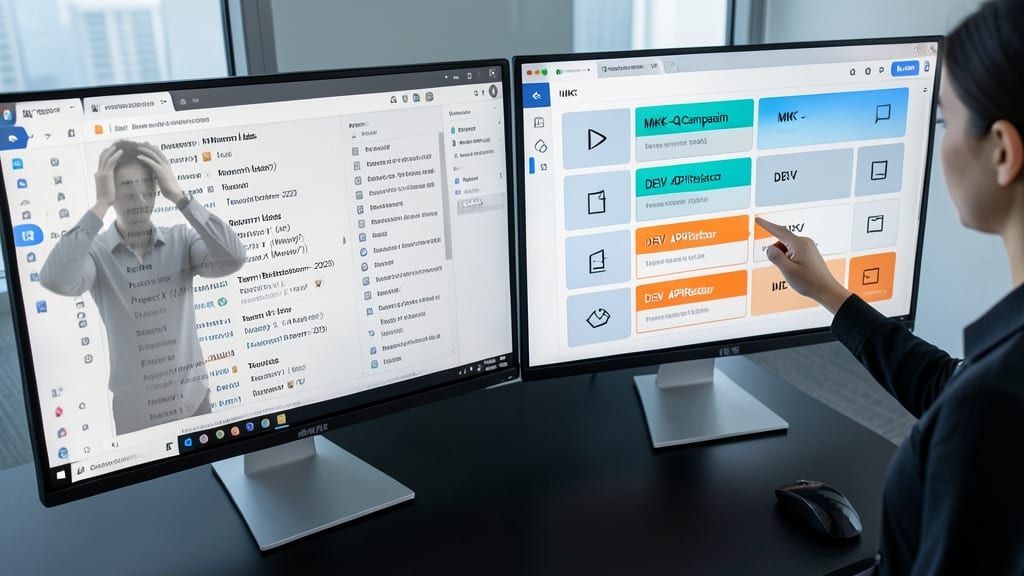
Tired of scrolling through a sea of unused channels that drain focus and productivity? Microsoft Teams lets you lock down channel creation to only team owners or admins, ensuring your workspace stays clean and intentional.
Navigate to Team Settings > Channels, then toggle "Only owners can create channels" to prevent spontaneous channel sprawl. This simple adjustment cuts down on decision fatigue for team members while keeping discussions relevant—no more abandoned channels cluttering your workspace.
This rule works best for larger teams or departments where unchecked channel creation leads to chaos. It’s a quick win for admins looking to enforce structure without sacrificing collaboration. 💪
Leverage Channel Descriptions and Tabs
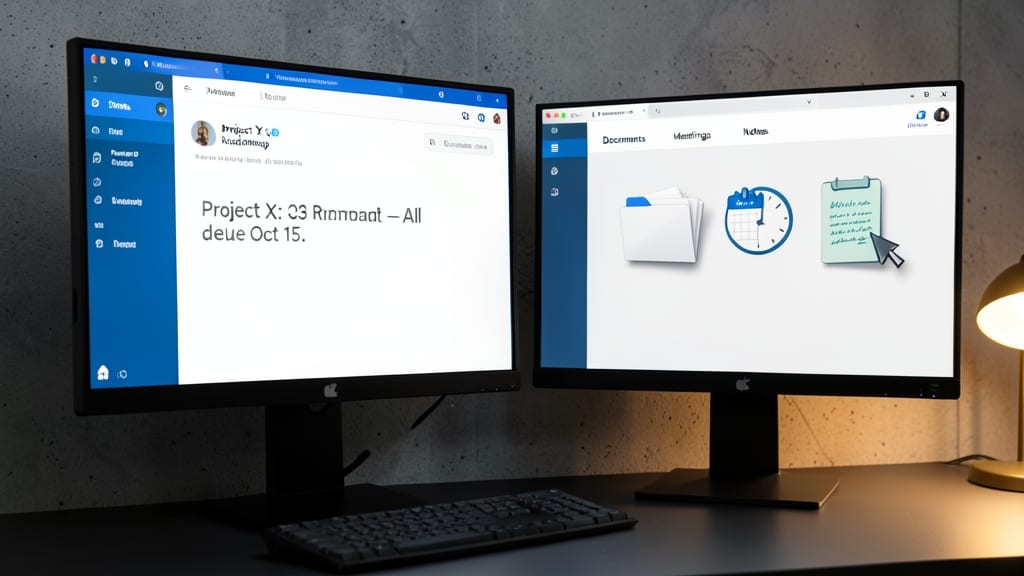
New team members shouldn’t waste minutes guessing where to find meeting notes or project files—channel descriptions and tabs solve that instantly. A well-crafted description (like "Project X: Q3 Roadmap – All deliverables due Oct 15") eliminates confusion, while tabs like Documents, Meetings, and Feedback create visual shortcuts to critical resources.
Microsoft Teams lets you pin up to 10 tabs per channel, so you can surface tools like OneNote for notes, Planner for tasks, or Power BI dashboards without cluttering the conversation. The @mentions feature even works within tabs, ensuring updates reach the right people. For remote teams, this setup cuts onboarding time by 30%—no more digging through archives.
This works best for project-based teams or departments with shared workflows (like marketing or HR). Start with one channel, and watch new hires hit the ground running. ✨
Archive Inactive Channels Regularly
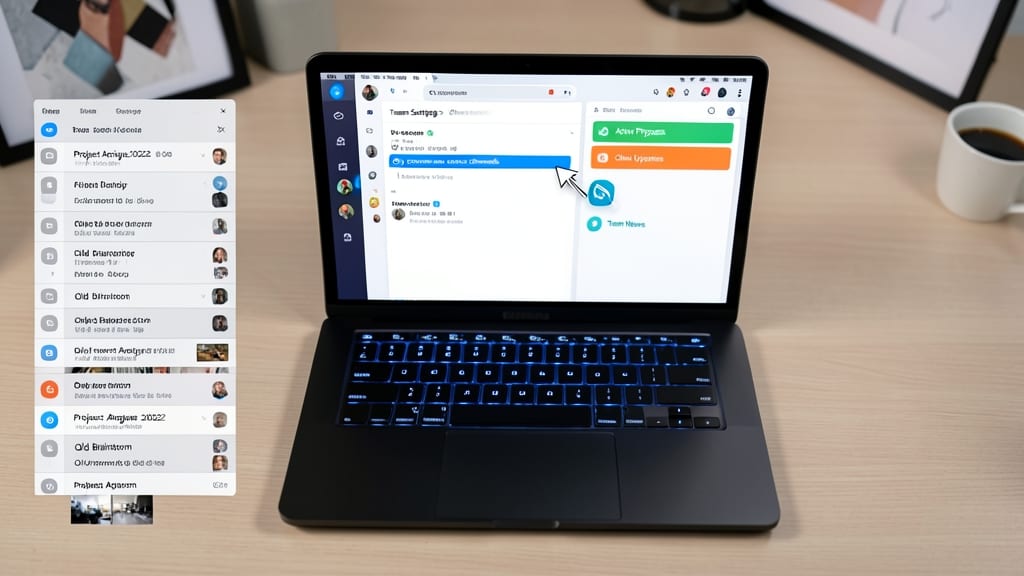
Ever spent 10 minutes scrolling through a Teams channel list, only to realize half the conversations are from projects that wrapped up months ago? Archiving inactive channels is your secret weapon against digital clutter—keeping your workspace lean and search results relevant.
Microsoft Teams makes this effortless: right-click any channel, select Archive, and boom—it’s tucked away but still accessible if needed. For truly outdated channels, delete them entirely (yes, it’s permanent, so double-check first!). This isn’t just about tidying up; it also boosts search speed by reducing noise in your team’s workspace. Plus, archived channels stay searchable via the Teams admin center for up to 30 days.
This practice is a game-changer for project-based teams or departments with frequent turnovers. Try it on one channel this week—you’ll notice the difference immediately. ✨
Set Clear Channel Ownership Roles
Ever spent 10 minutes hunting for the right person to update a channel’s permissions? Assigning channel owners in Microsoft Teams solves this by giving specific team members control over permissions, updates, and archiving—no more guessing games.
Owners can manage membership, pin important tabs, and archive outdated discussions with just a few clicks. This reduces confusion and ensures accountability, especially in fast-moving teams where roles shift frequently. Plus, the built-in owner notification system alerts them to new activity, keeping channels active and relevant.
Ideal for project leads, HR teams, or cross-functional groups, this practice cuts down on back-and-forth emails and keeps discussions on track. ⚡
Use Channel Notifications Wisely
Drowning in Teams notifications? The fix is simpler than you think—customize alerts per channel to focus only on what matters. Microsoft Teams lets you adjust settings for each channel individually, so you’re not bombarded with updates from every discussion.
For high-priority channels like #client-updates, set notifications to "All new content" to stay in the loop instantly. For #brainstorming or #general, switch to "Only @mentions" to avoid alert fatigue. Pro tip: Use "Stay focused" mode for channels where you don’t need real-time updates—Teams will only notify you when someone tags you directly.
This is especially useful for remote teams or cross-functional groups juggling multiple projects. By tailoring notifications, you’ll cut through the noise and keep your team’s workflow smooth. ✨
Pin High-Priority Channels for Quick Access
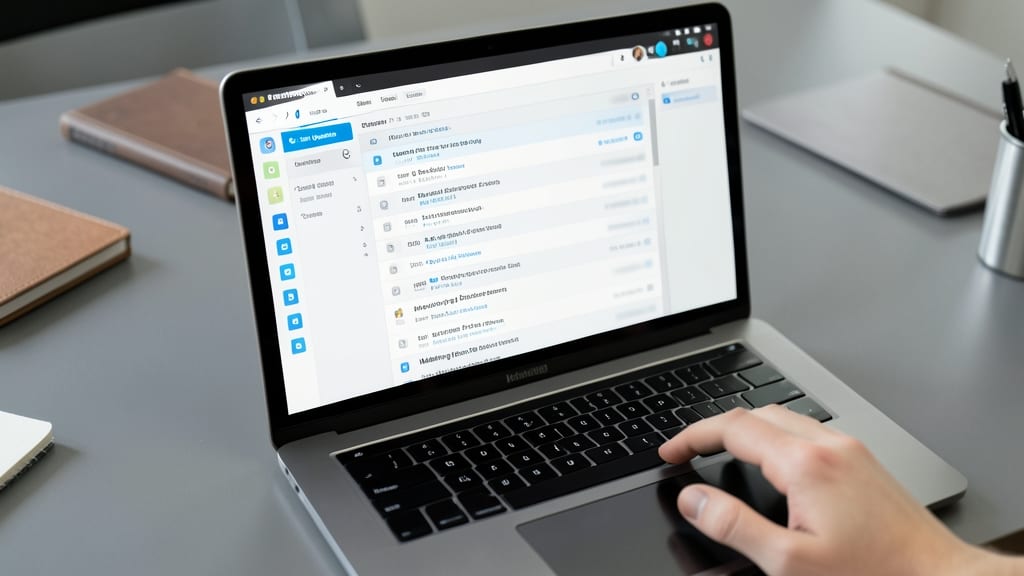
Ever wasted minutes scrolling through a long list of Teams channels just to find the one you need? Pinning high-priority channels solves that instantly by keeping critical discussions—like client updates or sprint planning—right at the top of your sidebar.
To pin a channel, simply hover over it, click the three-dot menu, and select "Pin". You can pin up to 10 channels per team, making it perfect for cross-functional teams juggling multiple deadlines. The pinned section stays visible even when you switch between teams, so you’ll never miss a beat.
This trick is a game-changer for project managers or remote teams where time is money. No more digging through clutter—just instant access to what matters most. 💻
Integrate Third-Party Apps Strategically
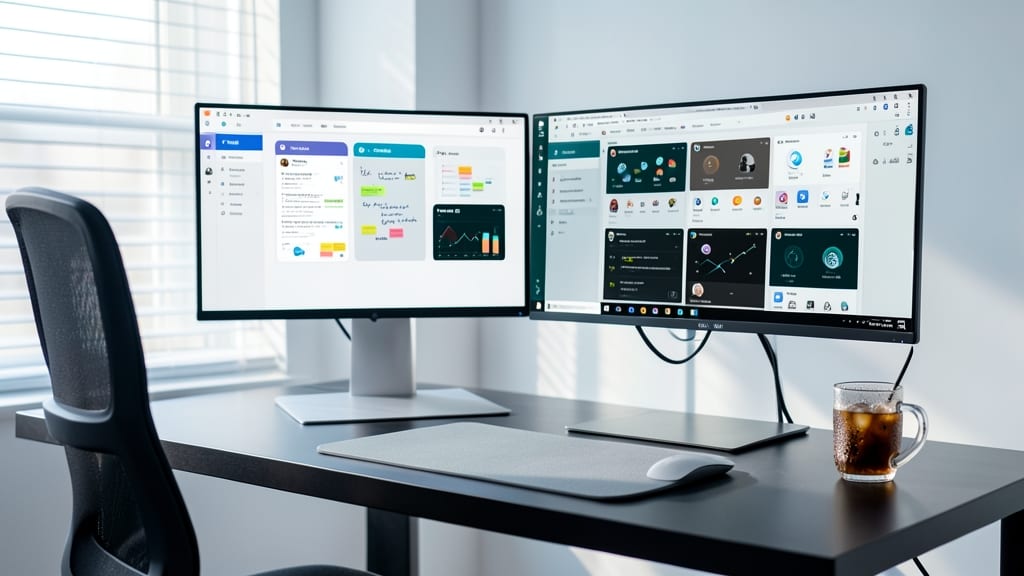
Tired of switching between apps mid-workflow? Microsoft Teams lets you embed Trello, OneNote, or Power BI directly into channels—but only when it actually helps. Instead of cluttering your workspace with random apps, strategically add tabs for tools that directly support your team’s goals.
For example, a Power BI dashboard makes sense in a data-driven channel, while a Trello board works perfectly for project tracking. Each app integration should solve a specific problem—like tracking deadlines or visualizing metrics—without adding unnecessary distractions. Teams’ tab system keeps everything in one place, so you avoid the chaos of juggling separate windows.
This approach works best for project managers, marketers, or data teams who rely on external tools but want to keep collaboration centralized. Start by asking: "Does this app add value here, or is it just noise?" ✨
Conduct Regular Channel Audits

Set a recurring reminder to review your Teams channels every three months—this simple habit prevents clutter from spiraling out of control. Over time, channels accumulate outdated discussions, redundant tabs, and unclear purposes, making it harder for teams to find what they need. A structured audit ensures only relevant conversations remain active.
Start by archiving or deleting inactive channels (like completed projects) and updating descriptions to reflect current priorities. Use Microsoft Teams' built-in analytics to identify underused channels—those with fewer than 5 active members in 90 days are prime candidates for cleanup. Assign a dedicated owner to each audit cycle to maintain consistency.
This approach works best for growing teams or organizations with dynamic workflows. Teams that adopt this practice report 30% faster navigation and fewer "where did that discussion go?" moments. ✨