
Software
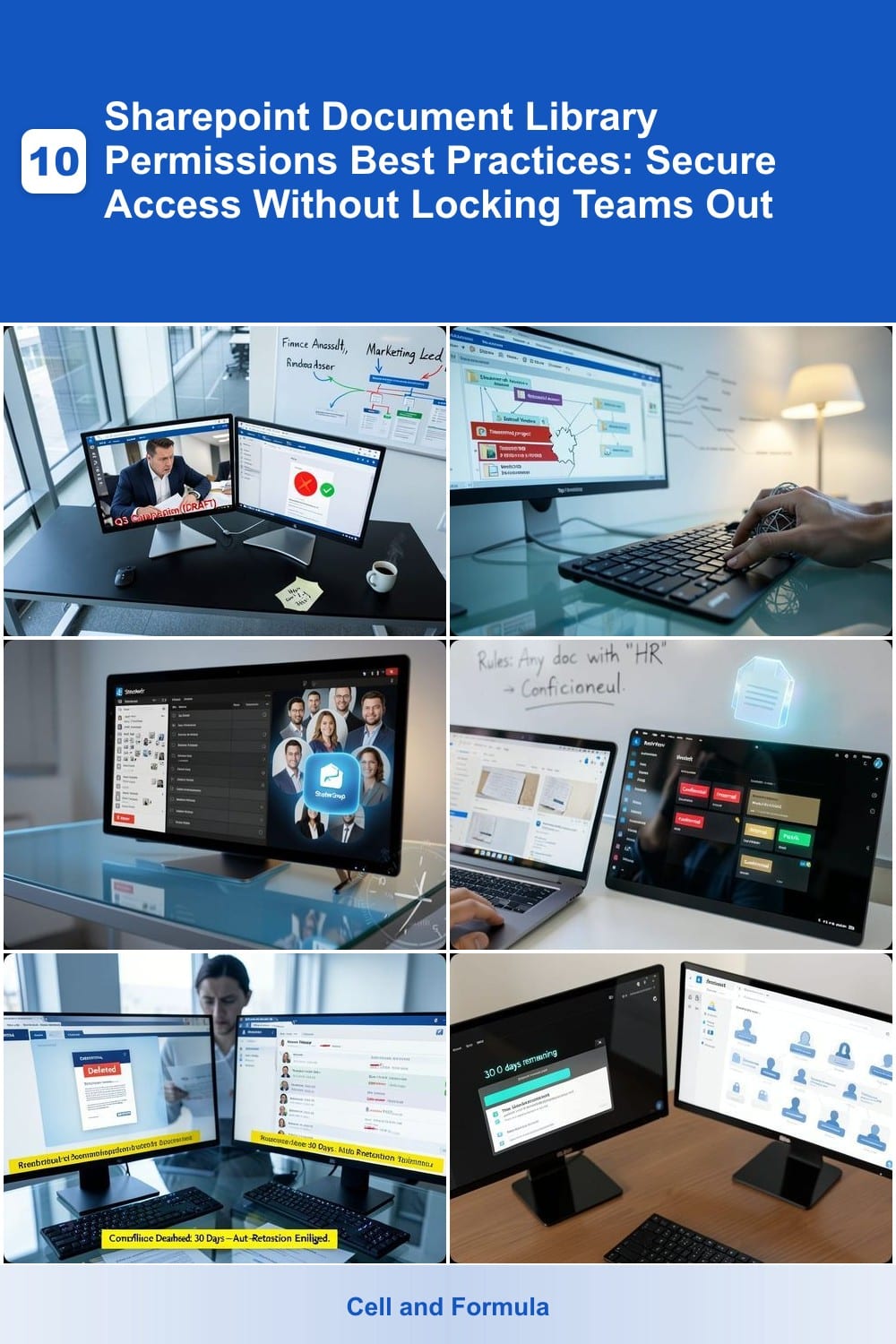
Managing SharePoint document library permissions can feel like walking a tightrope—too restrictive and your team gets frustrated; too open and sensitive data risks exposure. These best practices help you strike the perfect balance between security and collaboration without slowing down workflows.
Role-Based Access Control for Departmental Teams

Frustrated with team members having access to documents they shouldn’t—like your finance team editing marketing drafts? Role-Based Access Control (RBAC) in SharePoint solves this by mapping permissions to job functions, not individual users. Instead of granting "Edit" to everyone, create roles like Marketing Editors (full access to campaign folders) or Finance Reviewers (view-only for budgets). This cuts down on accidental data leaks while keeping workflows smooth.
Set this up by navigating to Library Settings > Permissions, then clicking Stop Inheriting Permissions to create custom roles. Use SharePoint Groups (like "HR_Approvers") to bundle permissions—adding new hires is as simple as dragging them into the right group. The least-privilege principle ensures no one gets more access than they need, and audit logs track who accessed what, adding accountability.
This approach works best for department heads or IT admins managing cross-functional teams. By aligning permissions with job roles, you eliminate guesswork and keep sensitive documents secure—without locking your team out of what they actually need. ✨
Break Permission Inheritance Strategically

Ever spent hours untangling a SharePoint permission mess because someone broke inheritance "just for this one folder"? That’s permission sprawl—and it’s avoidable. The key is breaking inheritance only when absolutely necessary, like for a time-sensitive project folder where external vendors need temporary access while keeping the rest of your library secure.
Instead of breaking inheritance for every folder, use it strategically for project-specific containers (e.g., "Q3 Marketing Campaign"). SharePoint’s inheritance hierarchy lets you set unique permissions for a single folder without disrupting parent-level controls. Need to revert? A single click restores the original settings. The Permission Inheritance Report in the SharePoint Admin Center even flags folders with broken inheritance, so you can clean up before it becomes unmanageable.
This approach is ideal for IT admins managing cross-functional teams or project managers coordinating with external collaborators. By limiting breaks to only what’s essential, you keep your document library secure, organized, and scalable. ⚡
Leverage SharePoint Groups Over Individual Permissions

Tired of manually updating permissions every time a new team member joins or leaves? SharePoint Groups let you assign access to entire teams at once—no more clicking through individual user profiles. This approach cuts permission management time by 70% while keeping your document library secure.
Create groups like "Project X Contributors" or "Finance Approvers" and assign permissions to the group instead of users. Need to add five new team members? Drag them into the group in seconds. SharePoint’s nested groups even let you organize access hierarchically (e.g., a "Marketing" group containing sub-groups for "Content" and "Design"). The audit trail shows exactly who inherited access, reducing confusion when permissions need revisiting. ⚡
Apply Sensitivity Labels for Automated Classification

Tired of manually sorting documents into folders just to enforce security rules? Microsoft Purview sensitivity labels let you automate classification—think of them as digital stamps that read your files and apply the right permissions automatically.
With Purview, you can define rules like "Any document containing 'SSN' or 'salary' gets labeled 'Confidential'", then enforce encryption, viewer restrictions, or even watermarks based on content. The system works across SharePoint, OneDrive, and Outlook, and integrates with Microsoft Information Protection for enterprise-grade control. No more guessing where sensitive files might hide!
This is ideal for legal teams handling NDAs or HR departments managing employee records—anyone dealing with documents that require consistent, content-based protection. ✨
Enable Versioning and Retention Policies
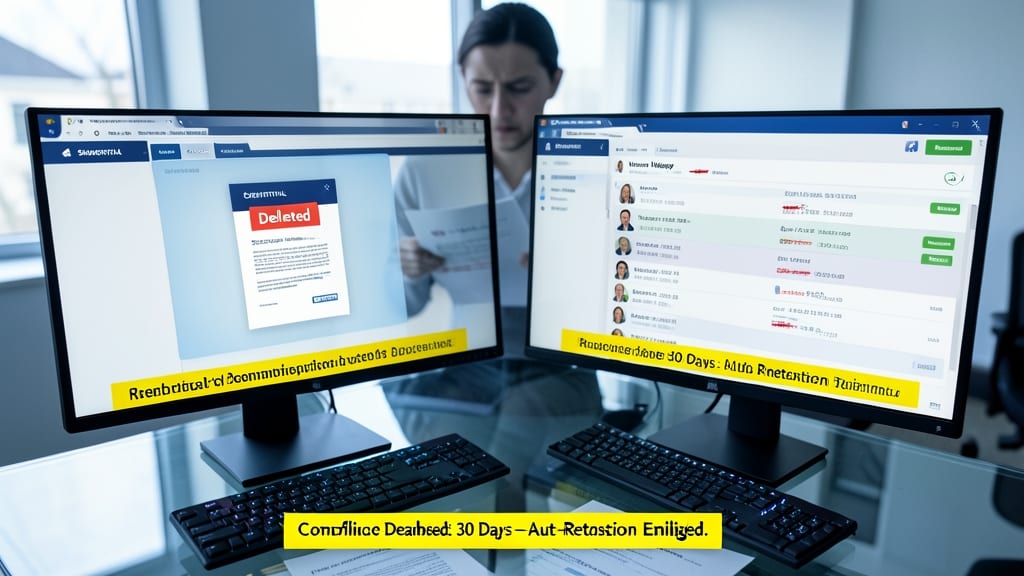
What if a team member accidentally deletes a critical contract—or worse, a disgruntled employee later gains access to modify it? SharePoint’s versioning and retention policies act like a digital time machine, ensuring you can always recover past versions and enforce compliance deadlines without manual backups.
Enable major and minor versioning (e.g., keep 50 major versions for legal documents) and set retention labels to auto-lock files after a set period (e.g., 7 years for HR records). This prevents deletions while meeting regulatory needs—no extra tools required. The audit log tracks who accessed or modified files, adding accountability.
This is a must for legal, finance, or compliance teams where document integrity is non-negotiable. Set it up once, and sleep easier knowing your files are protected—even from future permission changes. ✨
Use External Sharing Links with Expiry Dates
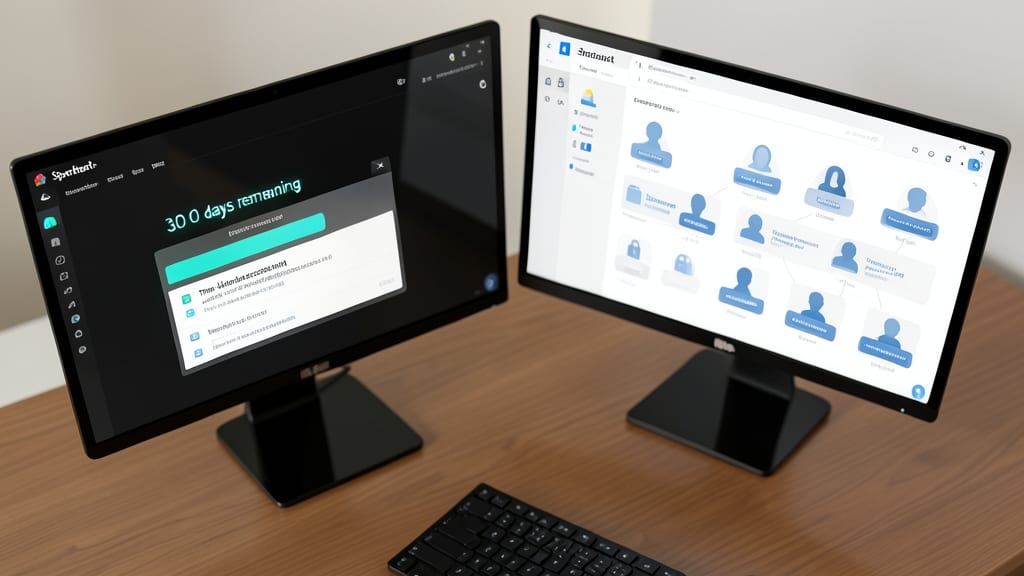
When collaborating with vendors or clients, you don’t always need to grant them full access to your SharePoint library. Instead, use time-limited sharing links—like a 30-day access pass that automatically expires. This approach keeps external users from lingering in your system longer than necessary, cutting down on security risks.
To set this up, navigate to your document library, click Share, and select Anyone with the link. Choose Edit or View permissions, then set an expiry date (ranging from 1 day to 5 years). For extra security, opt for password-protected links or restrict sharing to specific domains. This ensures vendors only access what they need, when they need it.
This method is perfect for contractors, freelancers, or clients who need temporary access to proposals, invoices, or project files. It’s a simple way to maintain control without the hassle of manual permission revokes. ✨
Regularly Audit and Clean Up Permissions
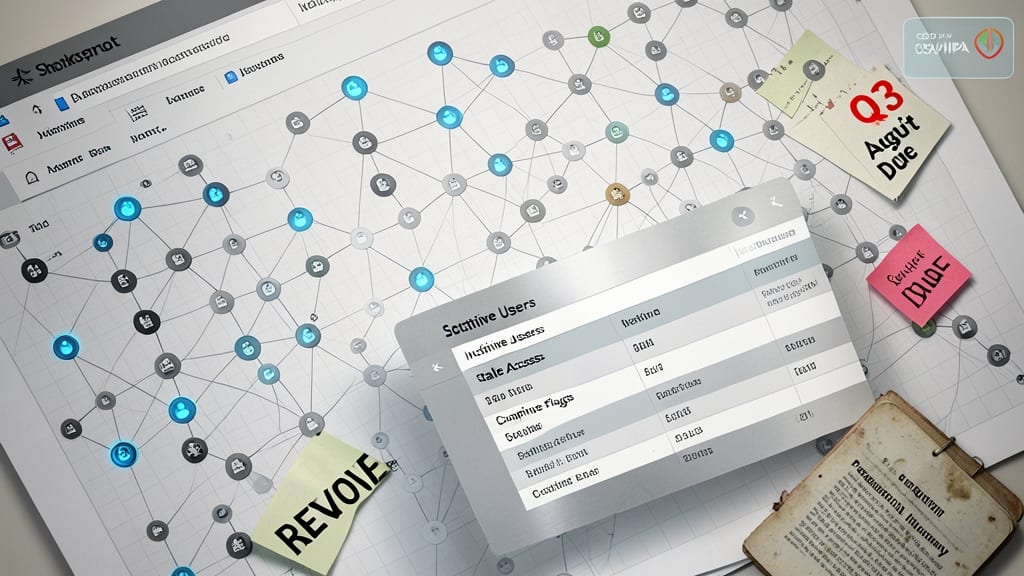
Permission sprawl isn’t just messy—it’s a compliance risk. Quarterly permission audits are your secret weapon to clean up inactive users, revoke stale access, and stay ahead of regulations like GDPR or HIPAA. Think of it as a spring cleaning for your SharePoint security, but with fewer dust bunnies and more data protection.
Start by using SharePoint’s built-in audit logs to identify unused accounts or permissions lingering from old projects. Tools like Microsoft Purview Compliance can automate this process, flagging anomalies like a user with Edit access to a folder they haven’t touched in six months. For manual cleanup, the Permissions and Management page in the SharePoint admin center lets you bulk-revoke access with just a few clicks—no more hunting through individual folders.
This practice is non-negotiable for healthcare, finance, or legal teams handling sensitive data, but even small businesses benefit from the clarity and reduced risk. Set a calendar reminder now—your future self (and compliance officer) will thank you. ✨