
Coding
Struggling with messy text data in Excel? These 10 essential text functions will transform raw data into clean, structured information—perfect for analysts, business users, and anyone working with unruly datasets.
Concatenate Function for Combining Text Fields
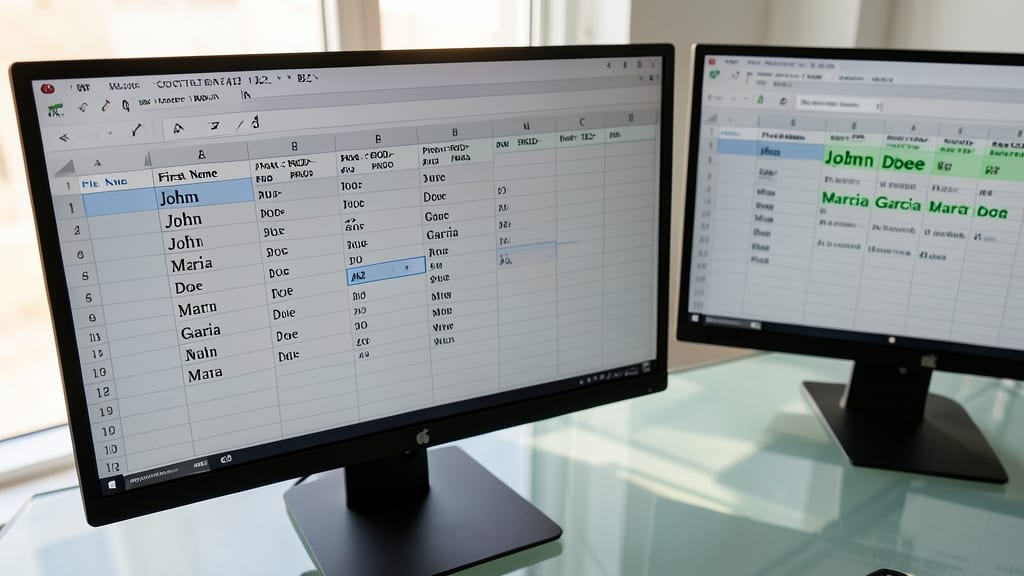
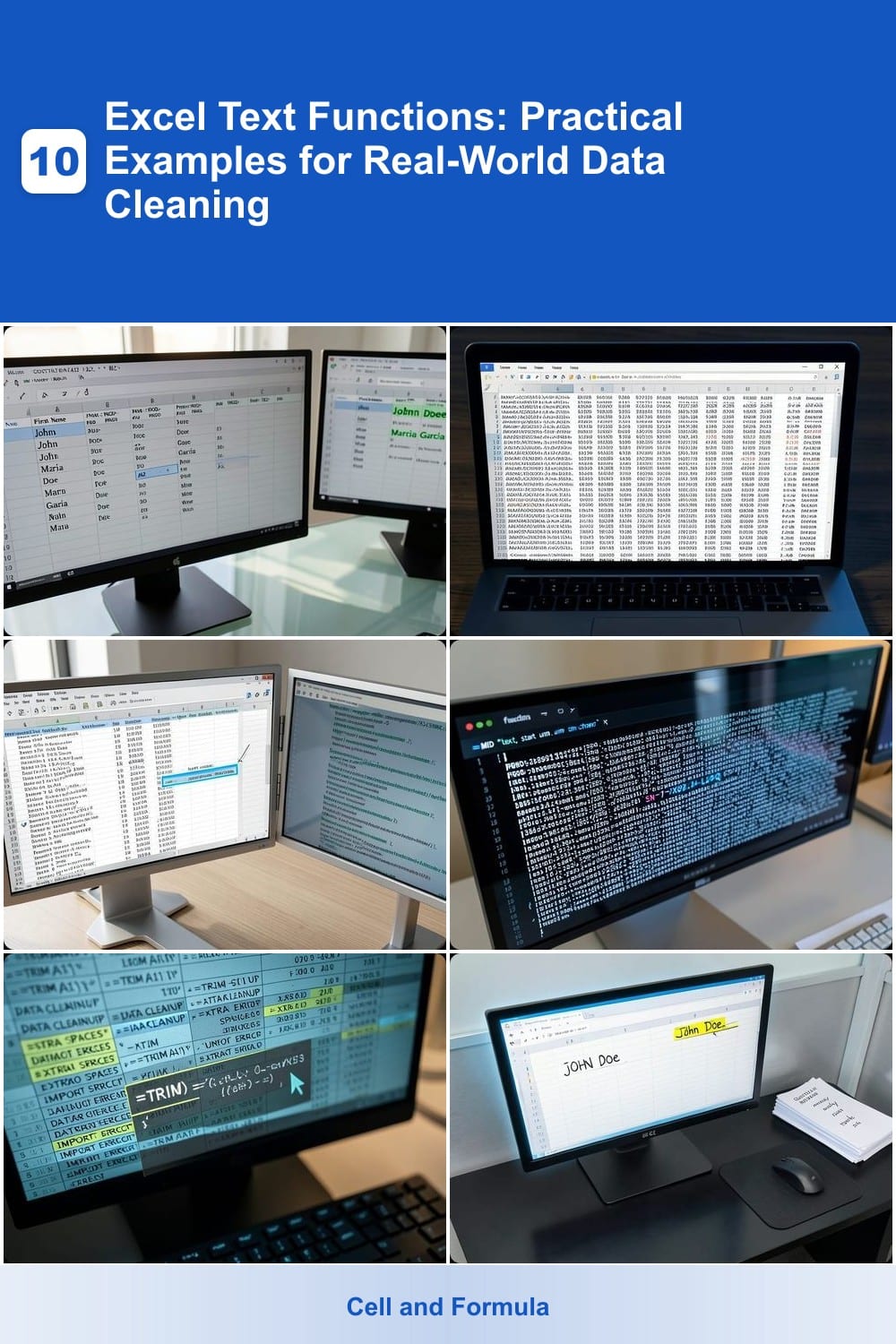
Struggling to combine first and last names or merge product codes from separate columns? The CONCATENATE function is your go-to tool for effortlessly joining text—no manual typing or copy-pasting required. Simply type =CONCATENATE(A2, " ", B2) to merge cells A2 and B2 with a space in between, instantly transforming "John" and "Doe" into "John Doe."
This function works seamlessly in Excel 2007 and later, including Office 365, and supports up to 255 text items per formula. Need a custom separator (like a hyphen for product codes)? Add it directly: =CONCATENATE(A2, "-", B2). For complex merges, pair it with TRIM to eliminate extra spaces automatically.
Perfect for HR teams standardizing employee directories, e-commerce managers combining SKUs, or anyone merging data from split columns—this function saves hours of manual work while keeping your spreadsheets error-free. ⚡
Text to Columns for Splitting Delimited Data

Staring at a single column packed with comma-separated values—like addresses or CSV imports—can feel like staring into a data black hole. The Text to Columns tool in Excel is your escape hatch, instantly splitting messy text into clean, organized columns based on delimiters like commas, tabs, or spaces.
To use it, select your data, go to Data > Text to Columns, then choose Delimited and specify your separator (e.g., comma for CSV files). For addresses like "123 Main St, Springfield, IL 62704", it’ll auto-split into Street, City, and ZIP columns in seconds. Works with Excel 2003 and later, including Office 365, and handles irregular spacing better than manual cuts.
Perfect for marketers parsing email lists, accountants cleaning up vendor data, or anyone importing datasets—no more tedious copy-pasting. ⚡
LEFT and RIGHT Functions for Extracting Partial Text
Tired of manually copying product codes buried in long descriptions or domain names hidden in URLs? The LEFT and RIGHT functions let you extract exact text segments by specifying character positions—no cutting and pasting required.
Use LEFT(text, numchars) to pull the first n characters (e.g., LEFT(A2, 3) extracts "ABC" from "ABC123") or RIGHT(text, numchars) for the last n characters. Need the domain from "https://example.com/page"? Try RIGHT(A2, LEN(A2)-FIND("://",A2)-2). Works in Excel 2007 and later, including Office 365.
Perfect for e-commerce teams parsing SKUs, marketers analyzing URLs, or anyone cleaning messy data. ⚡
MID Function for Middle Character Extraction

Need to pull a serial number or product code buried in the middle of a long string? The MID function is your secret weapon—unlike LEFT or RIGHT, it lets you extract text from any position by specifying both the starting character and the length you need.
Use =MID(text, startnum, numchars) to grab exactly what you want. For example, to extract a 6-digit serial from "PROD-123456-USA," you’d use =MID(A1, 6, 6)—starting at character 6 and pulling 6 characters. It’s perfect for cleaning up inventory data, log files, or reference numbers hidden in messy text.
This function is a game-changer for anyone dealing with structured but inconsistent data, like IT admins parsing device IDs or analysts extracting order numbers from receipts. ⚡
TRIM Function for Cleaning Extra Spaces

When imported data looks like it’s been through a blender—extra spaces everywhere—TRIM is your cleanup superhero. Unlike manual fixes, this function automatically removes leading, trailing, and multiple internal spaces in one go, saving hours of tedious editing.
Just type =TRIM(A1) to instantly fix messy text like " John Doe " into clean "John Doe". It works across entire columns with drag-and-drop, and even handles those pesky non-breaking spaces from web scrapes or PDF exports. Best of all, it’s zero-config—no complex settings required.
Small business owners and data analysts will love how TRIM preps datasets for pivot tables or reports, while developers use it to sanitize API responses. ⚡
PROPER Function for Capitalizing Text

Tired of manually fixing inconsistent capitalization in customer names or report titles? The PROPER function instantly converts text to proper case—capitalizing the first letter of each word while lowercasing the rest.
Simply type =PROPER(A1) where A1 contains your text (e.g., "john doe" becomes "John Doe"). It handles hyphenated names, acronyms, and even apostrophes automatically. Works seamlessly in Excel 2010 and later, including Office 365.
Perfect for sales teams standardizing client lists, HR departments formatting employee directories, or anyone generating polished reports from raw data. ⚡
UPPER and LOWER Functions for Case Standardization

When your data refuses to sort correctly because "John" and "john" are treated as different entries, UPPER and LOWER become your secret weapons. These functions standardize text case instantly—critical for database imports, customer lists, or any scenario where consistency matters more than original formatting.
Use UPPER(A2) to convert cell A2 to all caps (e.g., turning "Excel" into "EXCEL"), or LOWER(A2) to force lowercase (e.g., "DATA" becomes "data"). They’re lightning-fast for bulk operations, and work seamlessly with other functions like CONCATENATE or SUBSTITUTE for advanced cleaning workflows.
Perfect for data analysts ensuring accurate filtering, or small business owners standardizing product catalogs—these functions save hours of manual editing. ✨
SUBSTITUTE Function for Replacing Text Patterns

Tired of manually fixing typos or outdated terms across hundreds of rows? The SUBSTITUTE function lets you replace specific text patterns instantly—no copy-pasting required. Whether it's swapping "Inc." for "Company" in a business directory or removing old product codes from inventory lists, this function handles bulk corrections in seconds.
Use the syntax =SUBSTITUTE(text, oldtext, newtext, [instance_num]) to specify what to replace (e.g., "Inc."), what to replace it with (e.g., "Company"), and even control how many instances to update per cell. For example, =SUBSTITUTE(A1, "Inc.", "Company") transforms "Microsoft Inc." into "Microsoft Company" across an entire column with one drag-and-drop.
Perfect for data analysts, HR teams standardizing job titles, or anyone dealing with legacy datasets—this function saves hours of manual work while keeping your spreadsheets consistent. ✨
CLEAN Function for Removing Non-Printable Characters

When importing data from external sources like PDFs or CSV files, hidden Unicode characters can turn clean text into a jumbled mess—often causing errors in formulas or reports. The CLEAN function acts as a digital scrub brush, removing non-printable characters (ASCII codes 0-31 and 127) that sneak into your data.
This function takes a single text argument and returns only the visible characters, making it ideal for fixing corrupted imports. For example, if a PDF export includes invisible formatting codes, =CLEAN(A1) will strip them away instantly. It’s especially useful when working with legacy systems or third-party data where character encoding isn’t standardized.
Perfect for data analysts, accountants, or anyone dealing with imported datasets—just apply it to your text column, and watch those invisible glitches disappear. ✨
Find and Replace with Wildcards for Advanced Searches

When you need to find text patterns across hundreds—or thousands—of cells, Excel’s Find and Replace with wildcards becomes your secret weapon. Instead of manually searching for exact matches, you can use (any sequence of characters) and ? (single character) to pinpoint files like "Q12024.pdf," "Invoice" for all invoices, or "Project?" for projects with two-word names.
The * wildcard acts as a placeholder for unlimited characters (e.g., "Q*2024" catches "Q12024," "Q22024," etc.), while ? matches a single character (e.g., "File?" finds "File01," "FileAA"). This is especially useful for automating data extraction—like pulling all quarterly reports from a folder of files or cleaning up inconsistent naming conventions in spreadsheets.
Accountants tracking quarterly reports, project managers organizing files, or anyone sifting through messy datasets will save hours. Just press Ctrl+H, check "Use Wildcards", and let Excel do the heavy lifting. ✨