
Software
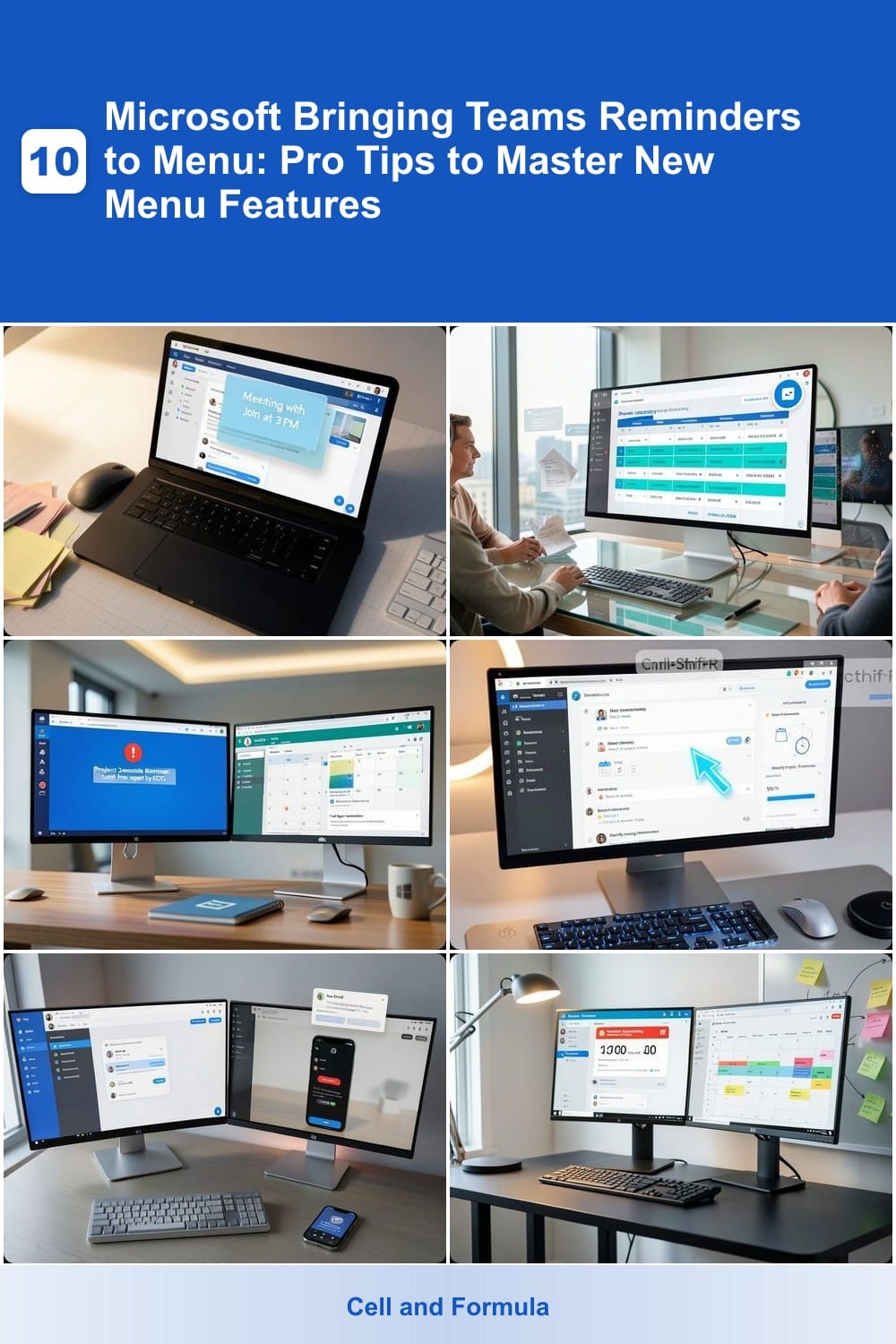
Microsoft is rolling out a game-changing update to Microsoft Teams by integrating reminders directly into the menu. This feature will help you stay on top of deadlines, meetings, and tasks without leaving your workflow. Here’s how to master these new reminders and boost your productivity in Teams.
Setting Up Personal Reminders in Teams
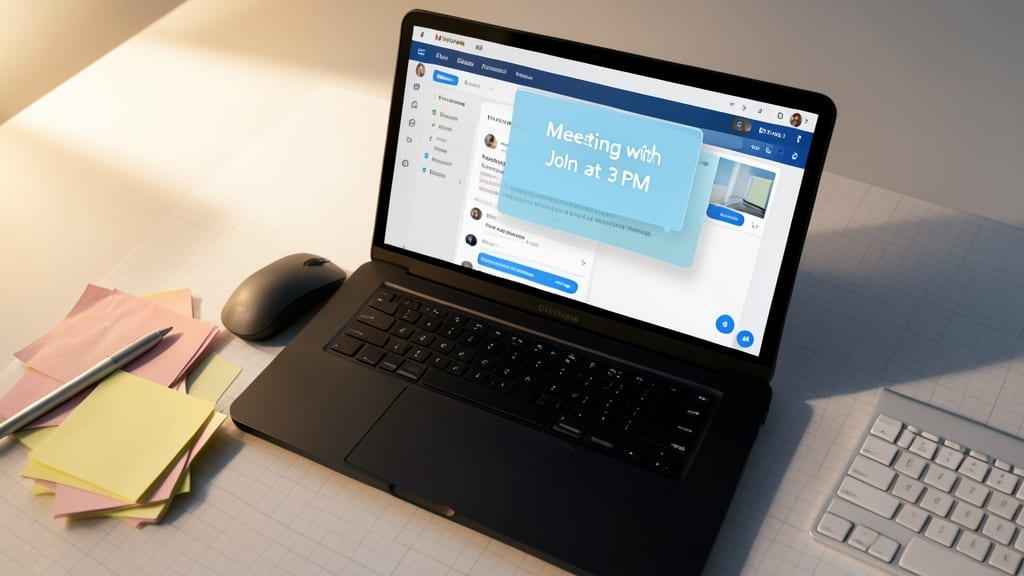
Say goodbye to sticky notes and scattered to-do lists—Microsoft Teams now lets you create personal reminders directly in the app, keeping your deadlines and tasks visible without leaving your workflow. This feature is perfect for professionals who use Teams for both work and personal organization, consolidating everything into one seamless experience.
To set a reminder, simply click the new menu icon (the three dots) in Teams, select "Reminders", then choose "Add a reminder". You can customize it with a due date, time, and description, such as "Submit Q3 report by Friday at 5 PM." The reminder will appear in your Teams activity feed, sync across devices, and even notify you via desktop pop-ups or email alerts—no extra apps needed.
This is ideal for freelancers, students, or anyone balancing work and personal tasks in one place. Whether you’re tracking project milestones or remembering to follow up on a chat, Teams now handles it all—no more context-switching required. 💡
Creating Team-Wide Task Reminders
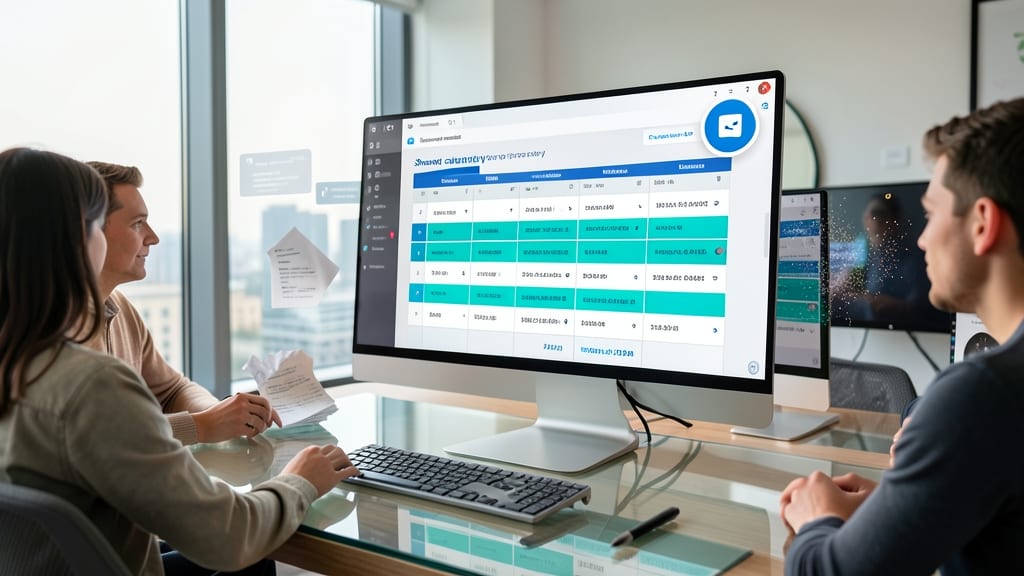
Keeping your entire team on the same page just got easier with Teams-wide reminders—a feature designed to replace scattered Slack messages and email chains. Instead of manually pinging everyone about deadlines, you can now create shared reminders that appear for the whole team, complete with due dates and optional assignees.
To set one, simply navigate to the Teams menu, select "Reminders", then choose "New Team Reminder". Add a clear deadline (e.g., "Q3 report due Friday") and @mention team members who need to take action. The reminder will automatically sync across all their devices, with visual alerts in the app and optional email notifications. You can even pin it to a channel for extra visibility, ensuring no one misses critical updates.
This is a lifesaver for managers and team leads juggling multiple projects—no more forgotten deadlines or last-minute scrambles. Whether you’re coordinating a sprint or tracking client deliverables, these reminders keep everyone aligned without the chaos. 💪
Integrating Reminders with Outlook Calendar
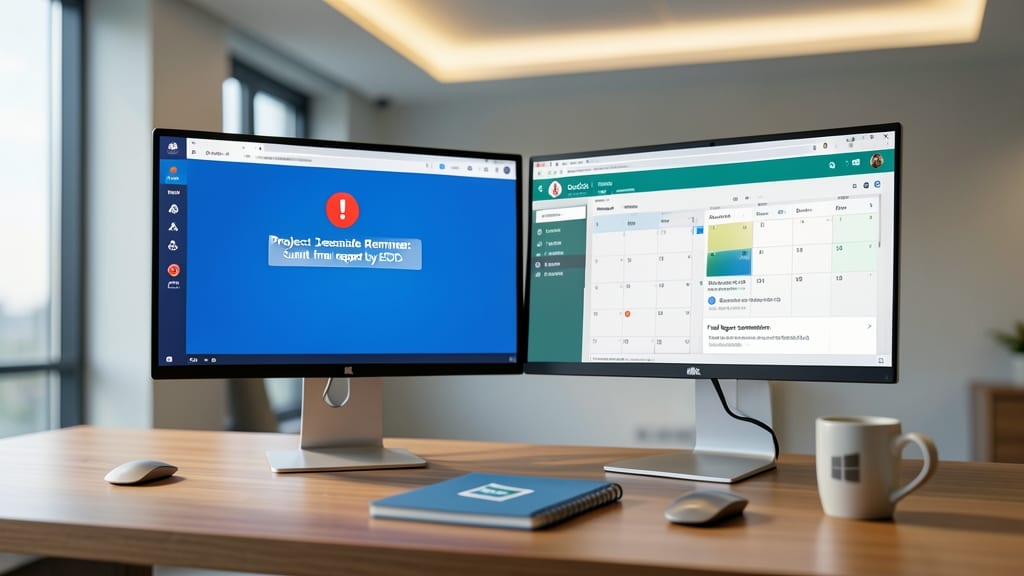
Tired of juggling Teams reminders and Outlook Calendar separately? Microsoft’s new integration lets you sync them effortlessly, so deadlines and meetings appear in one place. No more double-checking—just seamless updates across both platforms.
With this feature, your Teams reminders (like project deadlines or personal tasks) automatically reflect in Outlook Calendar, and vice versa. You can even edit events in one app and see the changes instantly in the other. The two-way sync works for both one-time and recurring events, ensuring your schedule stays aligned without manual updates.
This is a game-changer for professionals who rely on Outlook for meetings but use Teams for collaboration. Whether you’re a manager coordinating schedules or an individual balancing work and personal tasks, this integration keeps everything in sync. ✨
Setting Recurring Reminders for Meetings
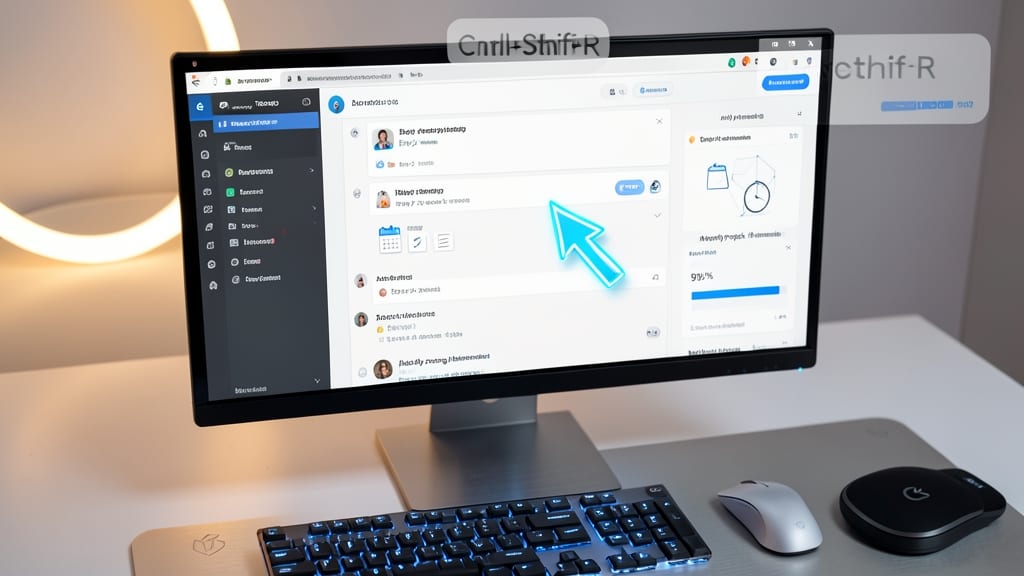
Tired of manually adding the same meeting reminders every week? Microsoft Teams’ new recurring reminders feature automates repetitive tasks like bi-weekly standups or monthly project check-ins—no extra clicks required.
Set a reminder once, then choose from daily, weekly, or monthly intervals to keep your team on track. The feature even syncs with your Teams calendar, so deadlines and meetings appear alongside your existing events. You can also add custom descriptions (e.g., “Q3 planning session”) to clarify the purpose for your team.
Perfect for project managers, Scrum teams, or any group with regular check-ins, this cuts down on manual setup time while ensuring nothing slips through the cracks. ⚡
Customizing Reminder Notifications
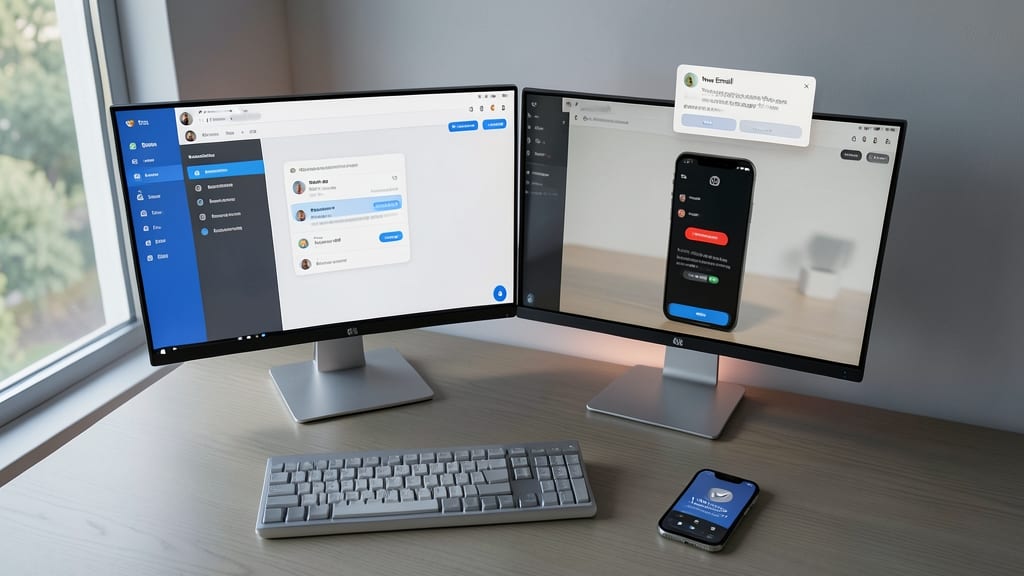
Tired of reminders getting lost in the noise? The new Teams reminders menu lets you fine-tune notifications to match your workflow—no more ignored pop-ups or overwhelming alerts. You can now choose between desktop notifications, email alerts, or mobile push notifications, all configurable per reminder.
Adjust the timing (e.g., 10 minutes before a meeting) and even mute notifications for specific reminders. The priority slider helps critical tasks stand out while keeping less urgent items from cluttering your inbox. For remote workers or hybrid teams, this ensures you stay focused without missing what matters.
Perfect for professionals juggling multiple tools—freelancers, team leads, or anyone drowning in notifications. Customize your alerts to work for you, not against you. ⚡
Sharing Reminders Across Teams Channels
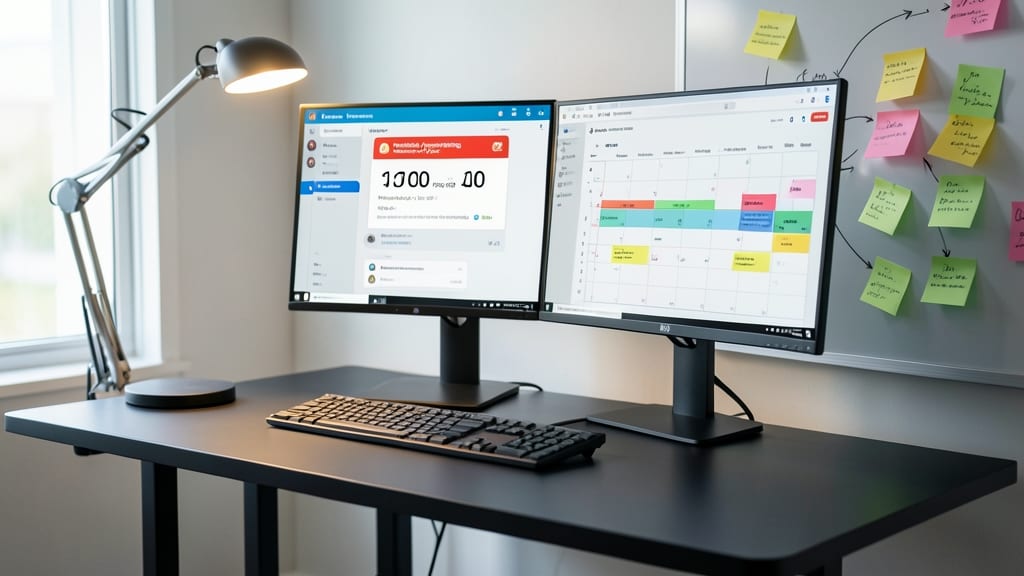
Tired of sending follow-up messages in Teams just to remind your team about deadlines? The new channel-specific reminders feature lets you pin critical updates directly to any channel or group chat—no extra emails or DMs needed.
With just a few clicks, you can broadcast time-sensitive deadlines, upcoming meetings, or project milestones to the exact team or department that needs them. The reminder appears as a pinned post in the channel, ensuring visibility without cluttering individual inboxes. Plus, you can tag specific team members for extra attention.
This is a game-changer for cross-functional teams or departments where coordination spans multiple channels. Say goodbye to fragmented communication and hello to streamlined updates! ✨
Troubleshooting Common Reminder Issues
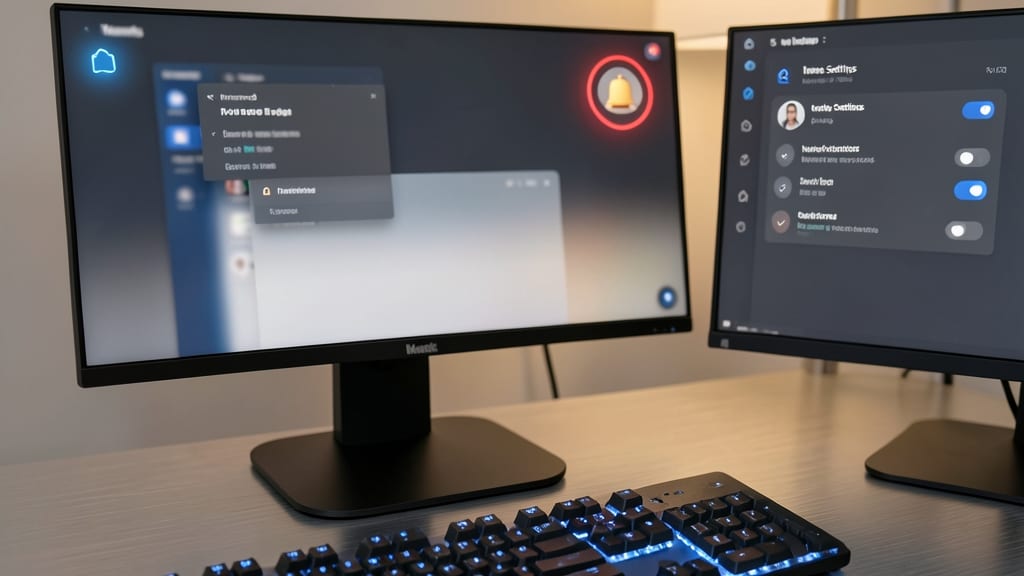
Even with reminders right in your Teams menu, tech hiccups can still sneak in—like missed alerts or sync glitches. The good news? Most issues have simple fixes that don’t require IT support. Start by checking your notification settings in Teams (click your profile > Settings > Notifications) to ensure reminders aren’t being silenced or filtered out.
For sync errors between devices, force-refresh your Teams app (Ctrl+Shift+R) or clear the cache via File > Options > Clear Cache. If reminders vanish entirely, verify your account has admin permissions enabled for reminders in Teams admin center. Pro tip: Test notifications on both desktop and mobile to catch device-specific quirks.
This troubleshooting checklist is your safety net for when reminders act up—perfect for busy professionals who rely on Teams to keep projects on track. 💪