
PowerPoint
High school students can transform ordinary assignments into standout projects using Microsoft Office tools. These 10 creative projects leverage Word, Excel, PowerPoint, and Publisher to showcase skills, save time, and impress teachers—without requiring advanced technical expertise.
Interactive Classroom Newsletter Using Publisher
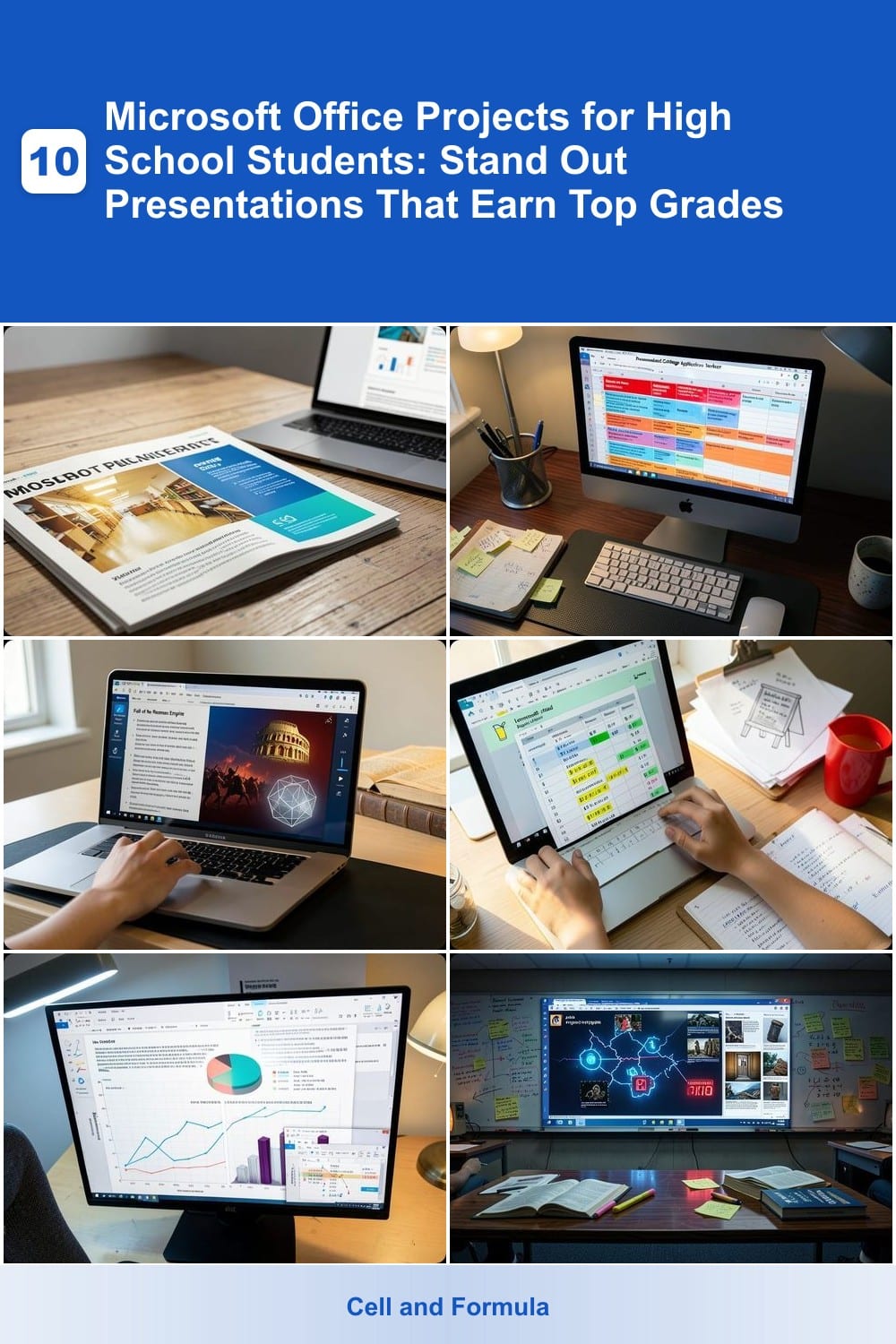
Tired of seeing the same old flyers tacked to classroom walls? A Microsoft Publisher newsletter lets you design eye-catching, professional layouts that actually grab attention—no graphic design degree required. This project blends writing skills with visual design to create dynamic updates for school clubs, sports teams, or class events, proving you can handle both content and aesthetics.
Start with Publisher’s pre-built templates (like "Newsletter" or "Magazine") to save time, then customize with bold headers, color blocks, and embedded images from school events. Use text boxes to organize sections (e.g., "Upcoming Events," "Student Spotlights") and hyperlinks to connect to online forms or social media. For extra polish, add icons or clipart from Publisher’s built-in library—no need for external tools. Export as a PDF or print-ready file to share physically or digitally.
Perfect for journalism, media, or student council members, this project showcases your ability to communicate clearly while thinking like a designer. Teachers will notice your effort to elevate school communication beyond basic flyers—and your peers will actually read it! 💡
Personalized College Application Tracker in Excel
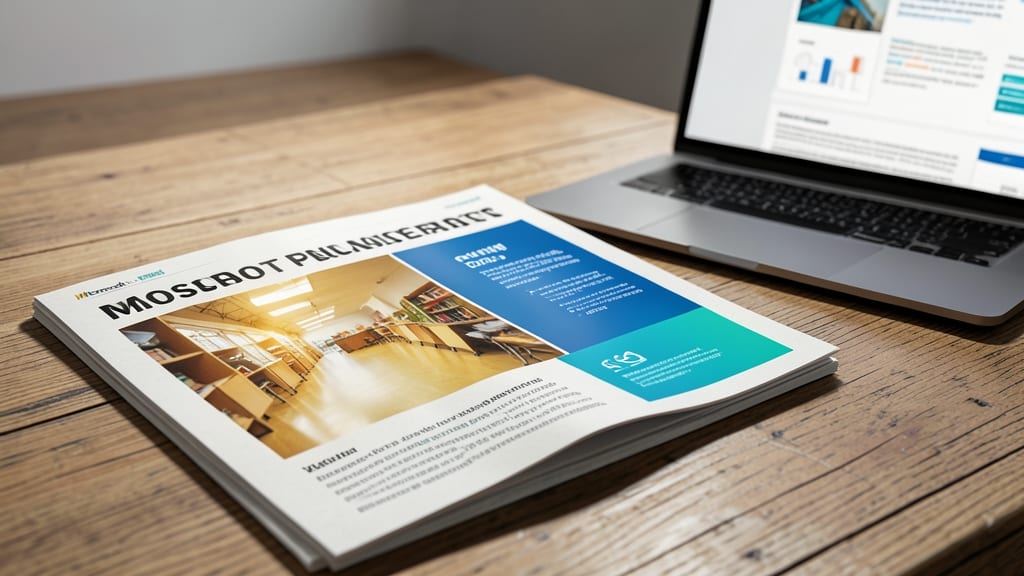
Stress over college applications? A Personalized College Application Tracker in Excel turns chaos into clarity. Instead of juggling sticky notes and calendars, this spreadsheet organizes deadlines, essay prompts, and scholarship requirements for every school—all in one place.
Start with a color-coded timeline for application deadlines (use conditional formatting to highlight upcoming dates in red). Add tabs for each college with sections for GPA/transcript requirements, essay questions, and recommendation request timelines. Include a scholarship tracker with columns for deadlines, amounts, and application status—sort by priority to focus on high-value opportunities first. Use data validation to create dropdown menus for essay topics or recommendation statuses (e.g., "Sent," "Pending," "Follow Up").
Perfect for seniors or juniors preparing for higher education, this project proves you’re organized and tech-savvy. Share it with parents or counselors to show you’ve got a plan—and impress admissions officers by demonstrating your ability to manage complex tasks. 💻
Animated History Timeline Presentation in PowerPoint
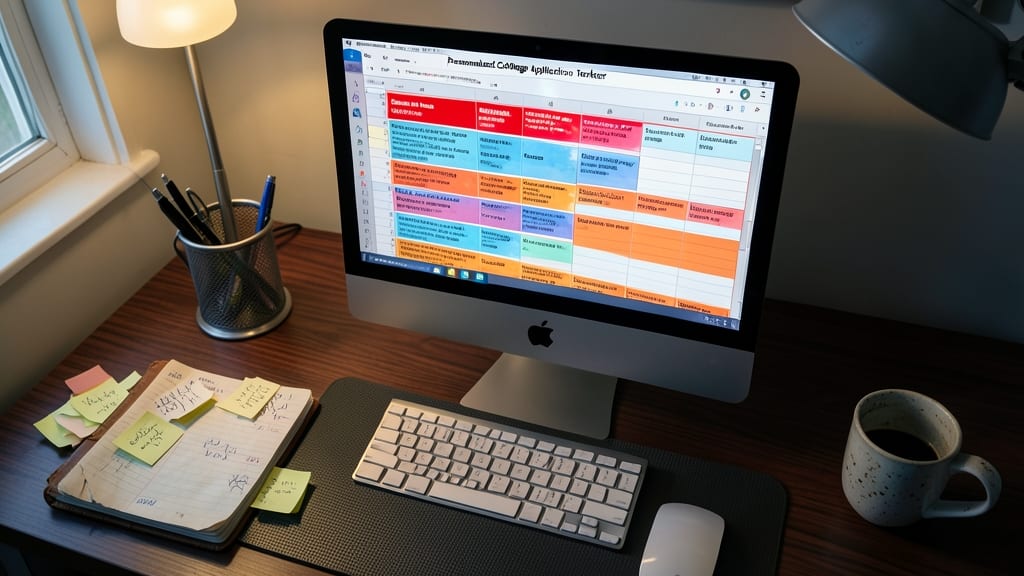
Turn a static history report into a dynamic experience with PowerPoint’s Morph and Zoom transitions—no coding required. Instead of bullet points, you can animate the rise and fall of empires, the progression of wars, or the evolution of technology using built-in motion paths and custom timelines. These effects make complex events visually intuitive, helping your audience grasp connections between dates and outcomes instantly.
Start with a clean, chronological layout using the Section feature to group eras together. Add embedded videos (like short documentary clips) or sound effects (e.g., a cannon firing for the Revolutionary War) to immerse viewers. PowerPoint’s Presenter View lets you practice with speaker notes while previewing animations—perfect for last-minute rehearsals before class. The Design tab offers pre-built themes like "Academic" or "Morning" to keep it professional without design stress.
This project shines for social studies, AP World History, or debate teams—anyone who needs to present historical narratives compellingly. Teachers love it because it proves you’ve mastered both content and digital storytelling skills. ✨
Budget Planner for Student Entrepreneurs in Word

Turn a classroom assignment into a real-world business lesson with a fillable budget planner in Word. Instead of just learning about money, students design a template for a lemonade stand or small business—calculating startup costs, pricing strategies, and profit margins while practicing typing, formatting, and basic math.
Start with a two-page layout: one for expenses (supplies, permits) and one for income (sales projections). Use Word’s tables to auto-calculate totals, then add dropdown menus for recurring costs (e.g., "Cups: $0.10 each"). Save it as a template so anyone can reuse it—great for group projects or entrepreneurship clubs.
Perfect for business, economics, or family consumer science classes. Students leave with a tangible skill (budgeting) and a polished document to share with parents or teachers. 💡
Science Lab Report with Embedded Data Charts
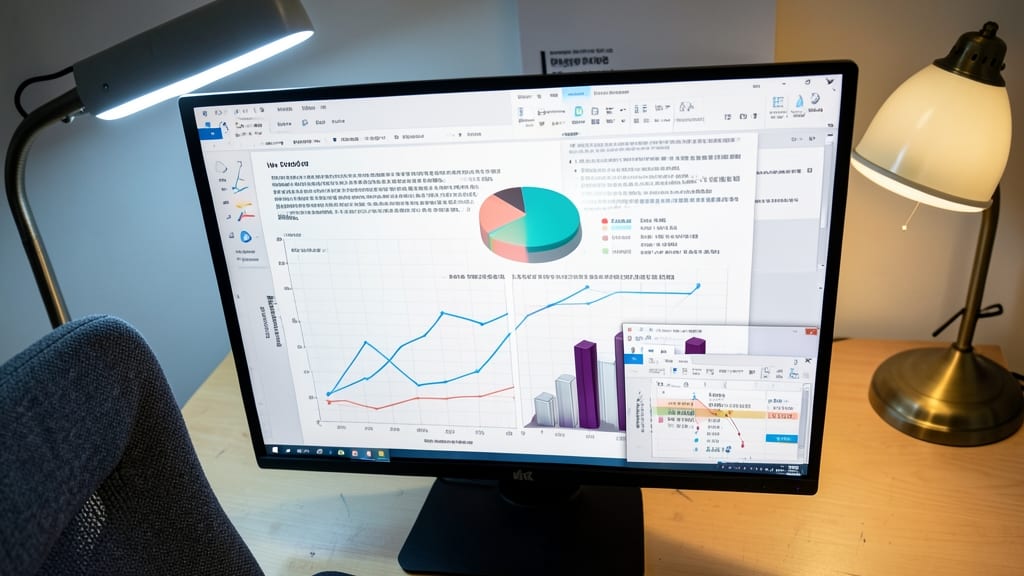
Turn your chemistry or physics lab reports from boring text blocks into visually compelling presentations with embedded Excel charts. Instead of attaching separate spreadsheets, you can now place live graphs, pie charts, and line plots directly into your Word document—updating data in one place automatically refreshes all visuals.
Start by recording your experiment data in Excel, then use Word’s "Object" tool to embed the worksheet or specific charts. Format your report with professional templates (like the Scientific Report layout in Word) to highlight key findings. Teachers love seeing clear visual trends—like reaction rates or pendulum periods—presented alongside your analysis.
Perfect for STEM students who want to showcase precision and creativity, this project works for biology dissections, physics experiments, or even environmental science fieldwork. Your data will speak louder than words alone! ✨
Virtual Classroom Escape Room in PowerPoint

Turn passive study sessions into high-energy escape room challenges using PowerPoint’s hidden hyperlink and trigger features. This project transforms review sessions for AP classes into immersive puzzles where students solve riddles, unlock clues, and race against timers—all while reinforcing course material.
Start by designing a multi-slide puzzle with hidden buttons (e.g., "Examine the Painting" or "Open the Vault"). Use PowerPoint’s animation triggers to reveal answers when correct conditions are met—like answering a math question or finding a hidden word. Add a countdown timer (inserted via Developer tab) to heighten excitement, and embed audio clues for extra immersion. The best part? No coding required—just clever hyperlinks and slide transitions.
Perfect for study groups preparing for exams or teachers looking to spice up review sessions. The interactive format boosts engagement while reinforcing key concepts—ideal for subjects like history, science, or literature where memorization meets critical thinking. 💡
Book Report Infographic Using Publisher and Word
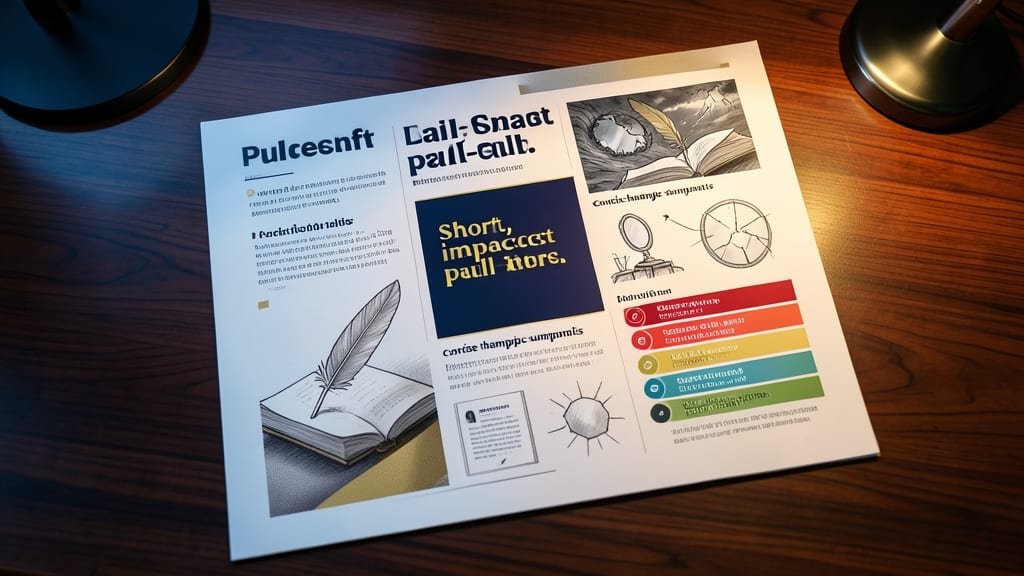
Turn a traditional book report into a visually stunning infographic that grabs attention and showcases deep literary analysis. Instead of just writing about a book, use Microsoft Publisher for design elements and Word for text integration to create a dynamic, one-page summary that highlights themes, character arcs, and key quotes in an engaging layout.
Start by designing a modern, clean template in Publisher with sections for book covers, character profiles (using icons or illustrations), and theme word clouds. Copy your analysis from Word and paste it into Publisher’s text boxes, then add visuals like color-coded timelines or quote callouts with bold typography. For extra flair, embed WordArt or clipart directly into Publisher—no design skills required!
This project is perfect for English students who want to stand out while demonstrating creativity. Teachers love it because it proves comprehension through visual storytelling rather than just text. Plus, you can print it or share it digitally—ideal for presentations or portfolios. ✨
Family Recipe Book with Digital Photos in Word
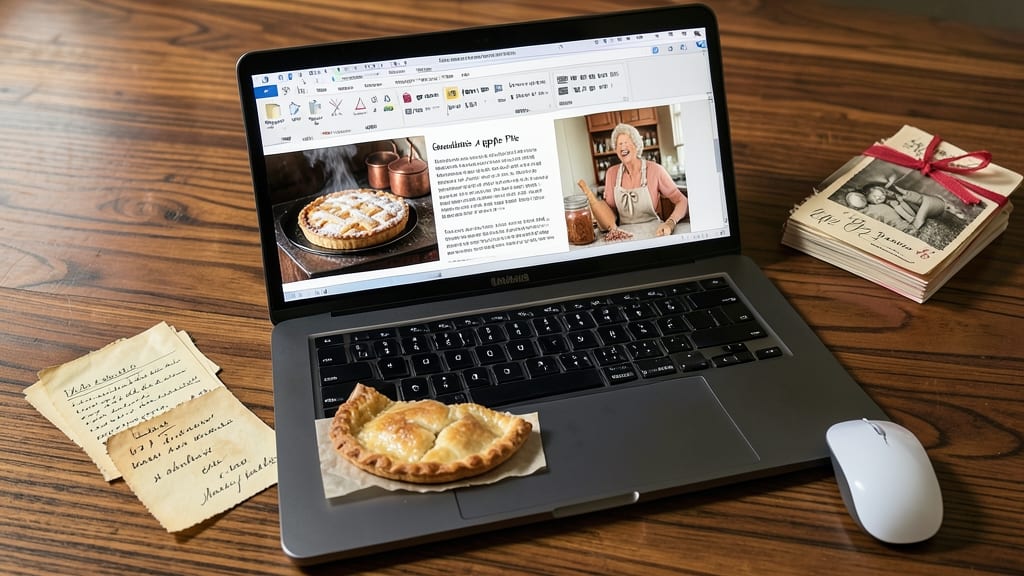
Turn family traditions into a digital legacy with a Family Recipe Book in Word, blending culinary history with modern tech. This project lets you digitize handwritten recipes while embedding high-quality photos of dishes, kitchen memories, or even family photos—creating a keepsake that’s both functional and sentimental.
Start by designing a custom template with consistent headers, recipe sections, and photo placeholders. Use Word’s Insert > Pictures tool to add scanned images or digital photos, then adjust sizing and alignment for a polished look. For extra flair, add hyperlinks to video tutorials or family stories tied to each recipe. The result? A printable or shareable document that preserves heritage while showcasing your design skills.
Perfect for family history classes, culinary arts projects, or personal portfolios, this idea lets you combine creativity with cultural preservation—all within Word’s familiar tools. ✨
Math Problem Solver with Step-by-Step Videos in PowerPoint

Stuck on algebra? Turn your PowerPoint into a dynamic math tutor with embedded video explanations. Record your voice walking through problems or upload pre-made tutorials to create slides that teach—not just present—complex concepts like quadratic equations or geometry proofs.
Use PowerPoint’s built-in screen recording tool (no extra software needed) to capture step-by-step solutions, then embed the videos directly into slides. Add animated arrows to highlight key steps or use triggers to reveal answers on click. The result? A self-paced tutorial that helps classmates (or future you) master tricky topics without endless Google searches.
Perfect for math club leaders, peer tutors, or students creating alternative study guides—this project proves you don’t need fancy apps to make learning interactive. ✨
School Year Reflection Portfolio in OneNote
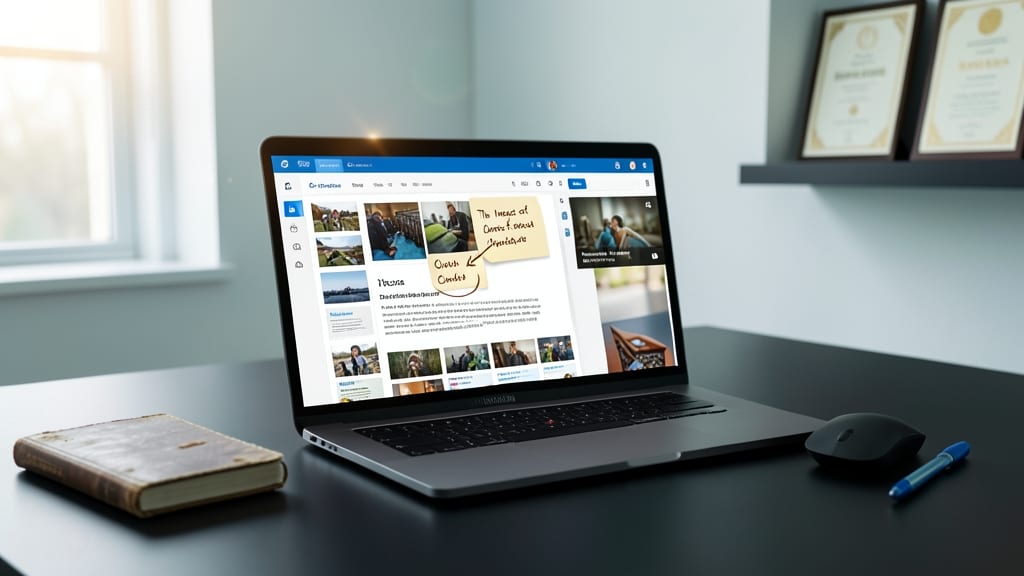
Looking back on the school year doesn’t have to mean digging through dusty folders—OneNote’s digital portfolio turns your essays, projects, and awards into a polished, searchable showcase. Unlike static folders, this tool lets you embed files, add handwritten notes, and organize everything by subject or semester with drag-and-drop simplicity.
The notebook layout lets you create sections like "English Projects," "Science Labs," or "Extracurricular Achievements," while drawing tools let you annotate directly on PDFs or screenshots. OneNote even syncs across devices, so your portfolio is always accessible—whether you’re reviewing for a teacher recommendation or prepping for college applications. Free with Office 365 Education, it’s the perfect way to prove your growth over the year.
This project is a must for sophomores to seniors applying to colleges or scholarships—it’s more dynamic than a folder and far more impressive than a printed resume. ✨