
Tip & Trick
Microsoft OneNote 2013 is packed with powerful yet underused features that can transform how you organize your thoughts and work. These 10 hidden tips and tricks will help you streamline workflows, save time, and unlock productivity you didn’t know was possible.
Quick Notes With One-Click Drawing Tools
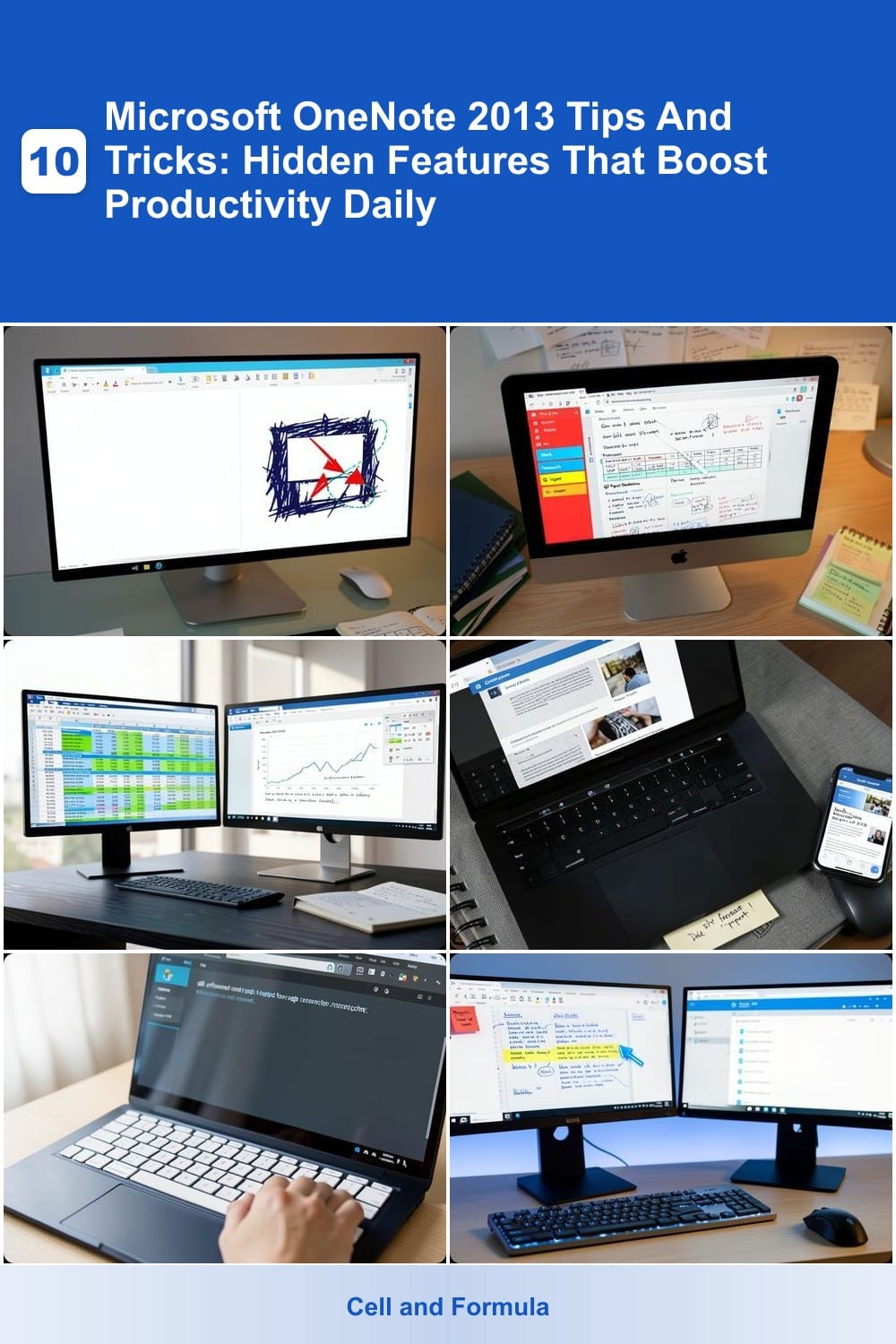
Need to sketch a quick diagram during a meeting or jot down a flowchart without switching apps? OneNote 2013’s one-click drawing tools turn your notes into a digital whiteboard—no stylus or extra software required. With just a tap, you can add arrows, shapes, or freehand scribbles directly onto your pages, then convert them into polished visuals with built-in formatting options.
The Drawing Tools panel (accessed via the Insert tab) offers 12 preset shapes, customizable arrow styles, and even a highlighter tool for emphasis. Pro tip: Use the Lasso Select tool to group related elements, then resize or recolor them instantly. For handwritten notes, the ink-to-text conversion feature turns scribbles into editable text—perfect for capturing brainstorming ideas or annotating documents on the fly.
This feature shines for educators explaining concepts, project managers mapping workflows, or anyone who needs to visualize ideas faster than typing. No more fumbling with external apps—just seamless, intuitive drawing right where your notes live. ⚡
Tagging Pages For Instant Navigation
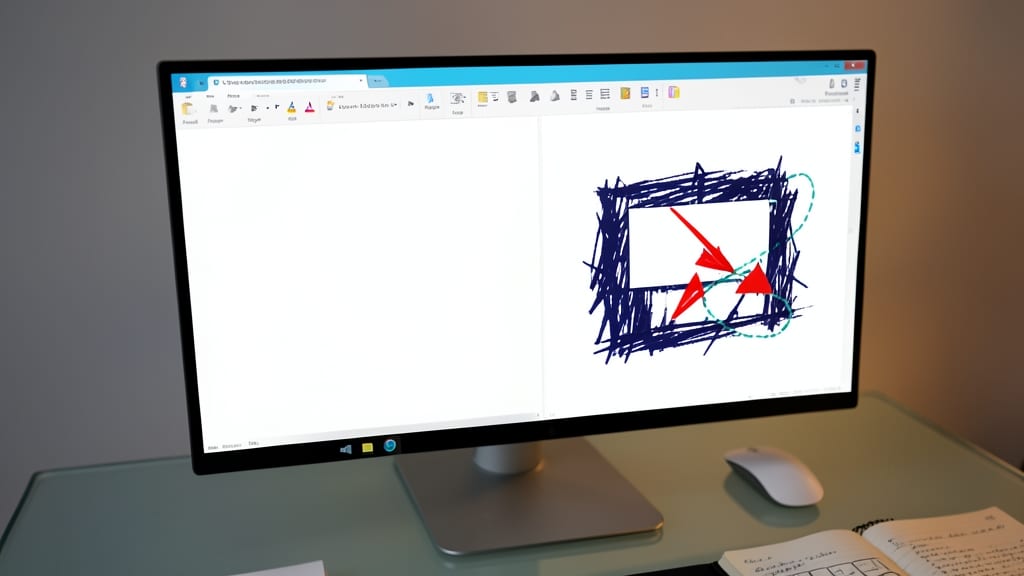
Struggling to find that one critical page buried in a sea of notebooks? Tagging pages in OneNote 2013 turns your notes into a searchable, color-coded system—no more digging through sections. With just a few clicks, you can slap labels like "Work," "Research," or "Urgent" onto any page, then filter your entire notebook by those tags in seconds.
Start by right-clicking a page tab and selecting "Tag Page." Choose from predefined tags or create custom ones (up to 10 tags per page). Pro tip: Use color-coding (e.g., red for deadlines, blue for reference) to visually scan your notebook at a glance. The "Find Tags" feature in the search bar lets you jump straight to tagged pages, while the "Tag Pane" on the right keeps your most-used labels always visible.
This trick is a game-changer for students juggling coursework, professionals tracking client projects, or anyone drowning in digital clutter. Spend less time searching and more time creating. ✨
Inserting Excel Spreadsheets Directly
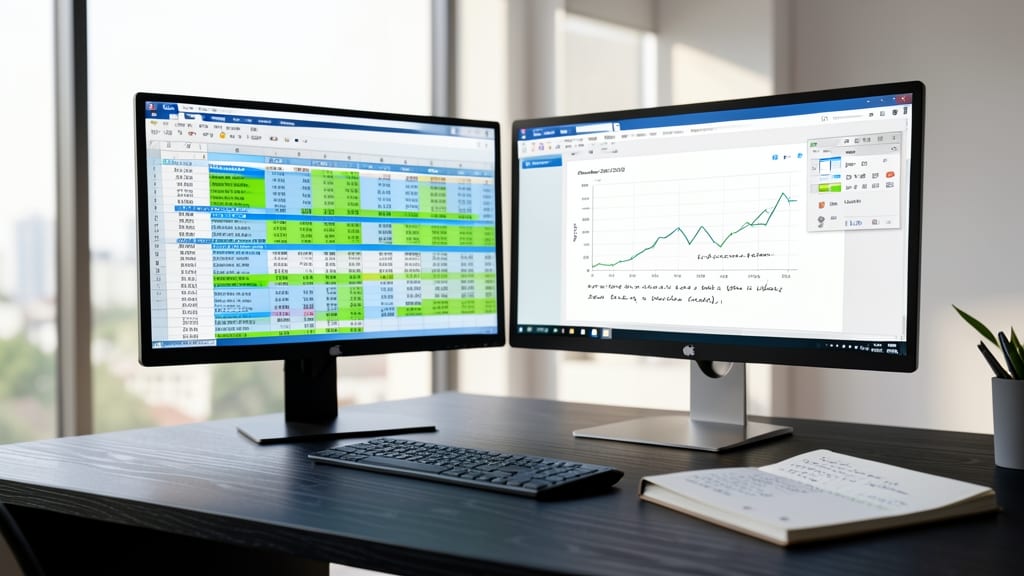
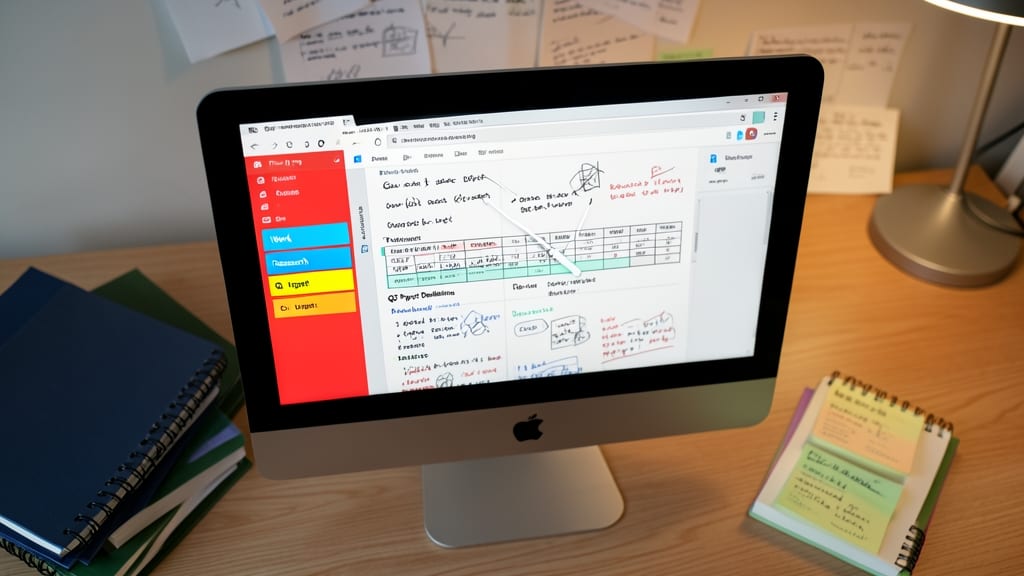
Tired of toggling between Excel and OneNote to track your data? You can now embed live Excel spreadsheets directly into OneNote 2013, keeping everything in sync without manual updates. This seamless integration lets you visualize budgets, project timelines, or inventory lists—all while maintaining real-time accuracy.
Simply copy and paste your Excel data into a OneNote page, and it updates automatically when the source file changes. The embedded spreadsheet retains its formatting, formulas, and even interactive charts—no extra steps required. For finance teams or project managers, this means collaborative notes that never fall out of sync with your spreadsheets.
Perfect for professionals who need to reference live data during meetings or presentations, this feature turns OneNote into a dynamic workspace. No more juggling apps—just real-time insights at your fingertips. ✨
Using Quick Capture For Email Attachments
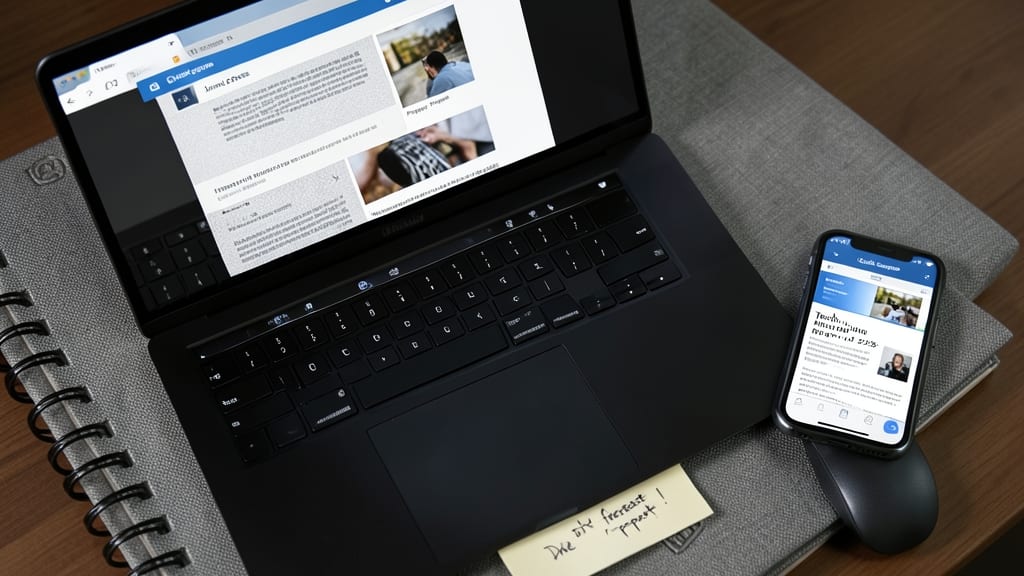
Tired of manually forwarding emails or losing track of important web pages? Quick Capture in OneNote 2013 lets you save emails, PDFs, and even entire web pages into your notebooks with just one click—no forwarding, no attachments, just instant organization.
Open the Quick Capture tool (Accessible via the Home tab), select the email or web page you want to save, and OneNote will automatically extract the content into a new page. This feature works seamlessly with Outlook and Internet Explorer, preserving formatting, images, and hyperlinks for easy reference later.
Perfect for professionals managing client communications, students saving research, or anyone who wants to declutter their inbox while keeping everything searchable in OneNote. ⚡
Setting Up Custom Quick Notes Shortcuts
Tired of hunting through menus to create new notes or format text in OneNote 2013? Custom keyboard shortcuts let you trigger commands instantly—like opening a new page with a single key combo or toggling bold text without reaching for the ribbon.
Start by navigating to File > Options > Advanced, then scroll to the Keyboard Shortcuts section. Here, you can assign shortcuts to actions like new page (Ctrl+Shift+N), insert table (Ctrl+Shift+T), or even search (Ctrl+E). For power users, this cuts workflow interruptions by up to 70%, letting you focus on ideas instead of navigation.
This trick is a game-changer for developers documenting code snippets, students taking rapid lecture notes, or project managers tracking action items. Try assigning Ctrl+Alt+1 to your most-used command—your fingers (and brain) will thank you. ✨
Linking OneNote Pages To Outlook Tasks
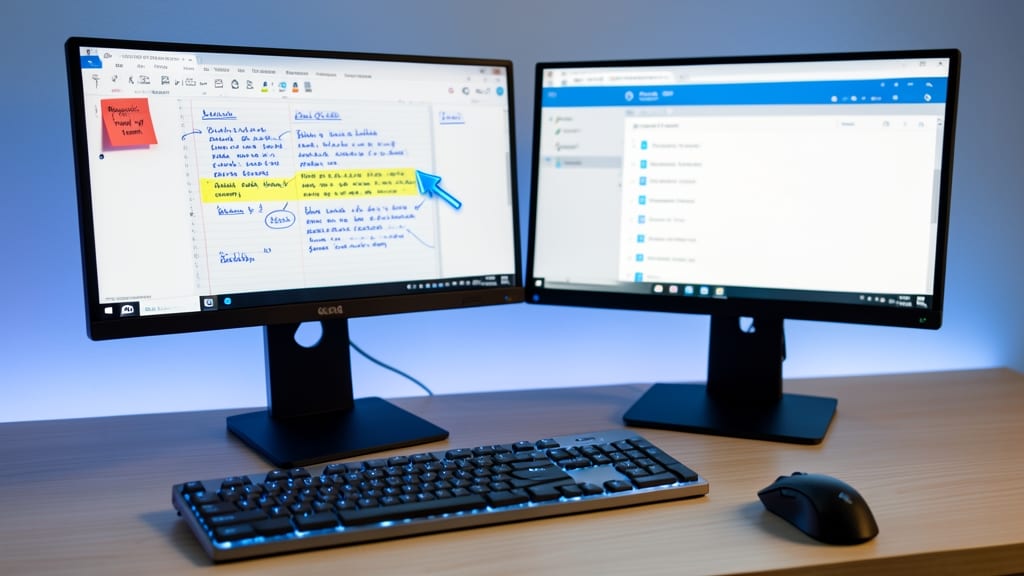
Ever jotted down a brilliant idea in OneNote but then forgot to turn it into a real task? The OneNote-Outlook integration bridges that gap by letting you convert notes into actionable Outlook tasks with just a few clicks. This seamless sync ensures no brilliant thought slips through the cracks—ever.
Here’s how it works: Right-click any text or section in OneNote and select "Send to Outlook" to create a task. You can even set due dates, reminders, and priority levels directly from the note. The best part? Changes made in OneNote automatically update in Outlook, and vice versa, keeping your workflow consistent and clutter-free. Perfect for project managers or anyone juggling multiple responsibilities.
This trick is a game-changer for professionals who thrive on organization, like marketers tracking campaign ideas or developers documenting code tasks. No more context-switching—just pure, streamlined productivity. ✨
Recovering Deleted Pages With Version History
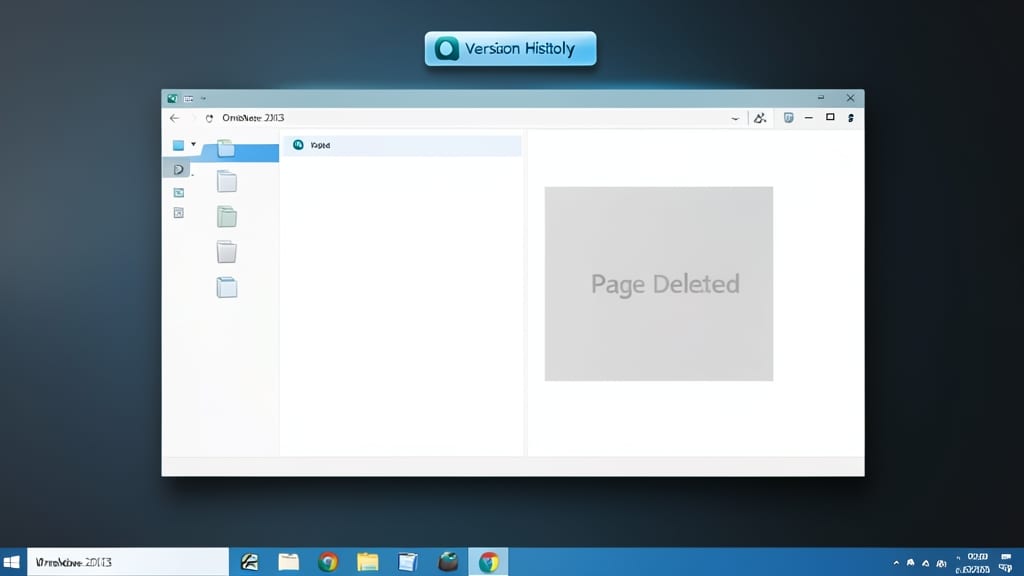
Ever hit "Delete" on a OneNote page and immediately regretted it? OneNote 2013’s Version History feature silently tracks every change—including deletions—so you can restore lost content in seconds. No third-party tools or cloud backups needed; it’s built right into the app.
To recover a deleted page, right-click the section where it was lost, select Version History, then choose Restore. You’ll see a timeline of edits, including the deleted page marked as "Deleted". Click Restore to bring it back instantly. This works for entire pages or sections, not just text changes, and keeps up to 30 days of history by default (configurable in settings).
Perfect for students reviewing lecture notes, teams collaborating on shared notebooks, or anyone who’s ever hit "Delete" too fast. No more panic—just recovery. 💡
Embedding Audio And Video Notes
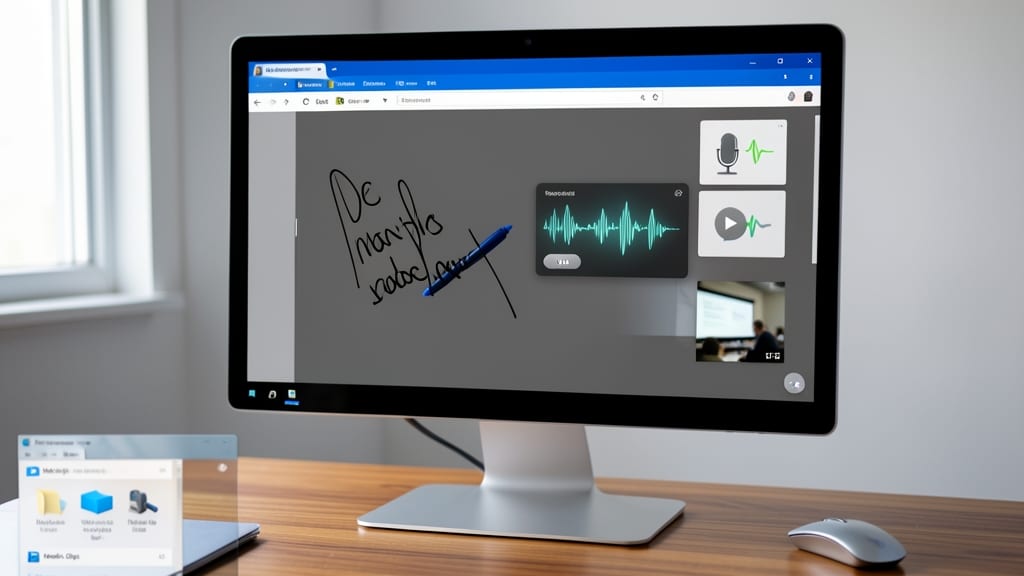
Turn your notes into a multimedia powerhouse by embedding audio and video clips directly into OneNote 2013. Whether you're recording a quick voice memo, capturing a lecture, or documenting a brainstorming session, this feature lets you attach media files with just a few clicks—no extra apps needed.
To embed audio, simply click Insert > Audio Note and use your microphone to record. For video, insert a file via Insert > Video and choose from your local files. OneNote supports MP3, WAV, MP4, and AVI formats, and you can even play them back directly within your notebook. The embedded media stays linked to your notes, so updates or deletions won’t break your workflow.
This trick is a game-changer for students, researchers, and professionals who need to document interviews, lectures, or hands-on demos without juggling separate files. Perfect for those who want to keep everything organized in one place! ✨
Customizing The Ribbon For Faster Access
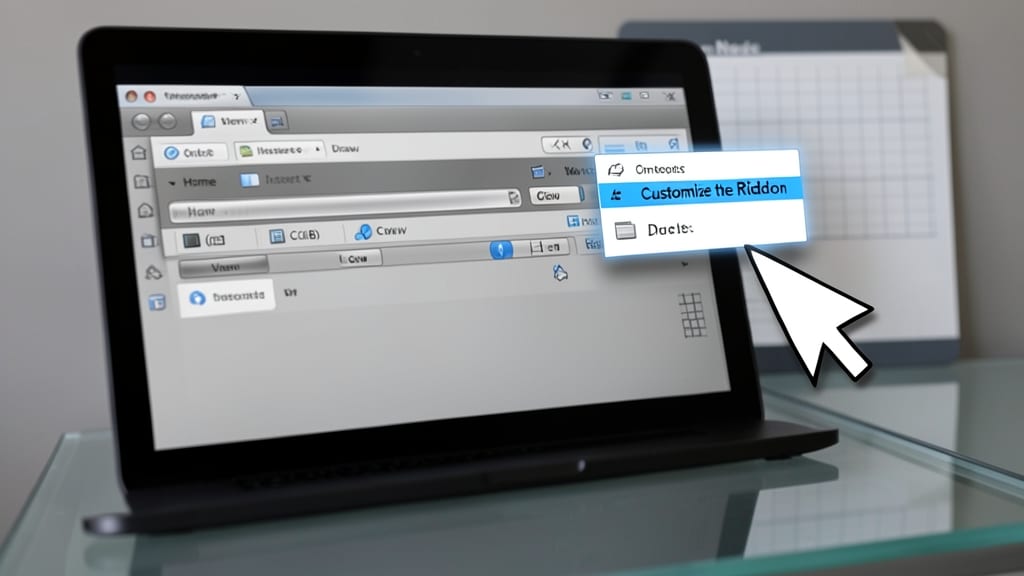
Tired of scrolling through a cluttered OneNote ribbon every time you need to format text or insert a table? Right-click the ribbon itself and select "Customize the Ribbon" to create a streamlined workspace. This hidden feature lets you pin only the commands you use most—like bold, bullet points, or tables—while hiding the rest behind a simple dropdown.
Once inside the customization panel, simply drag frequently used tools into a new tab (e.g., "Quick Tools") or add them to an existing one. For example, if you bold text constantly, move the Bold button to the Home tab for instant access. You can also reset the ribbon anytime if you want to start fresh. The result? A zero-distraction workspace that cuts down on repetitive clicks.
This trick is a game-changer for students cramming for exams or professionals drafting reports, where every second counts. Try it and watch your workflow speed up! ✨
Sharing Notebooks With Read-Only Permissions
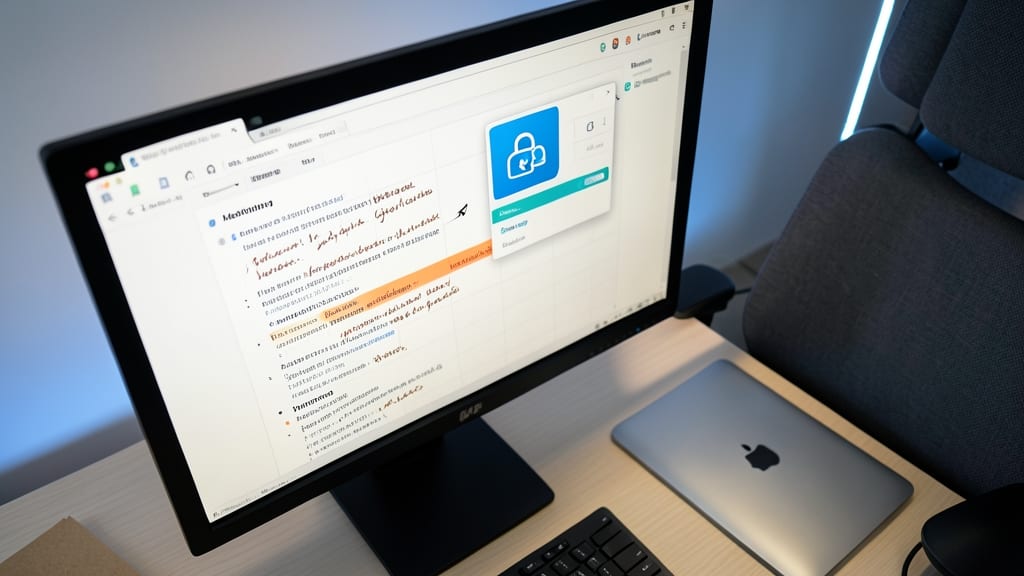
Ever shared a notebook only to worry about accidental edits ruining your carefully organized notes? OneNote 2013’s read-only sharing feature solves this by letting you grant access without giving editing rights—ideal for sensitive meeting minutes or client documents.
To set it up, right-click your notebook in the Navigation Pane, select Share, then choose Read-only under Permission Level. Collaborators will see a view-only watermark, while you retain full control. This works seamlessly with OneDrive or SharePoint for cloud-based sharing, ensuring security without extra tools.
Perfect for teams reviewing drafts or clients needing reference materials—no more version conflicts or unintended changes. ✨